


Learn BrokerPromote.One step at a time.
Every feature in short steps, with a picture of each step and a video if you'd rather watch. Start with the tour, then go straight to the part you need.

Getting started: the menu, Home, search and All tools
Find your way around: the menu, Home, search and every tool in one place.

-
The menu
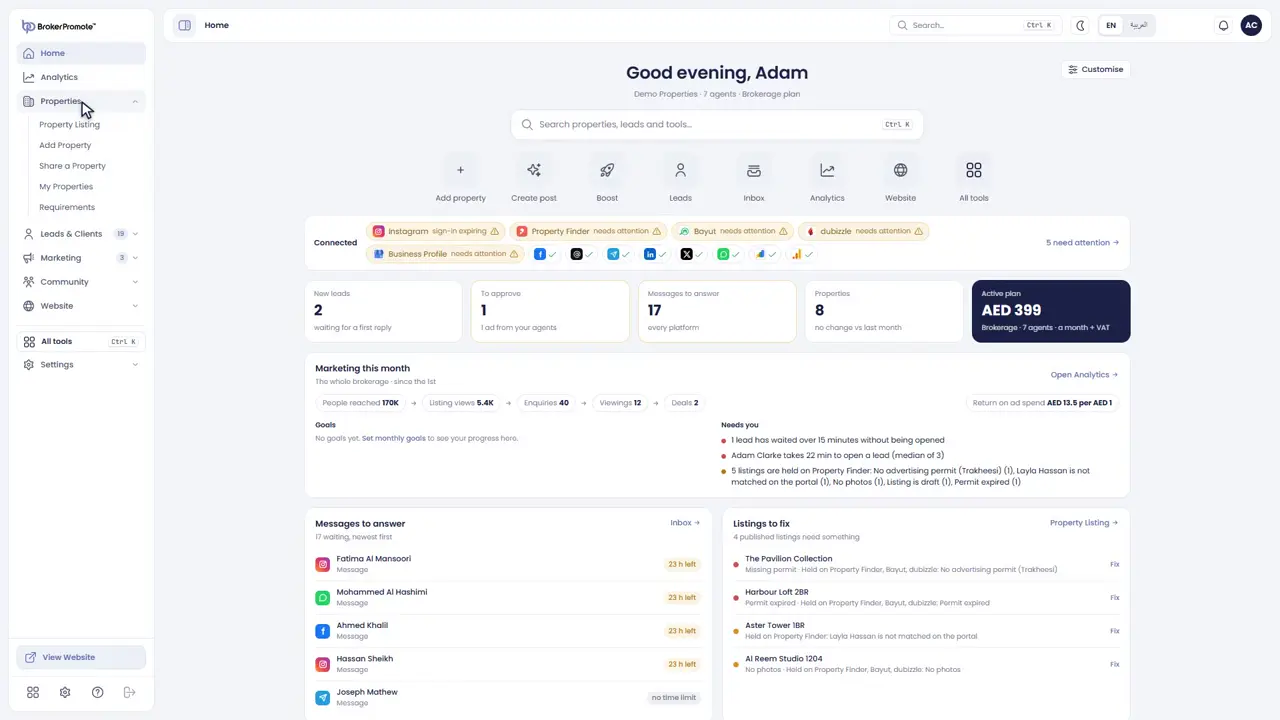
Welcome to BrokerPromote. Let's take a quick tour. The menu on the left holds seven sections. Click a section to see its pages.
-
Home
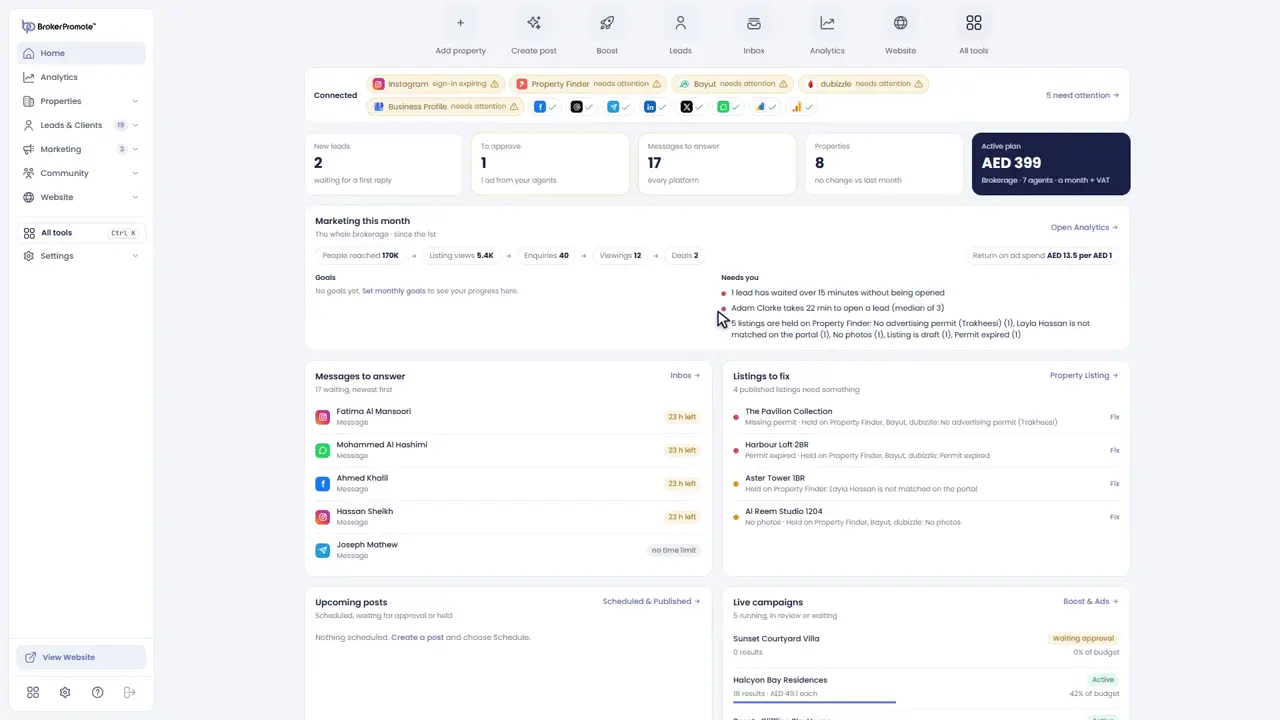
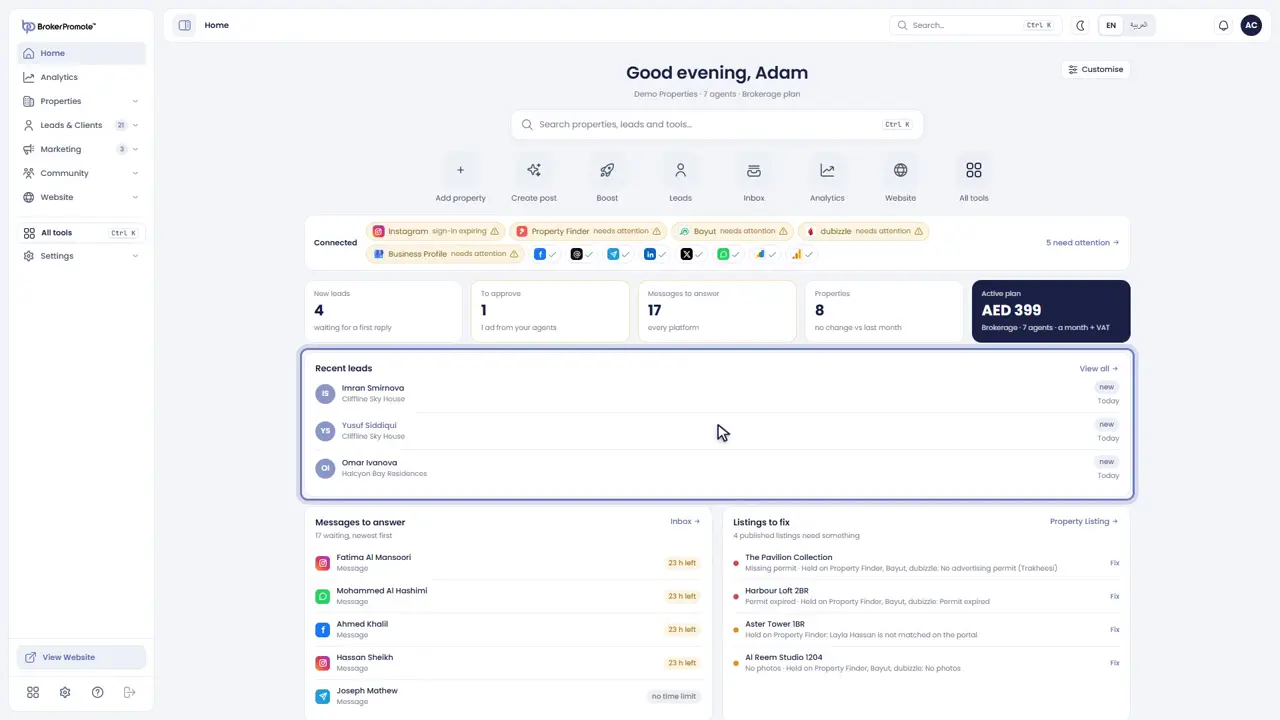
Home is your day at a glance. The top row shows what needs you: new leads, posts to approve and messages to answer. Below are this month's marketing numbers and the listings that need fixing.
-
Quick actions
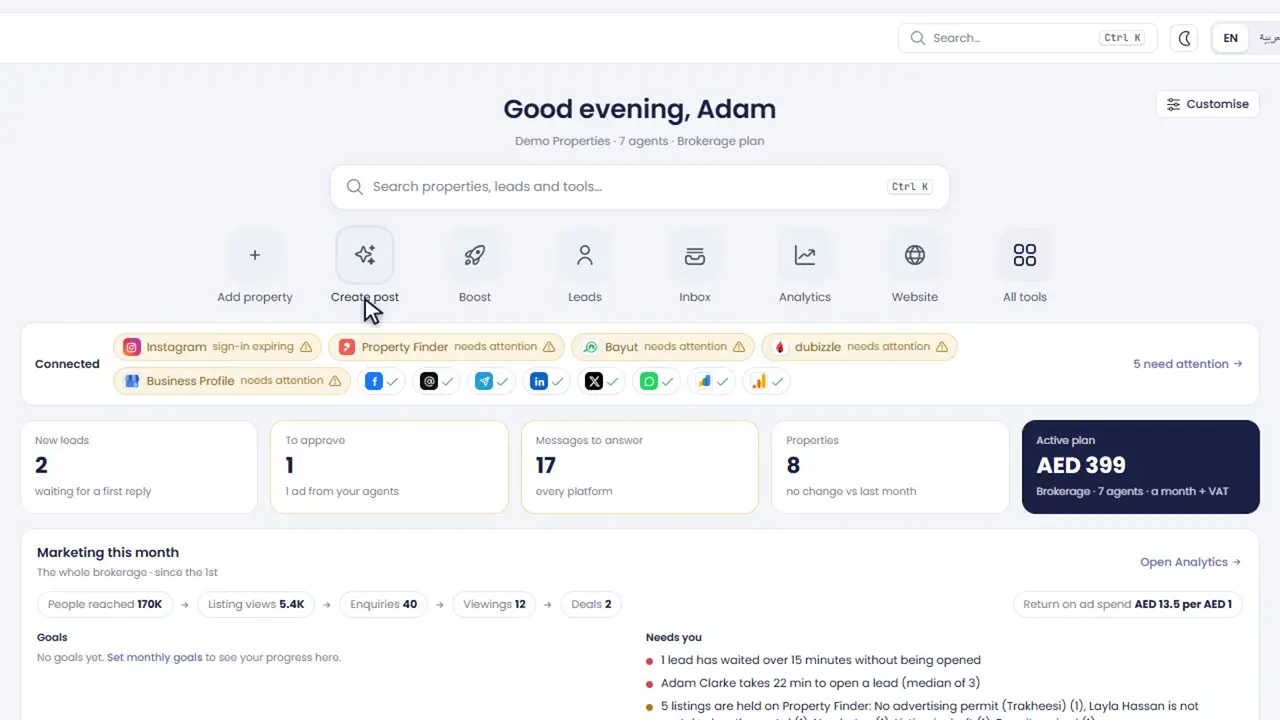
The shortcuts under the search box take you straight to everyday jobs, like adding a property, creating a post or boosting one.
-
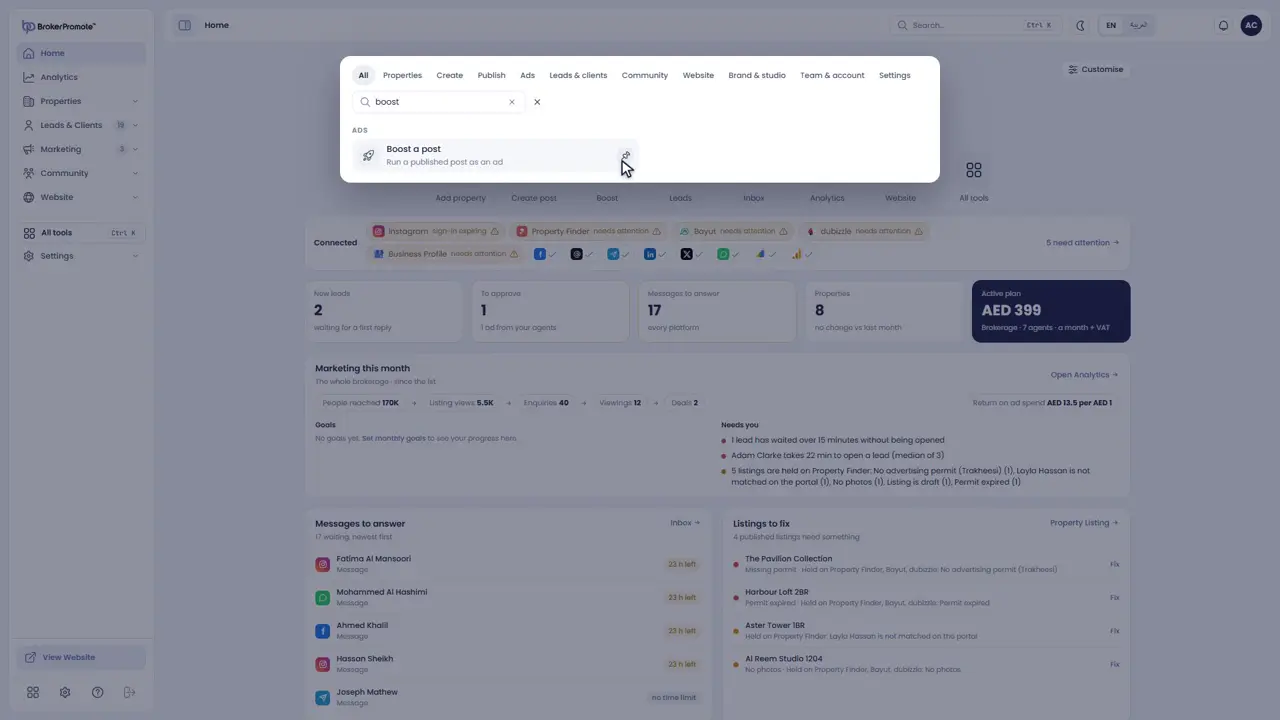
Search
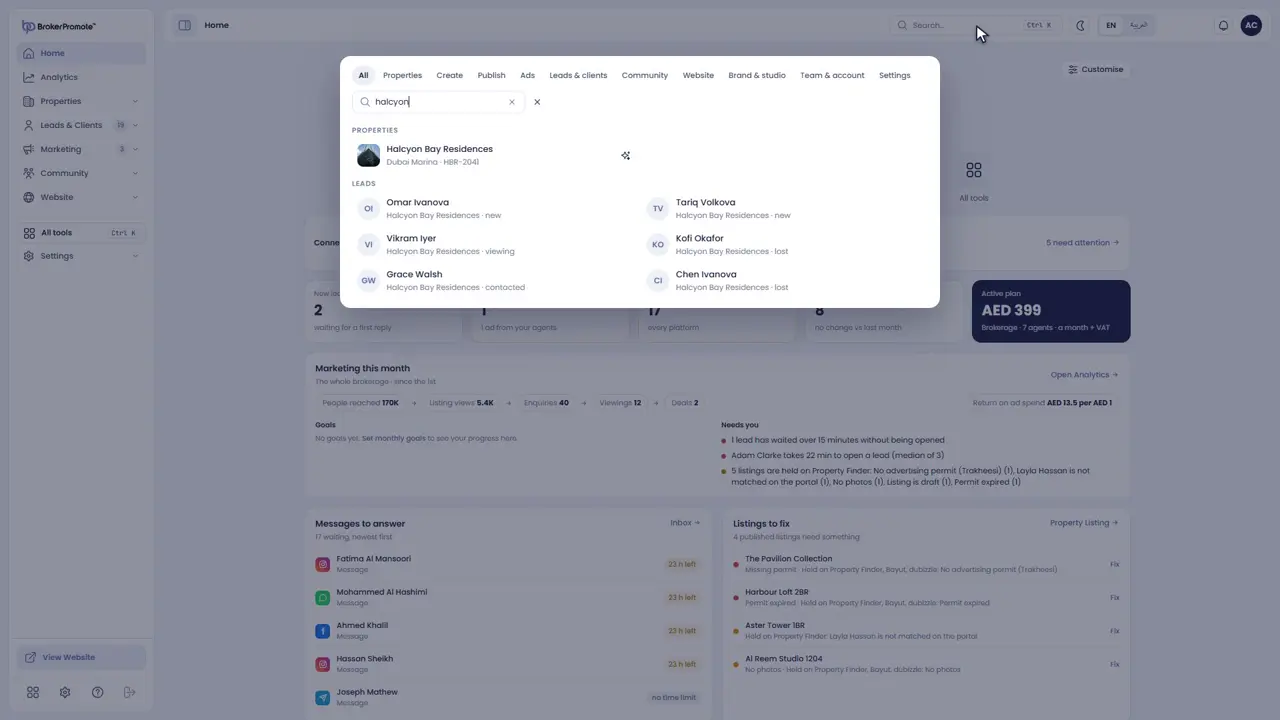
Search from the box at the top, or press Control K. It finds properties, leads and tools.
-
All tools
All tools opens every tool in one panel, grouped by job. Type to find one, and pin the tools you use most to your menu.
-
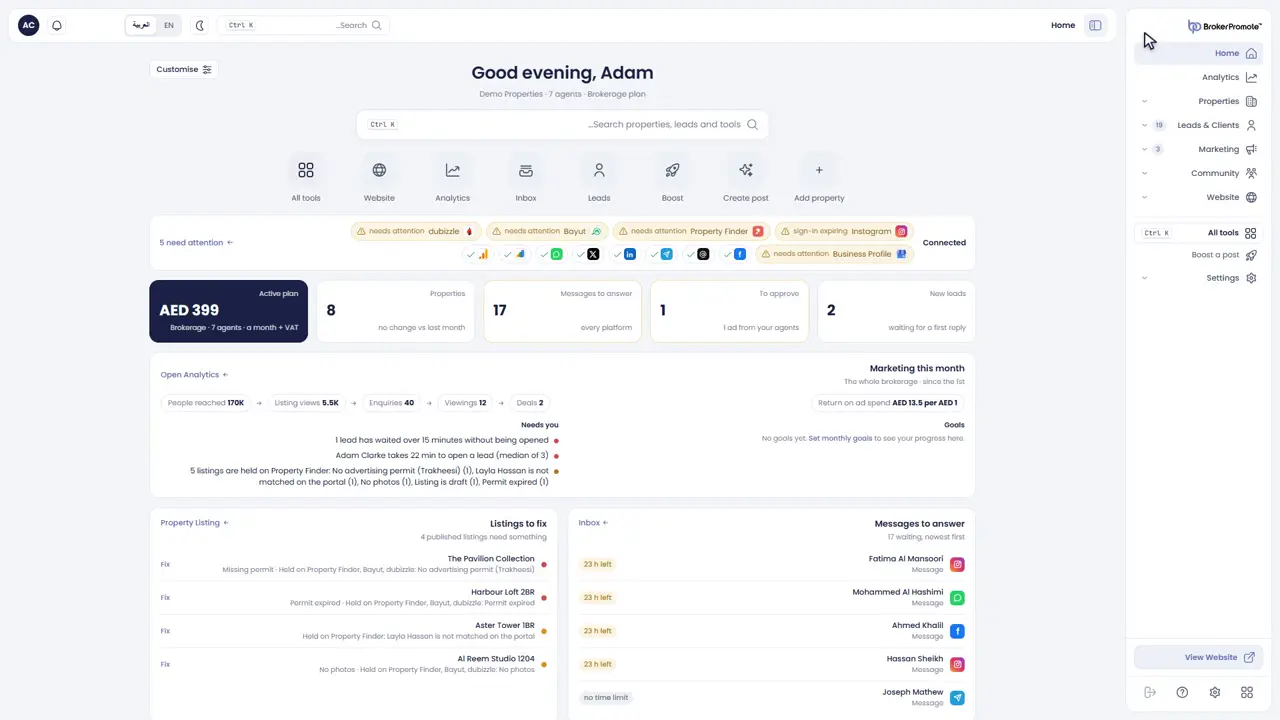
Language
Switch between English and Arabic at the top. In Arabic, the whole portal turns right to left.
Customise your Home
Choose the widgets on your Home, then order and size them.

-
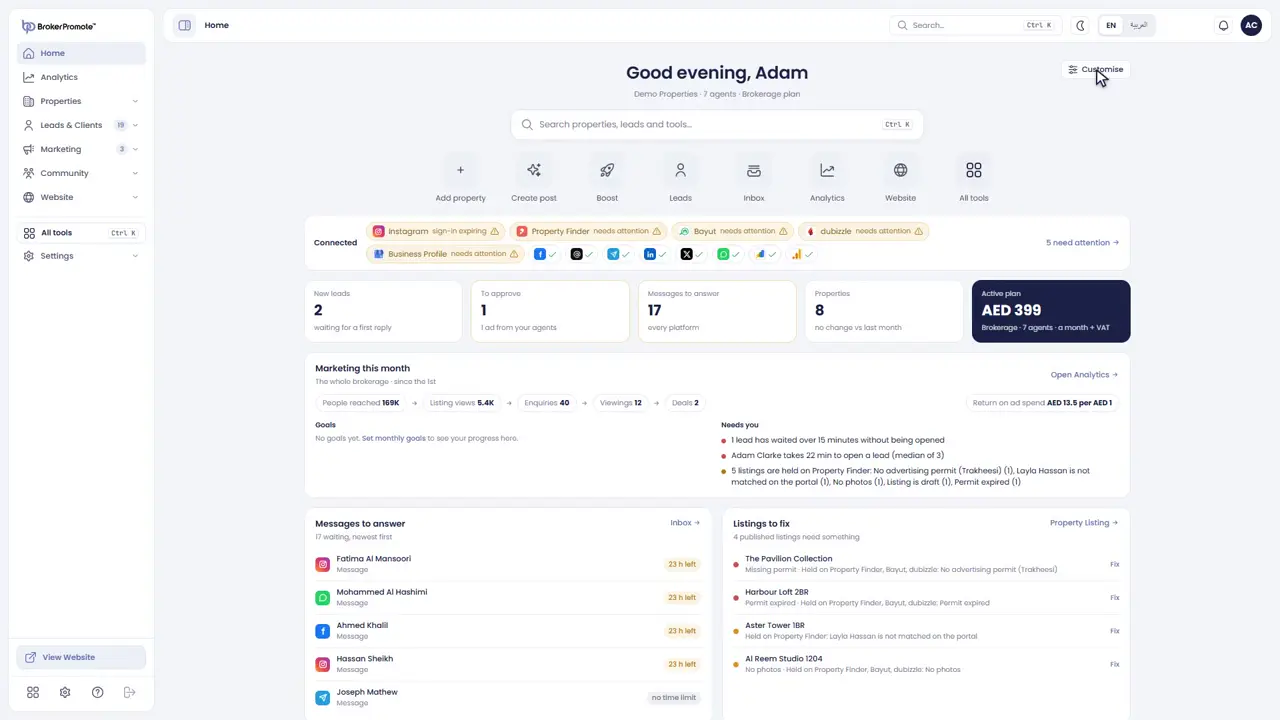
Open Customise
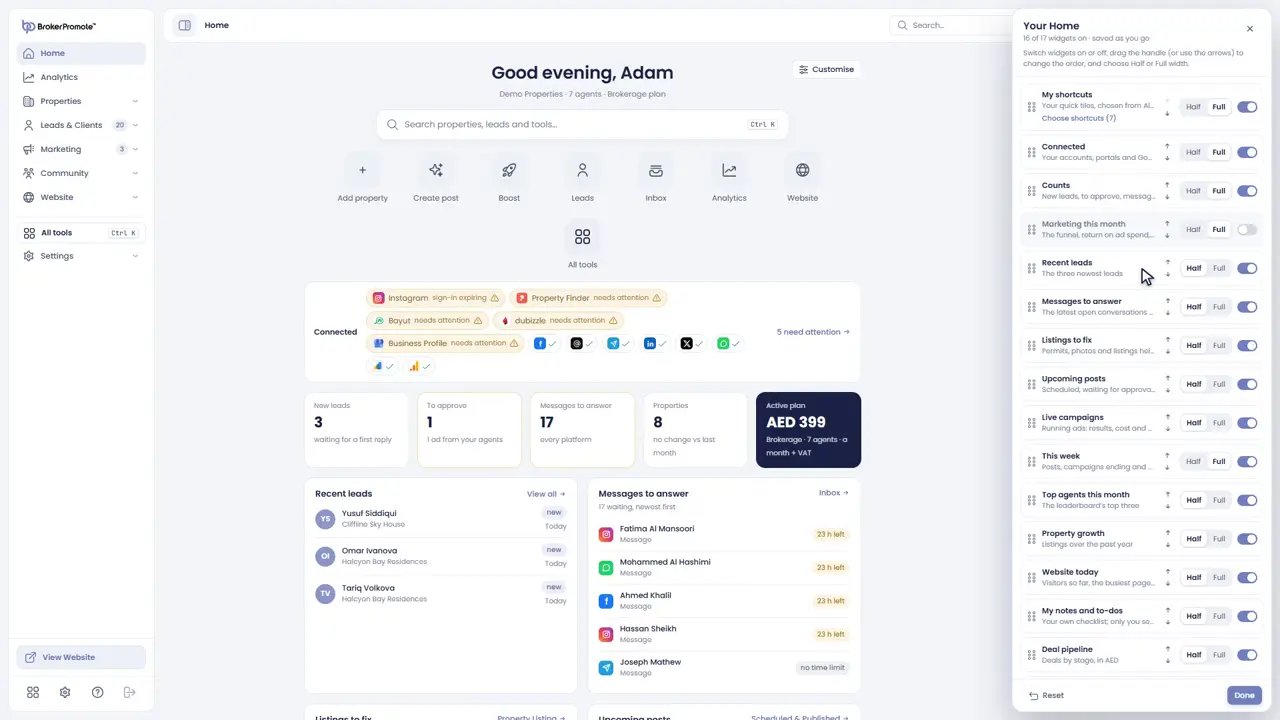
Home can show the widgets that matter most to you. Click Customise at the top right.
-
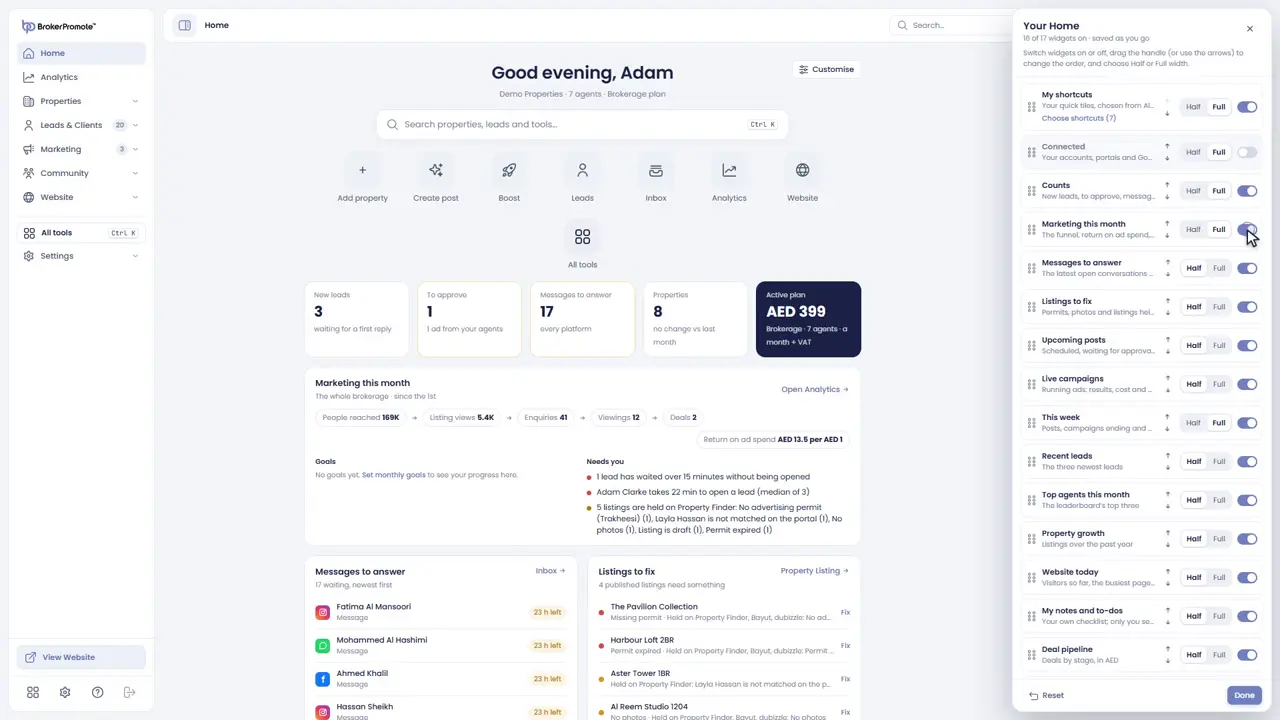
Choose widgets
Each widget has a switch. Turn on the ones you want and turn off the rest.
-
Order and size
Drag a widget to change its place, and choose how wide it is.
-
Your layout
Close the panel, and your layout is saved. Everyone on your team has a Home of their own.
Add a property
Add a listing in nine guided steps, from listing type to publishing.
-
Listing type
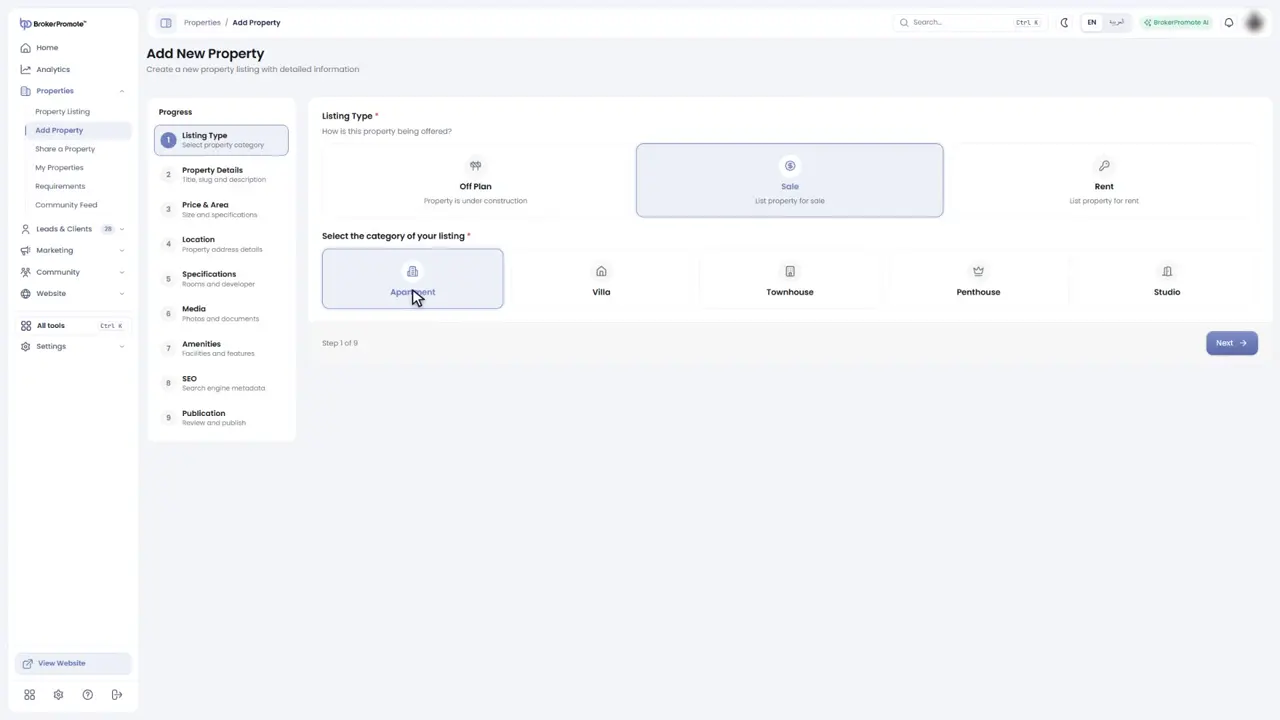
To add a listing, open Properties and choose Add Property. First, choose how it is offered, off-plan, sale or rent, and the type of property.
-
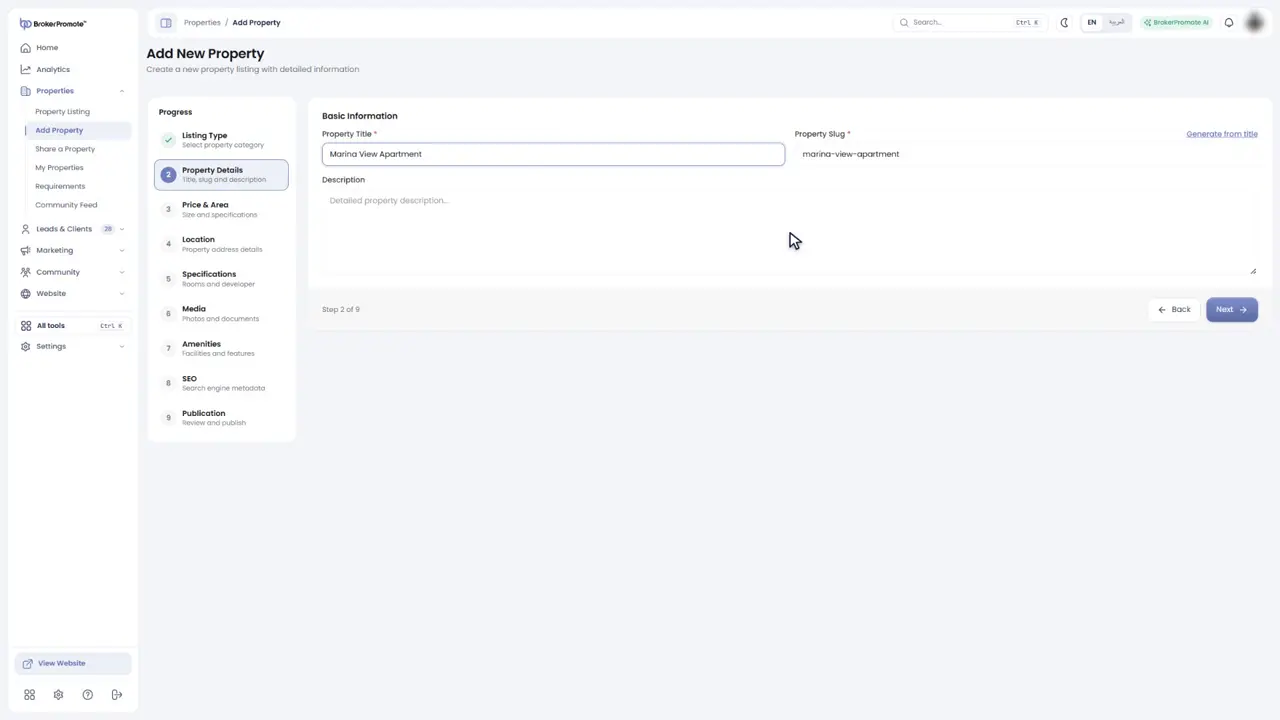
Property details
Give the listing a clear title and a description.
-
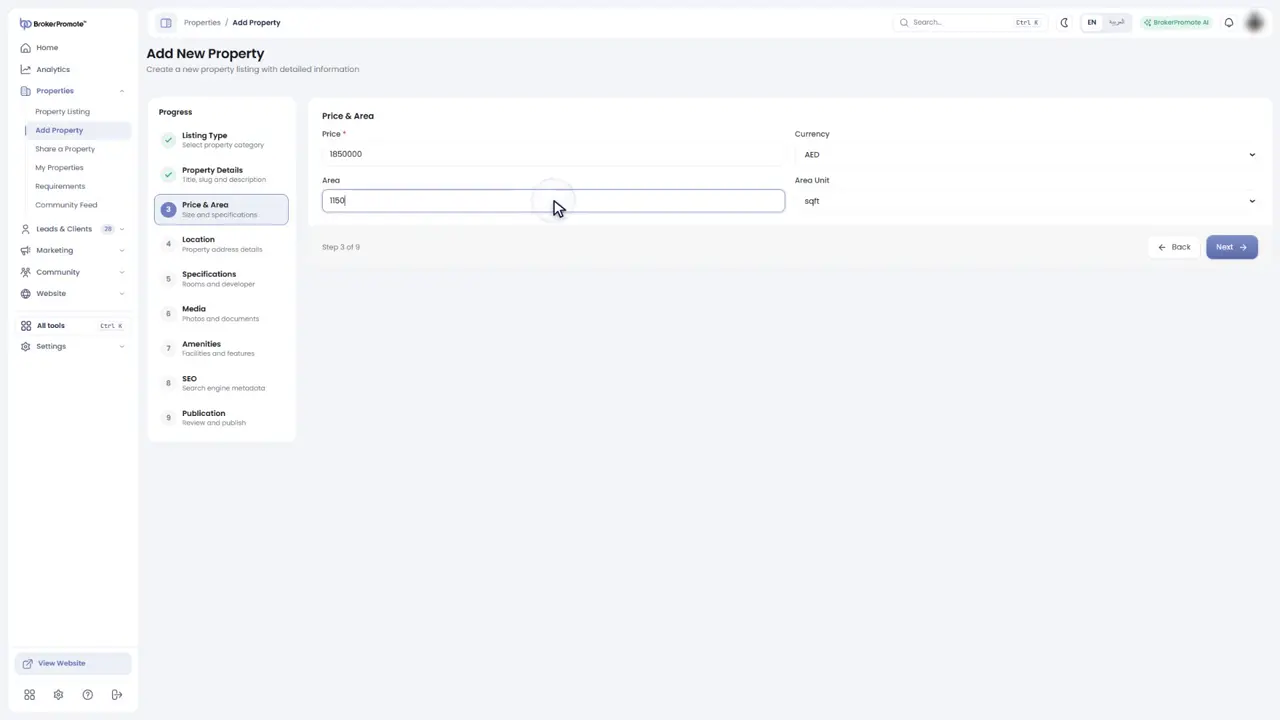
Price and area
Enter the price and the size.
-
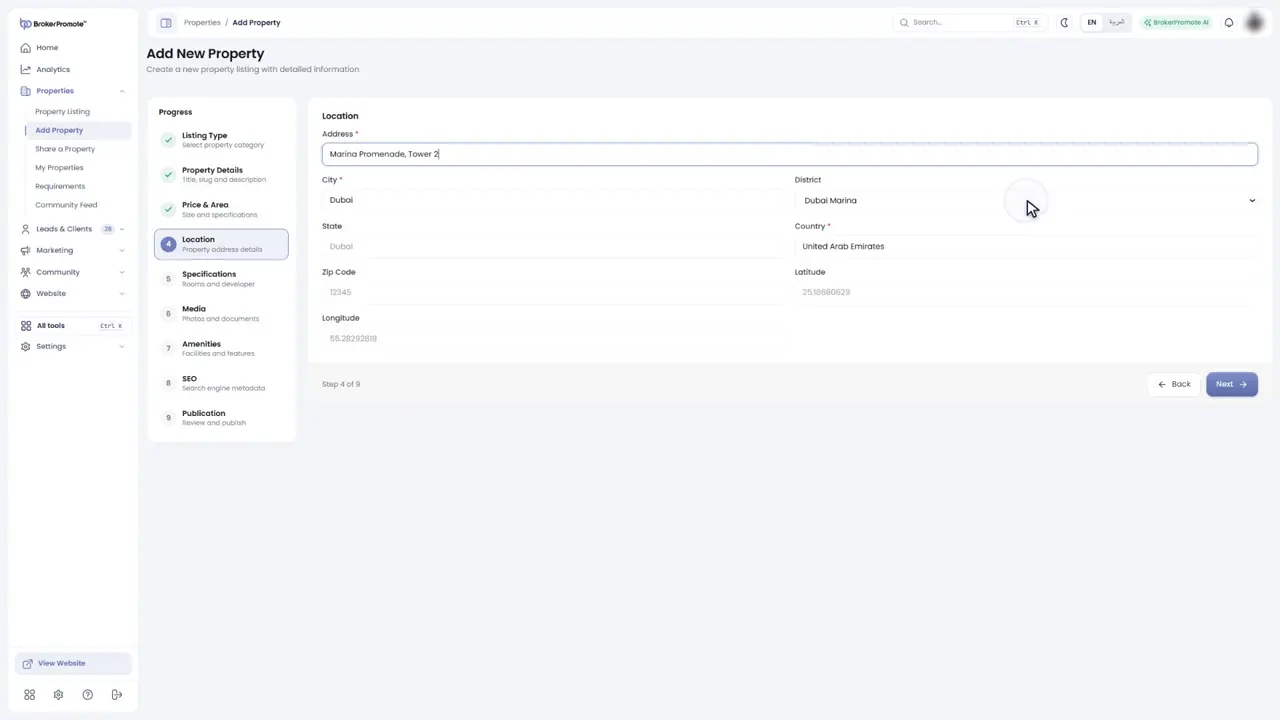
Location
Add the emirate, the community and the address.
-
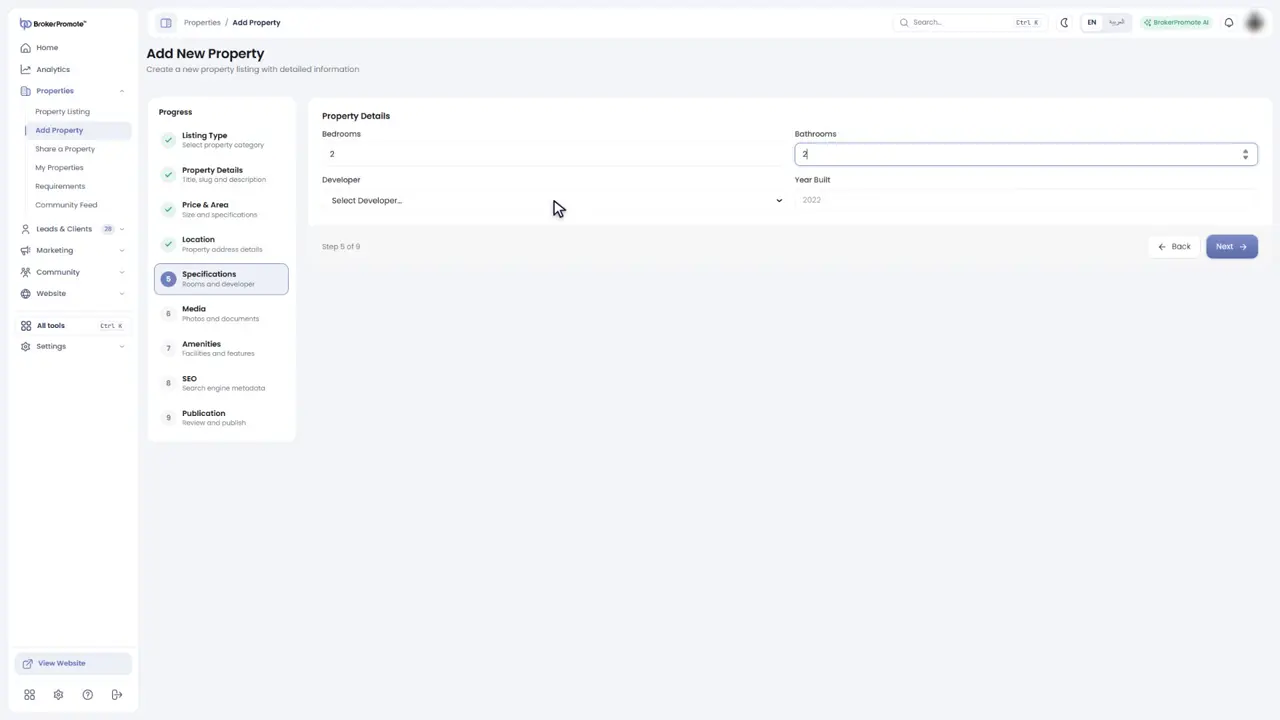
Specifications
Add the bedrooms, the bathrooms and the developer.
-
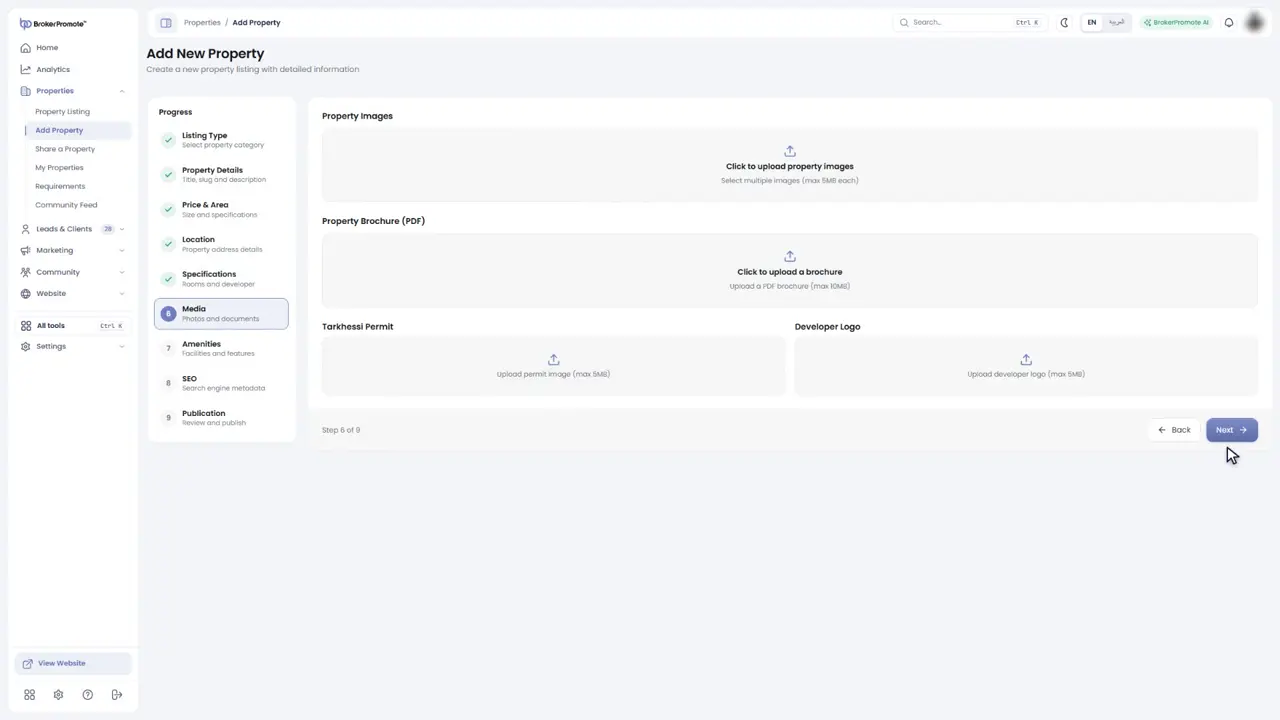
Media
Upload the photos, a brochure and the permit.
-
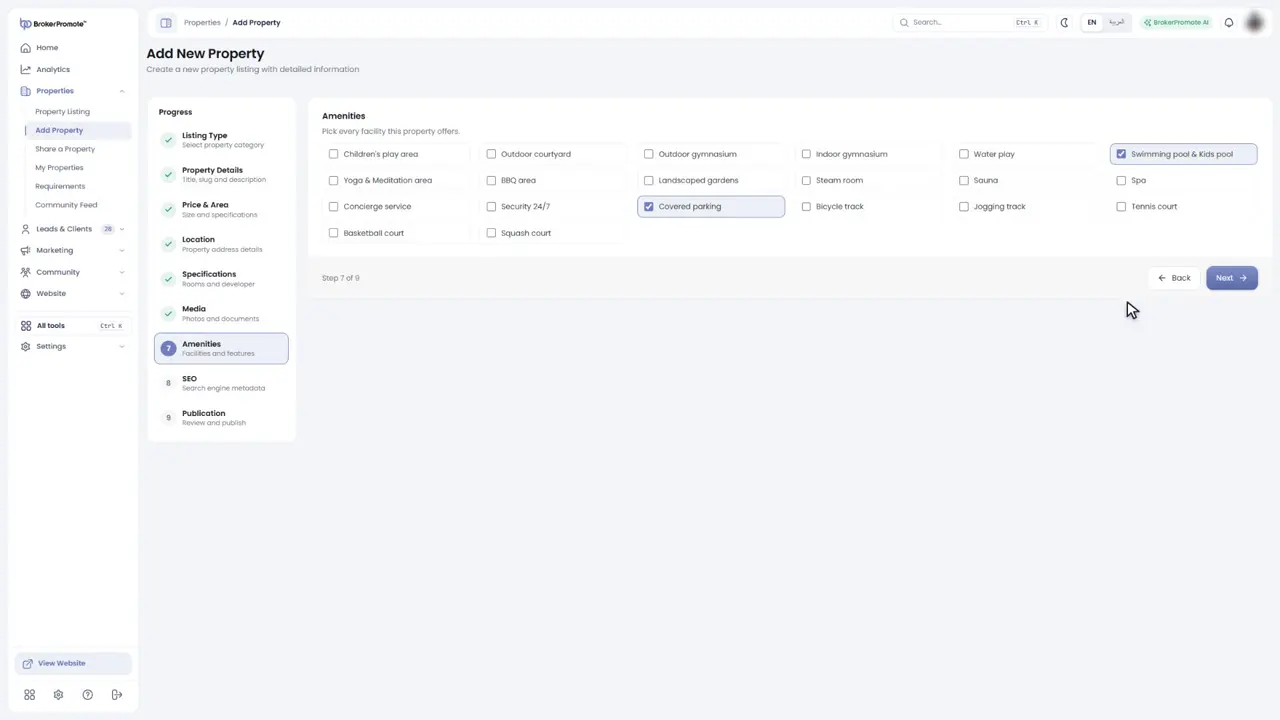
Amenities
Tick the facilities and features.
-
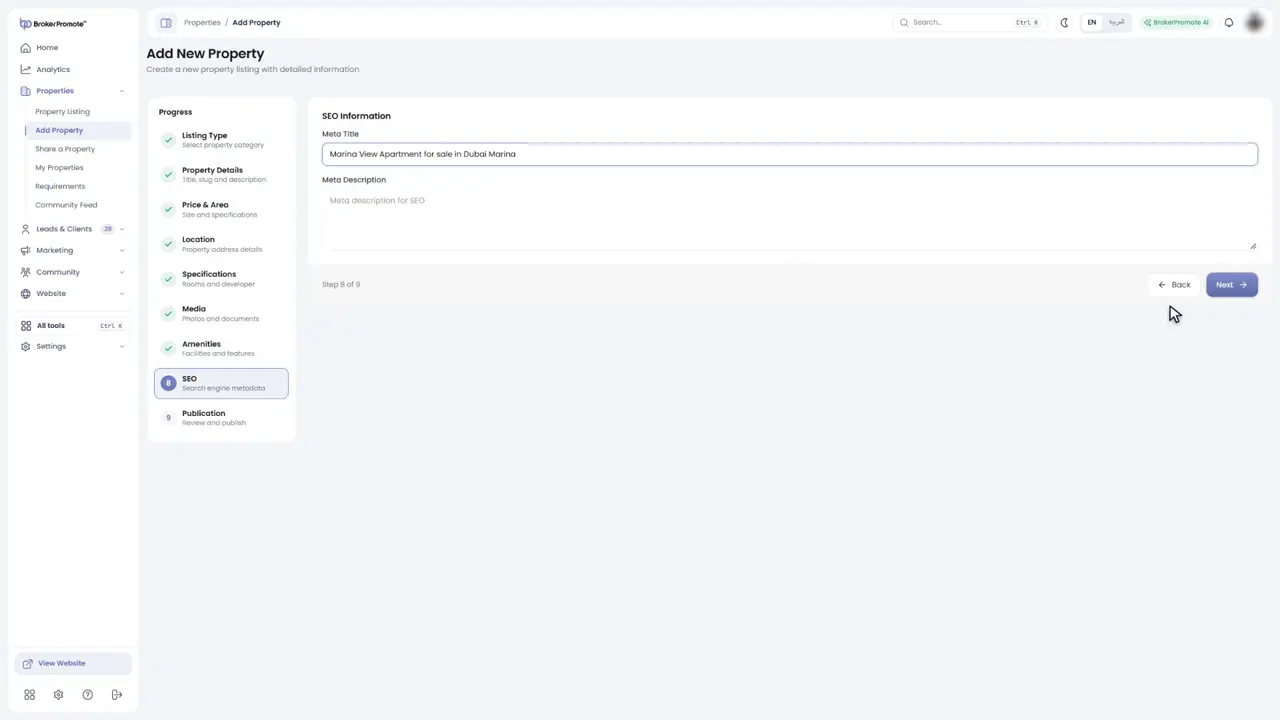
SEO
SEO sets how the listing appears in search engines.
-
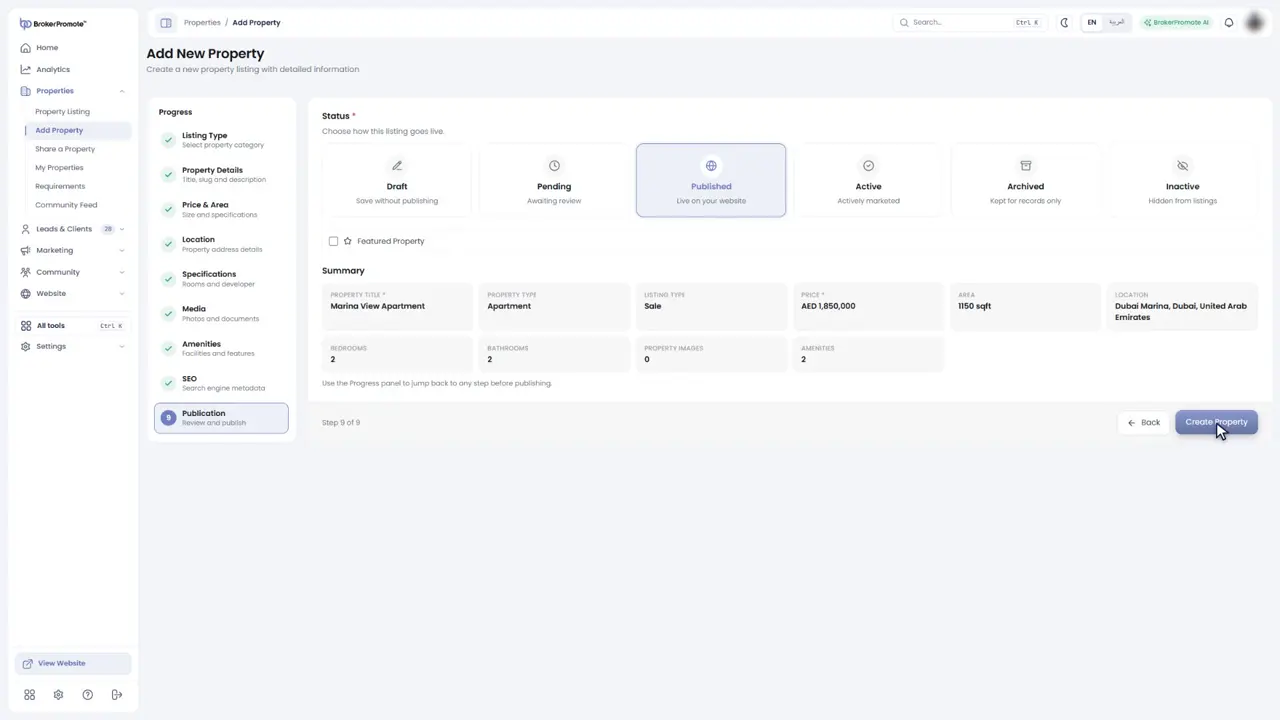
Publication
Finally, review everything and publish. The listing appears in Property Listing, ready to market.
Property Listing: views, filters and actions
Filter and search your listings, switch views and act on each one.

-
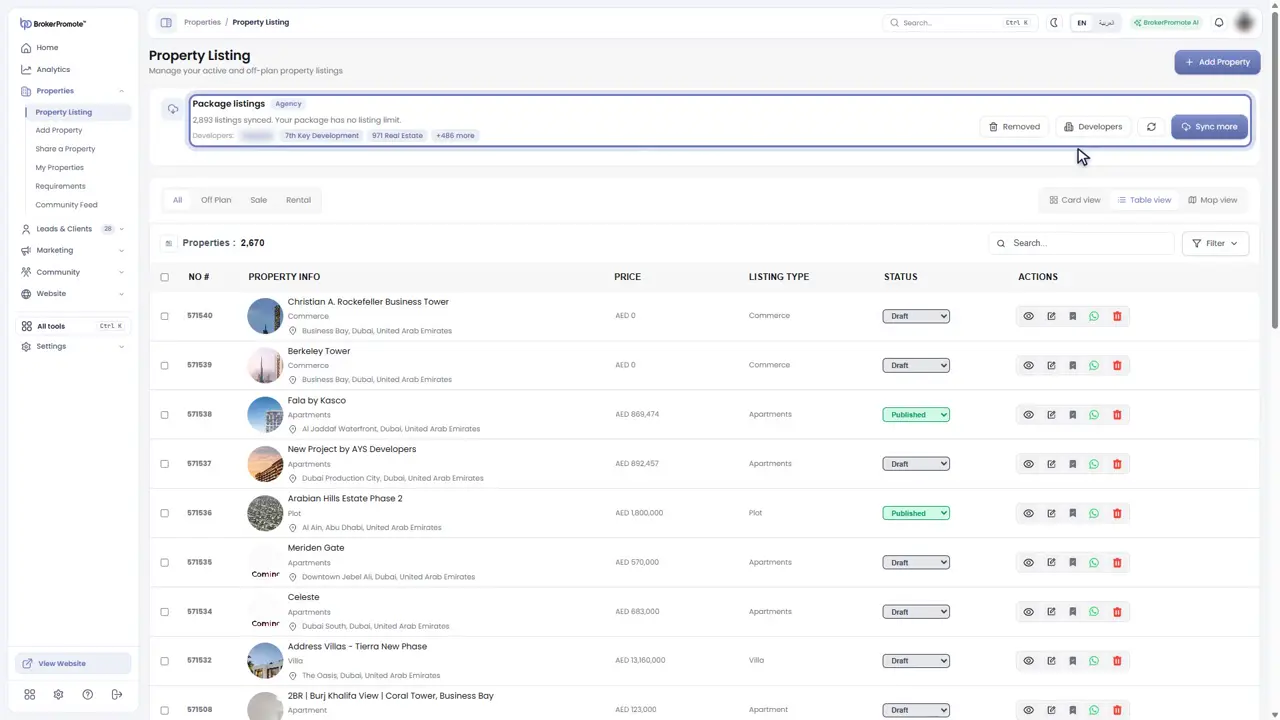
Your listings
Property Listing holds every listing in the brokerage: the projects synced from developers and the listings you add yourself.
-
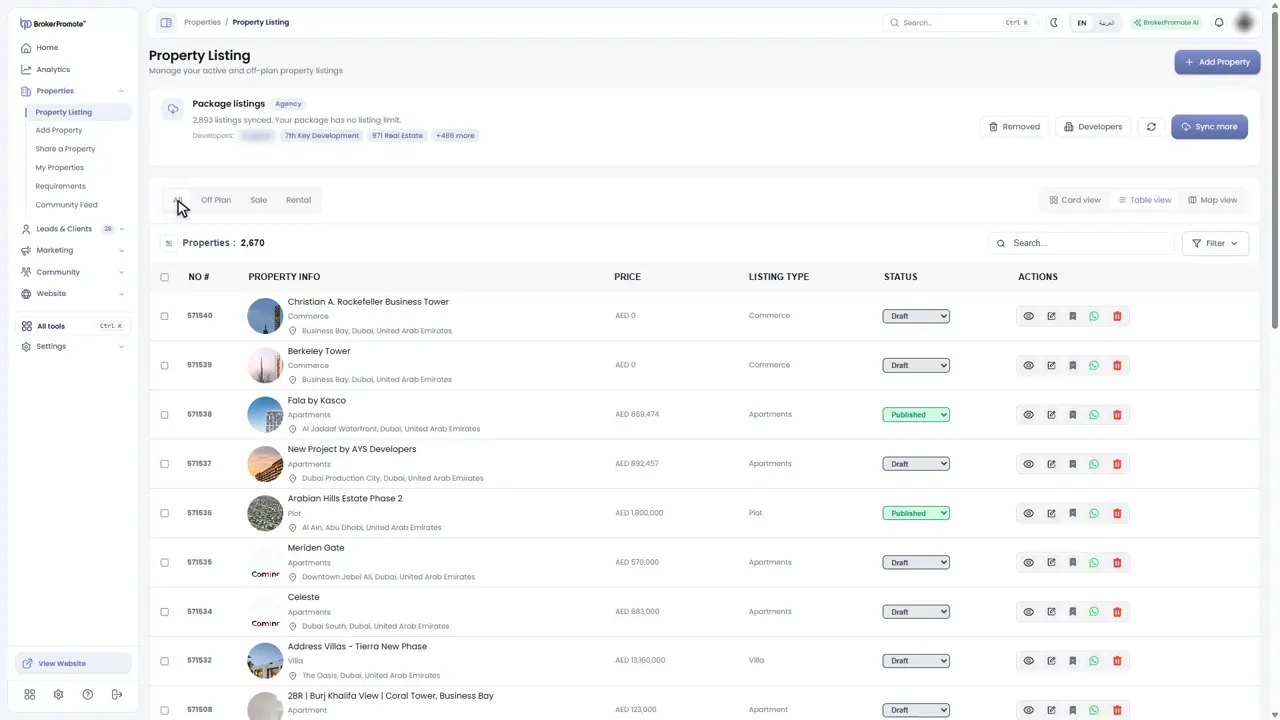
Filter and search
Filter by off-plan, sale or rental, or search by name.
-
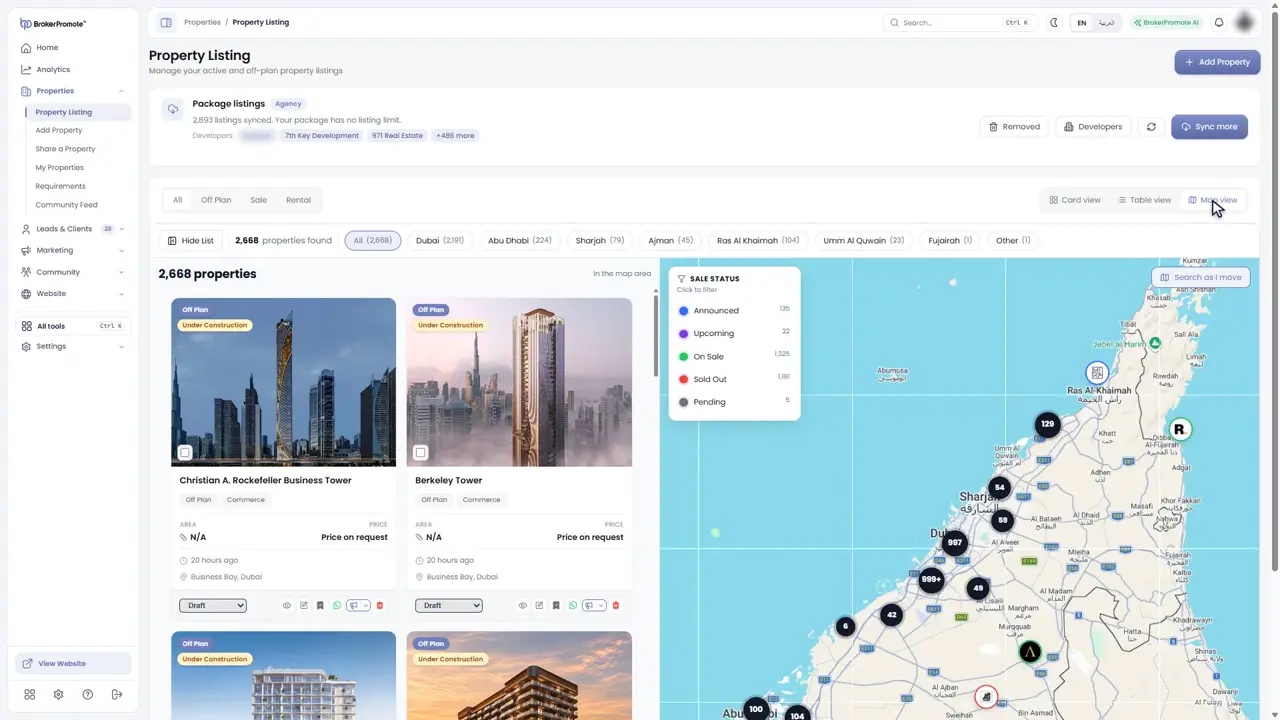
Three views
Switch between card view, table view and map view.
-
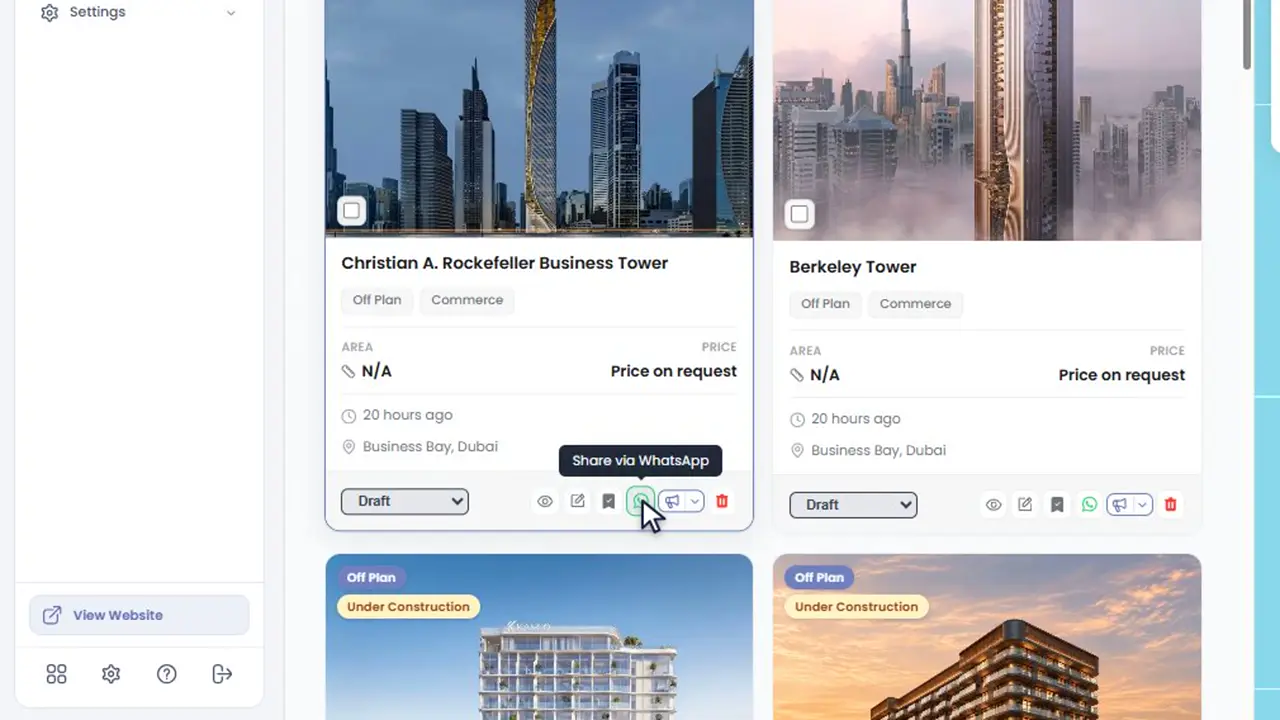
Each listing
From any listing you can view it, edit it, mark it as featured, share it on WhatsApp, or open it in Social Studio to make a post.
-
Developers' projects
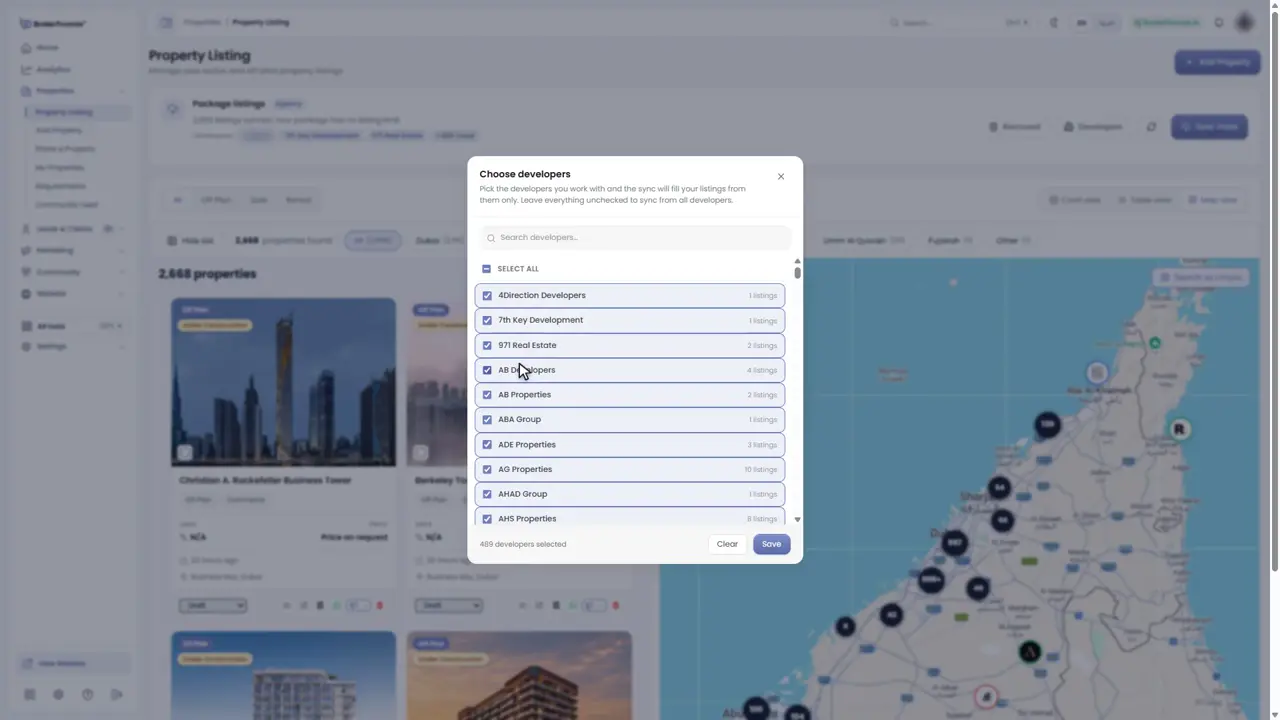
Developers shows the developers whose projects sync into your list automatically.
Create a post in Social Studio
Turn a listing into a post: choose a design, size and language, and publish.

-
Open Social Studio
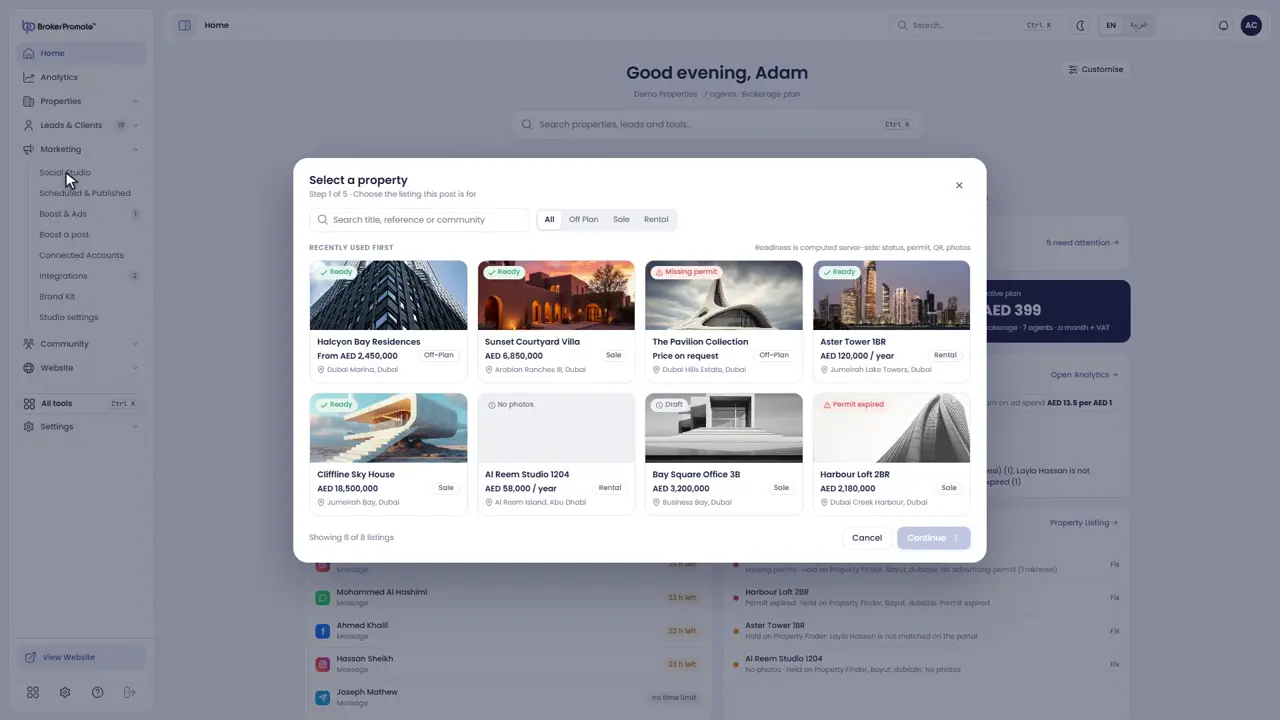
Social Studio turns any listing into a social media post. Open it from the Marketing menu, or with Create post on Home.
-
Choose the listing
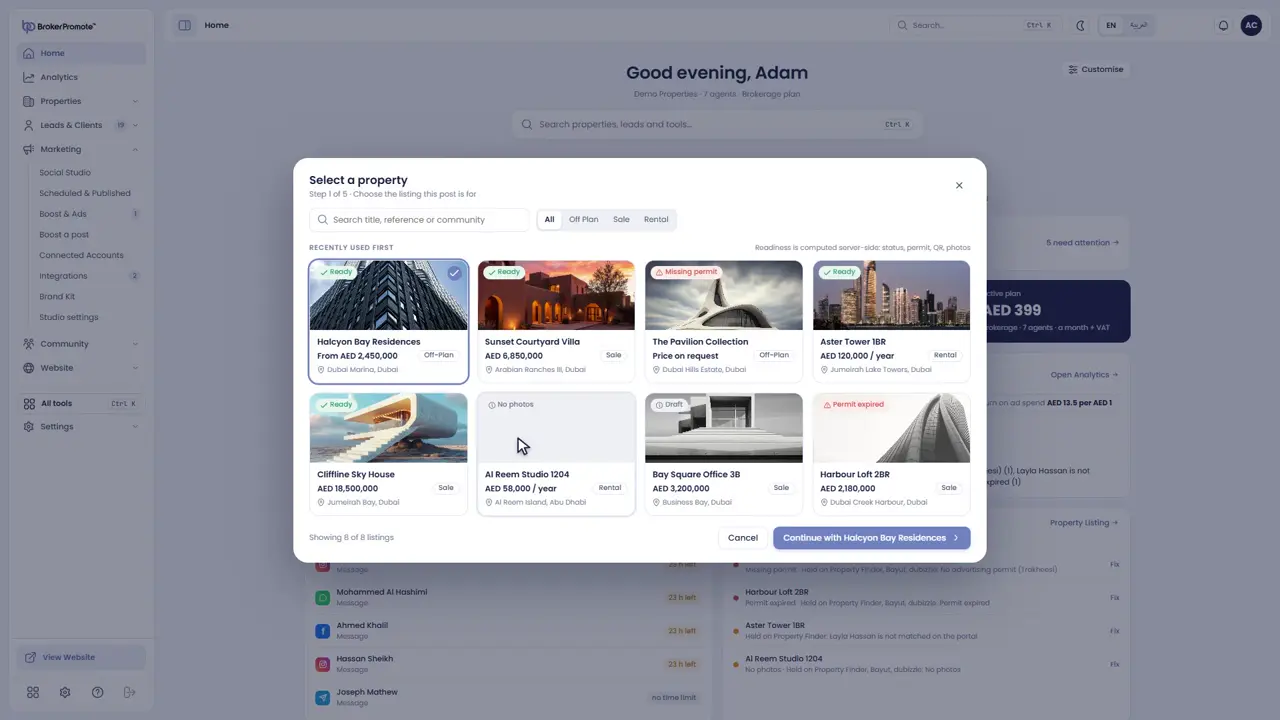
Choose the listing. Each one shows whether it is ready, missing its permit, or still a draft. Pick a ready one and continue.
-
Choose a design
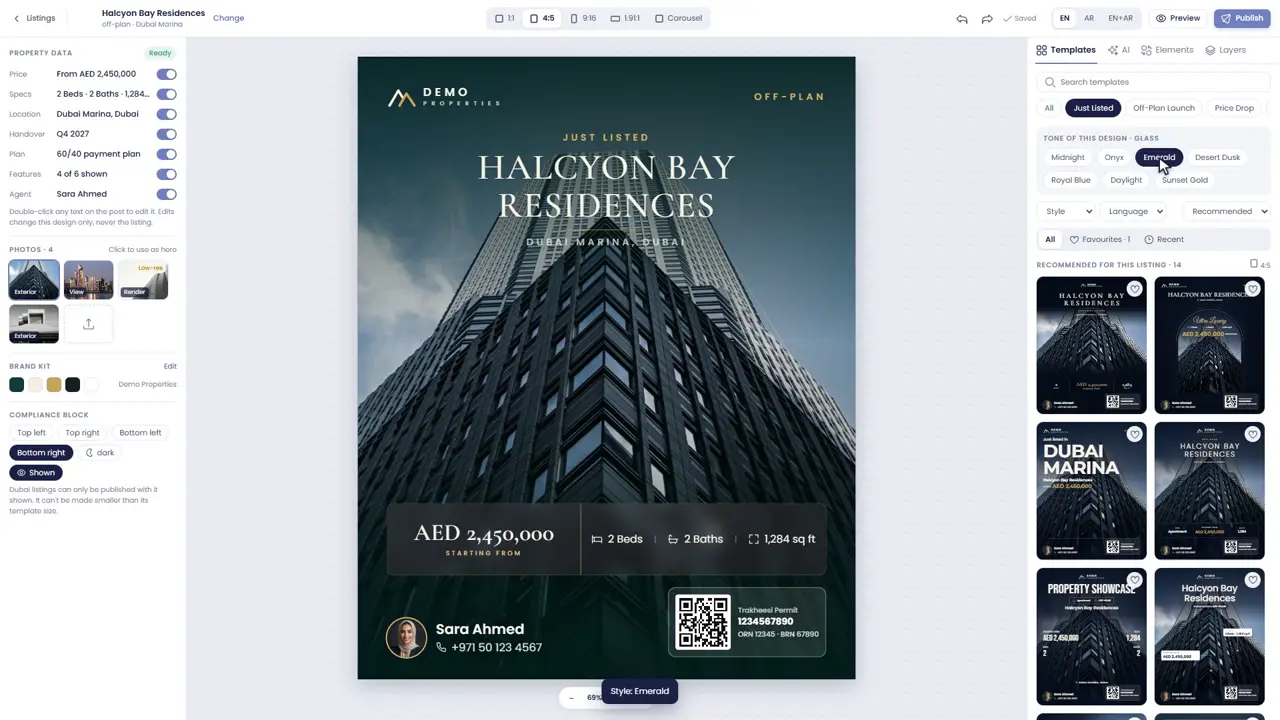
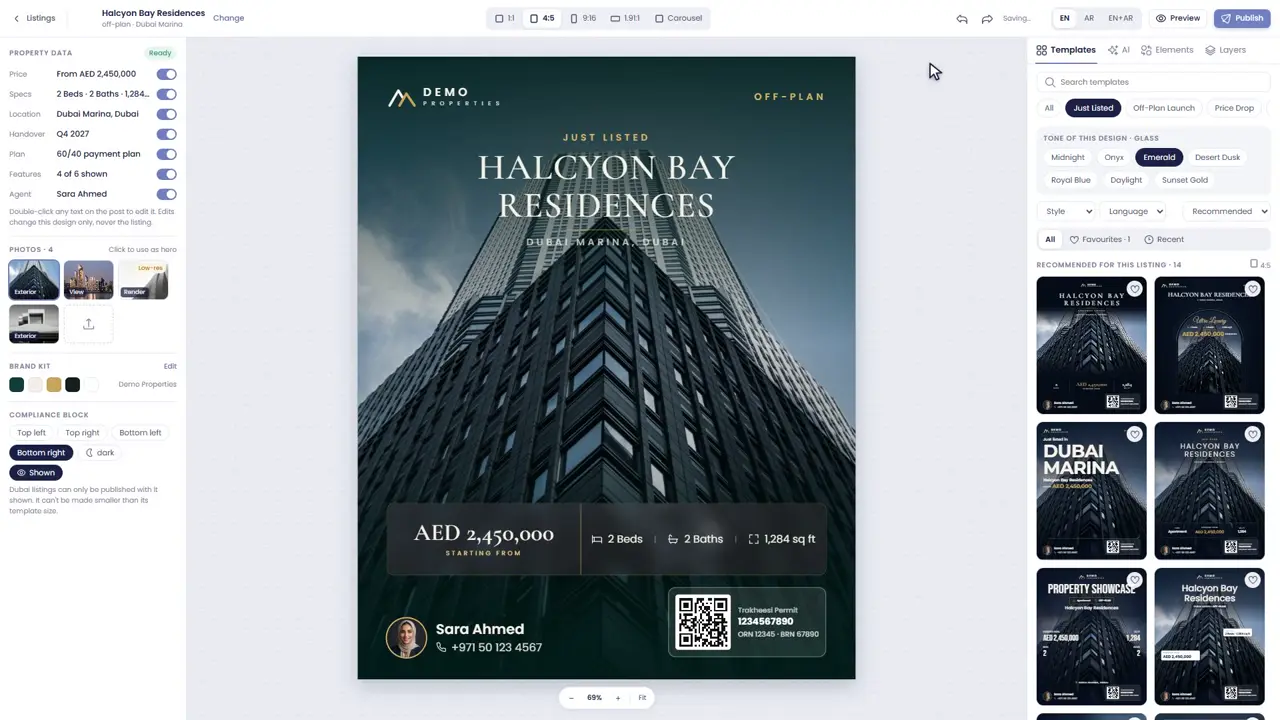
Choose a design from the templates on the right: eighty-four of them, in seven colour tones. Filter by the kind of post, like Just Listed or Price Drop.
-
Size and language
Choose the size: square, portrait, story or wide. Then choose English, Arabic, or both.
-
The listing's details
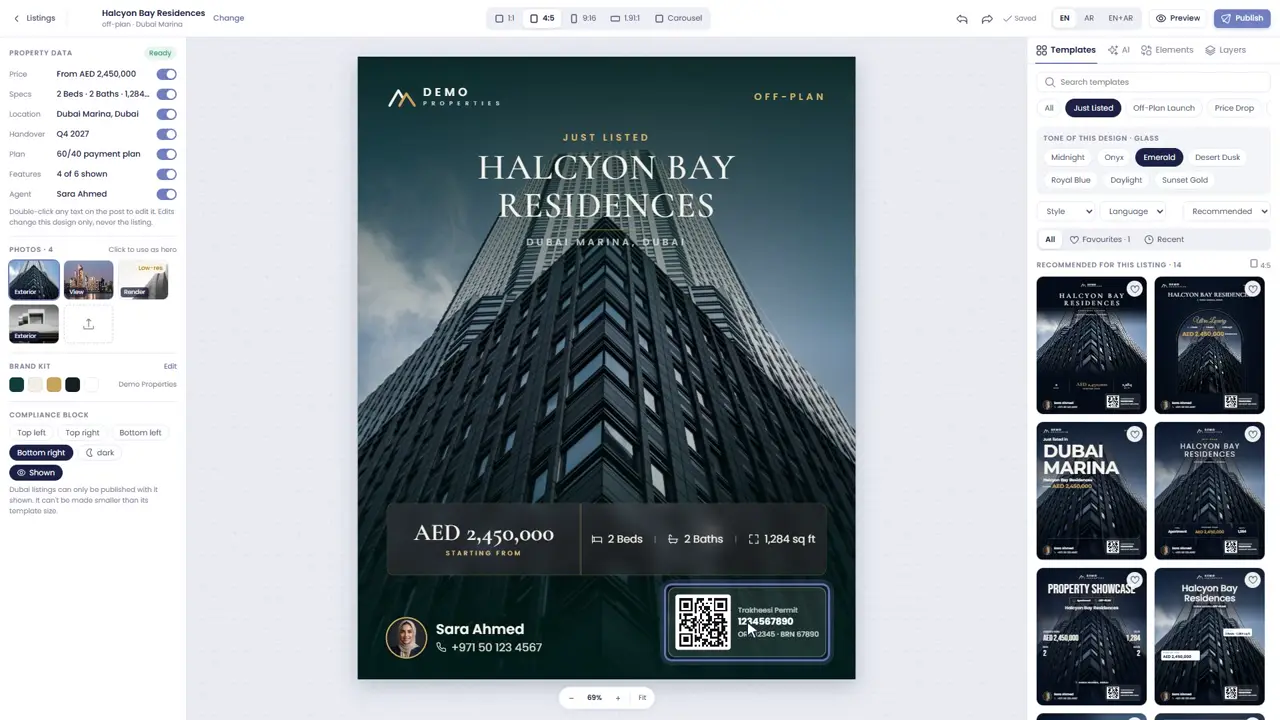
On the left, switch the listing's details on or off, like the payment plan or the handover date. The permit number and the QR code stay on the post.
-
Preview and checks
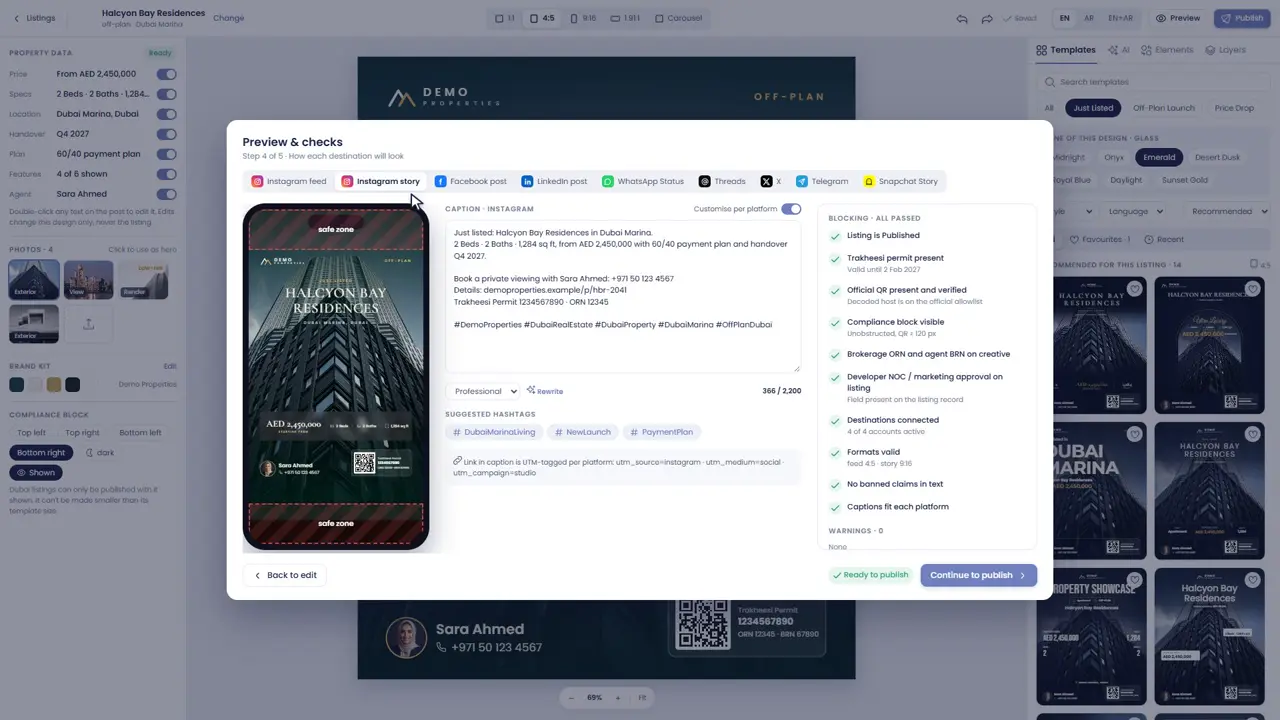
Press Preview to see the post as it will look on each platform. BrokerPromote checks the captions and the compliance details for you.
-
Publish
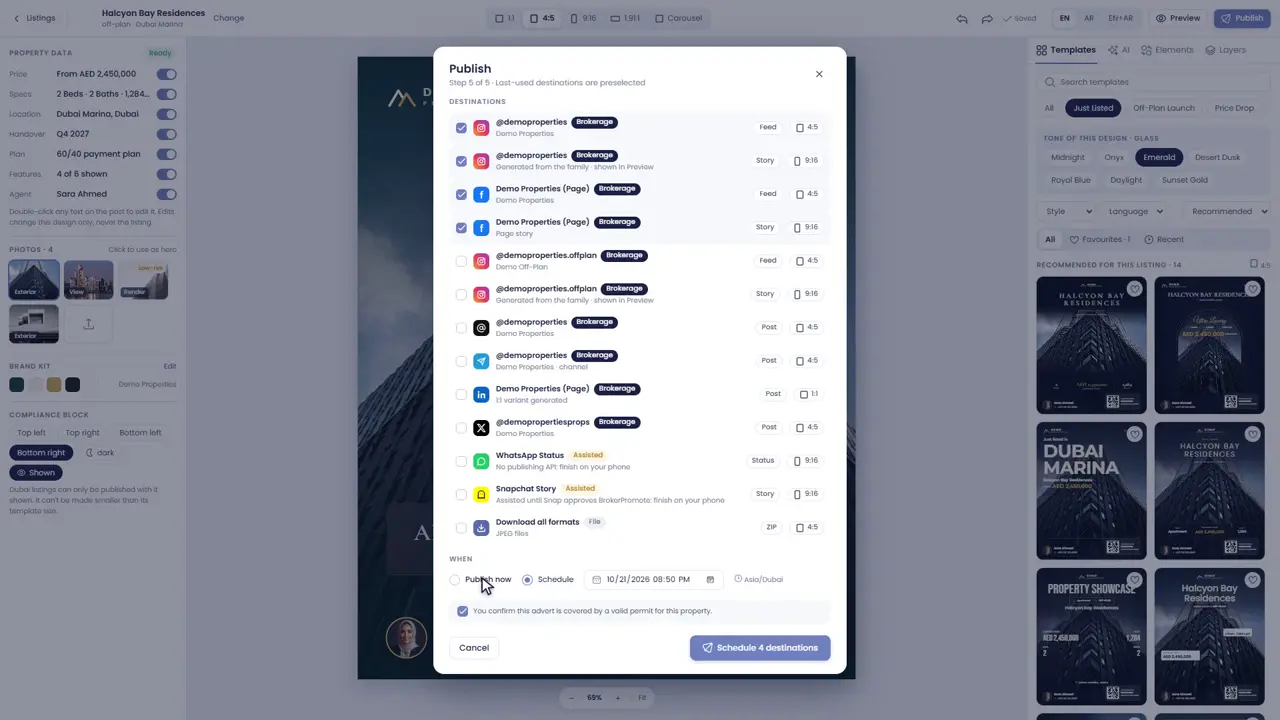
Press Publish, choose where it goes, and publish it now or schedule it for later.
Edit a design: text, photos, elements and the permit block
Change text and photos, add elements, arrange layers and keep the permit block.

-
Edit the text
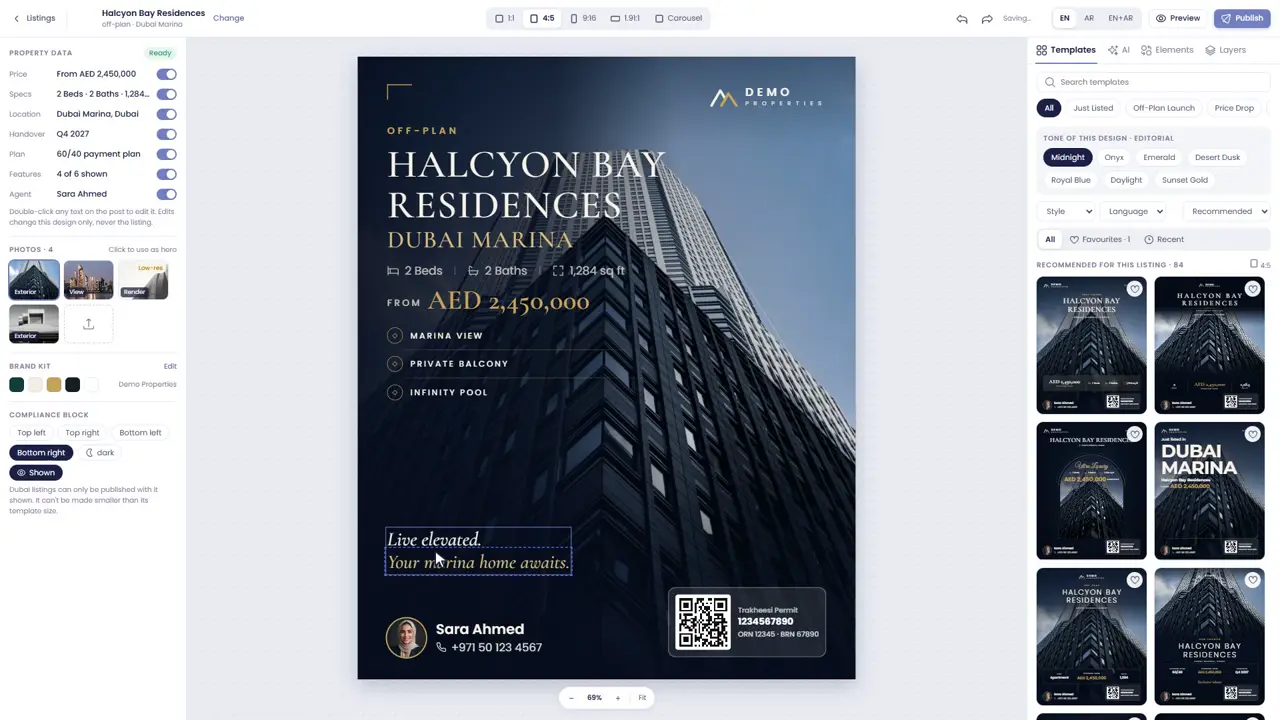
Double-click any text on the post to change it. Your changes apply to this design only, never to the listing itself.
-
Photos
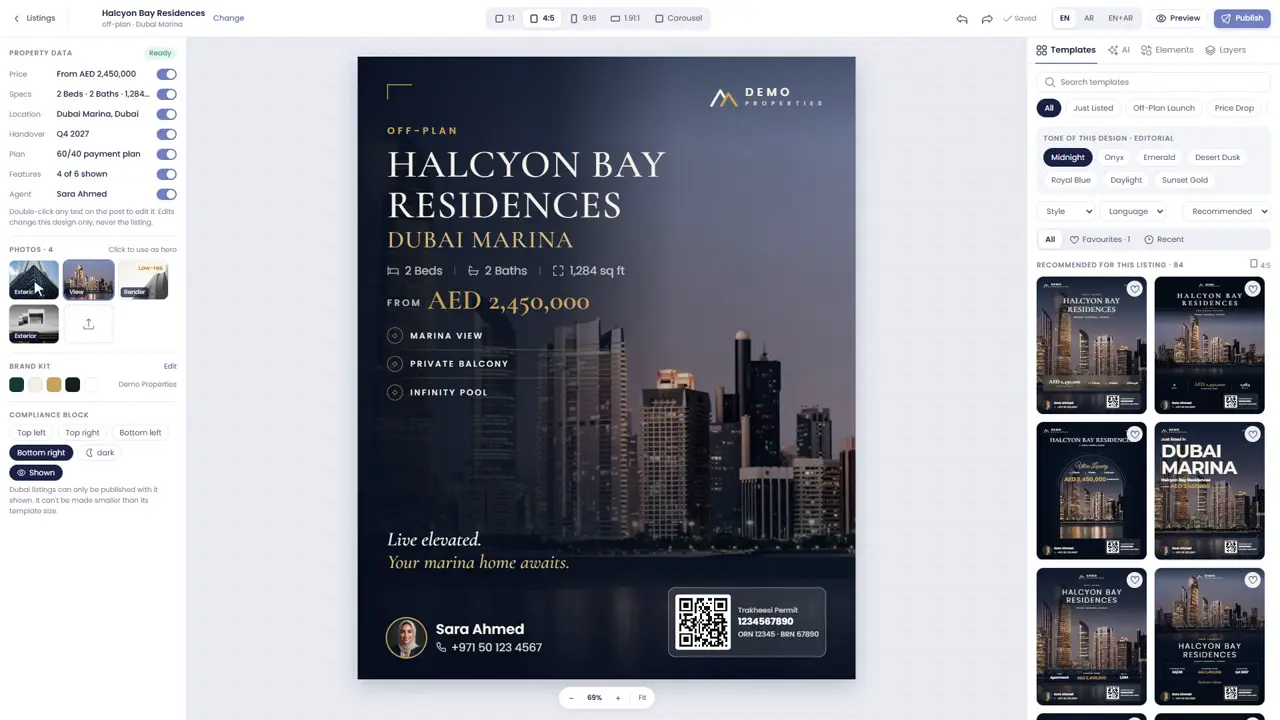
Click a photo on the left to make it the main photo of the post.
-
Elements
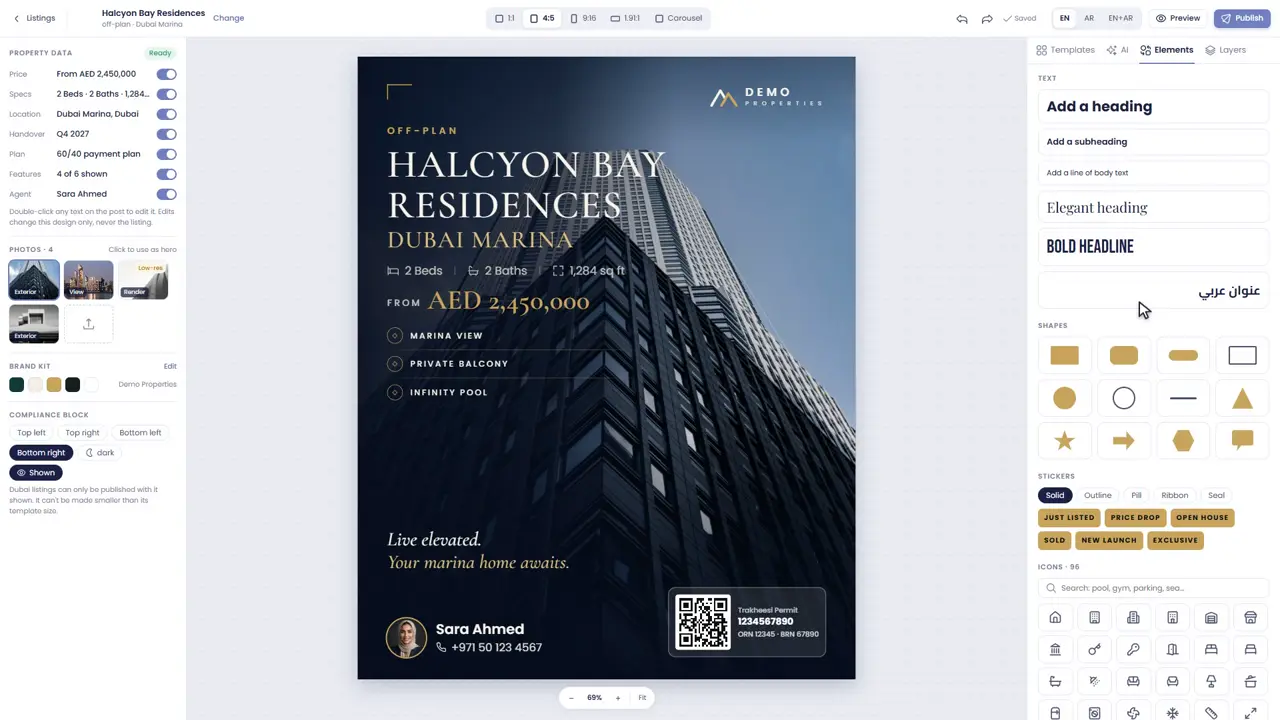
The Elements tab adds text, shapes, stickers and icons.
-
Move and resize
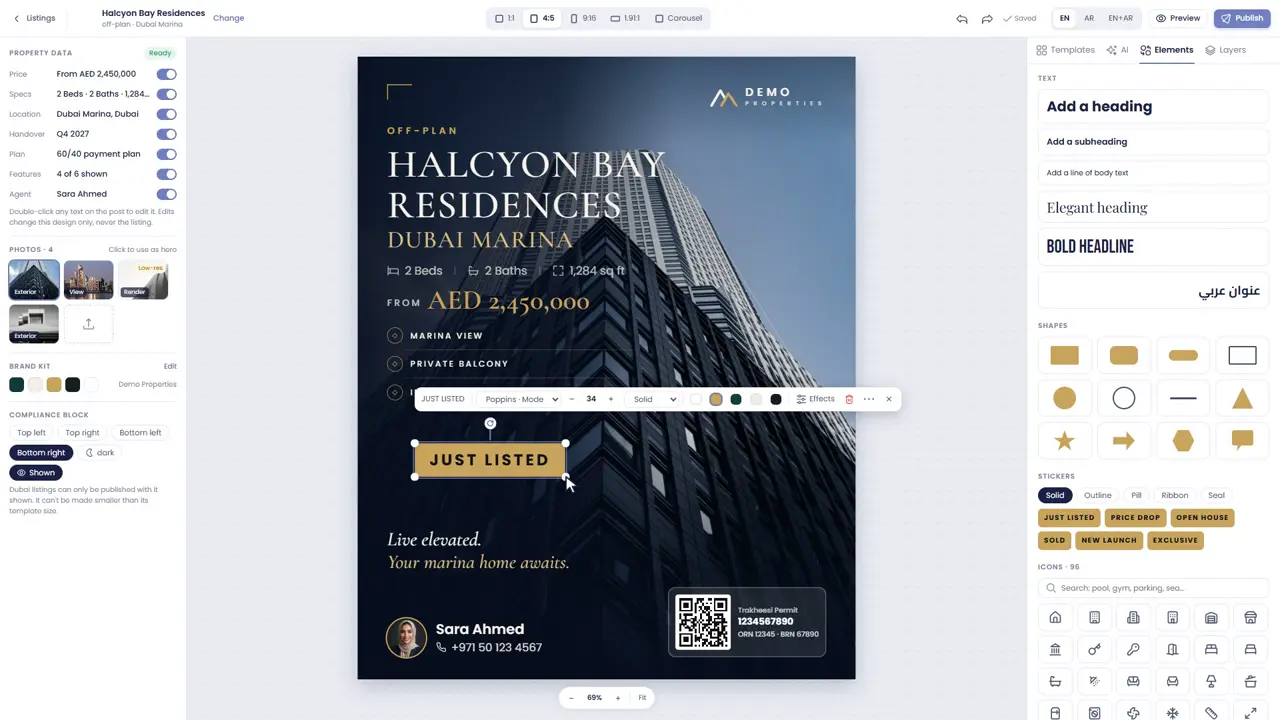
Drag anything to move it, and use the handles to resize it. Guides help you line things up.
-
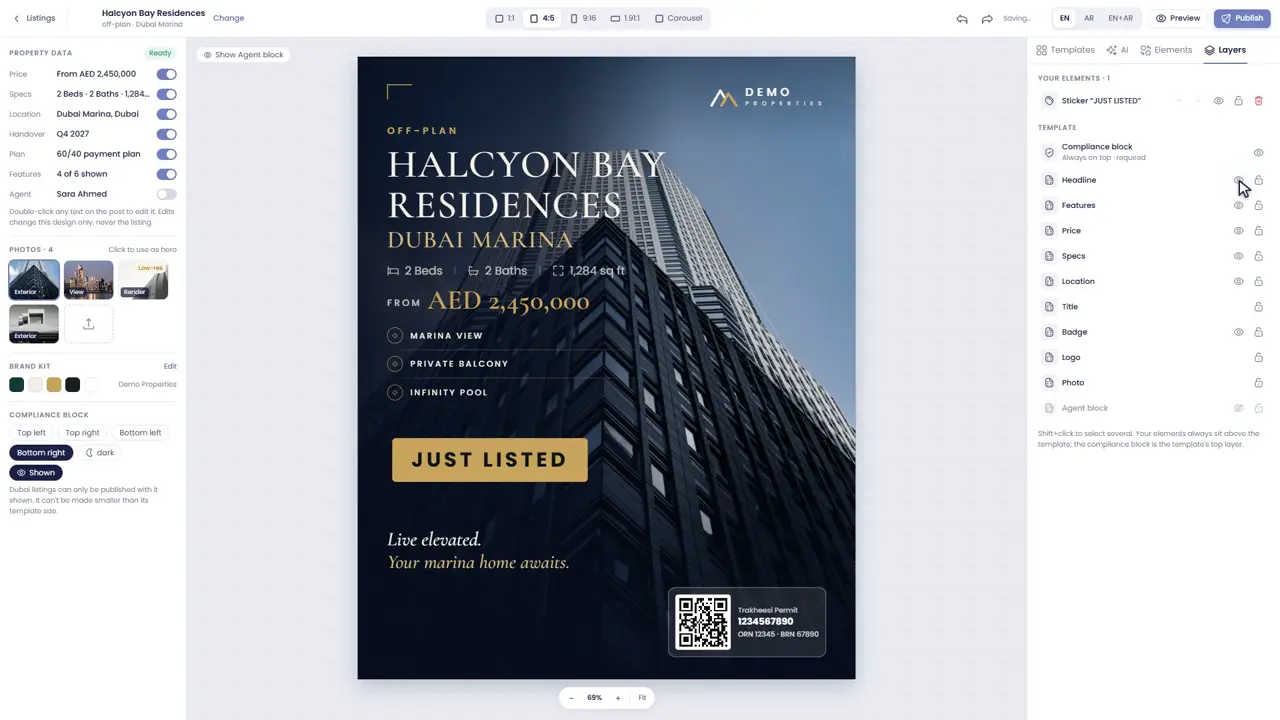
Layers
Layers lists everything on the post. Lock or hide a layer, or change the order.
-
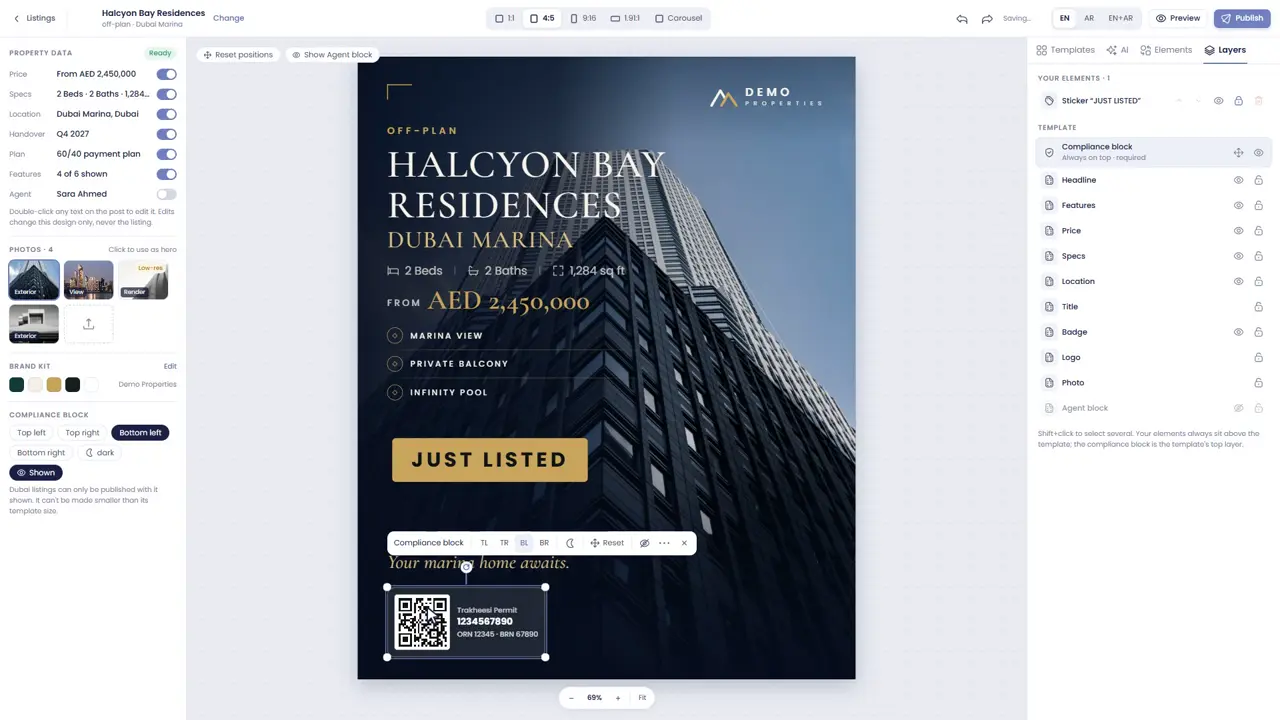
The permit block
The permit block can move to another corner, but it can't be made smaller. For Dubai and Abu Dhabi listings it must stay on the post.
-
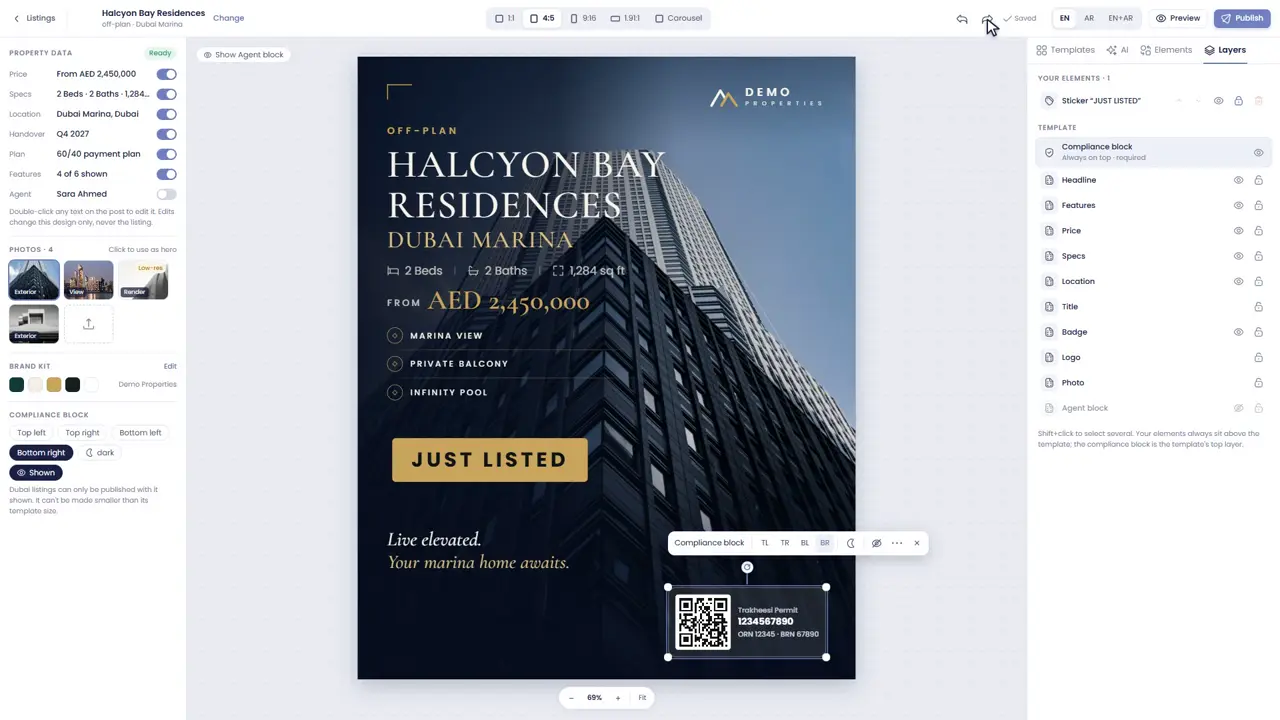
Undo and save
Undo and redo are at the top, and your design saves itself as you work.
Publish, schedule and track posts
Publish now or later on every platform and follow each post’s status.

-
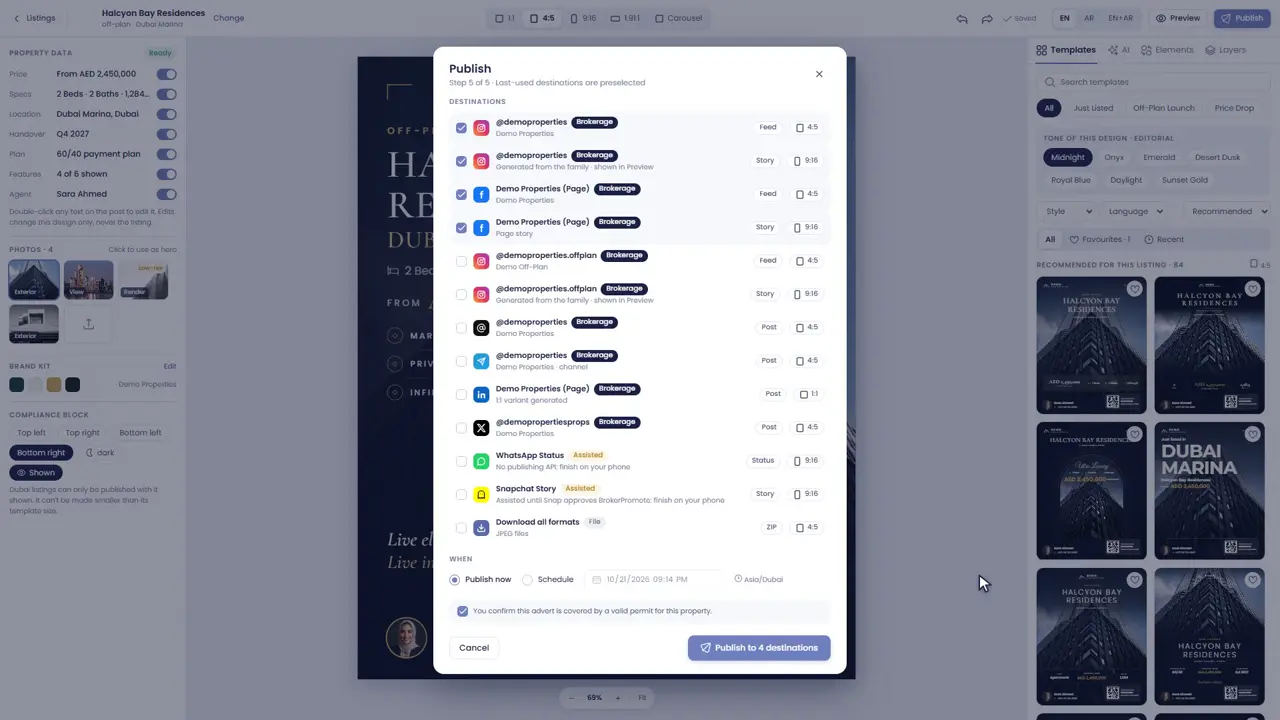
Publish
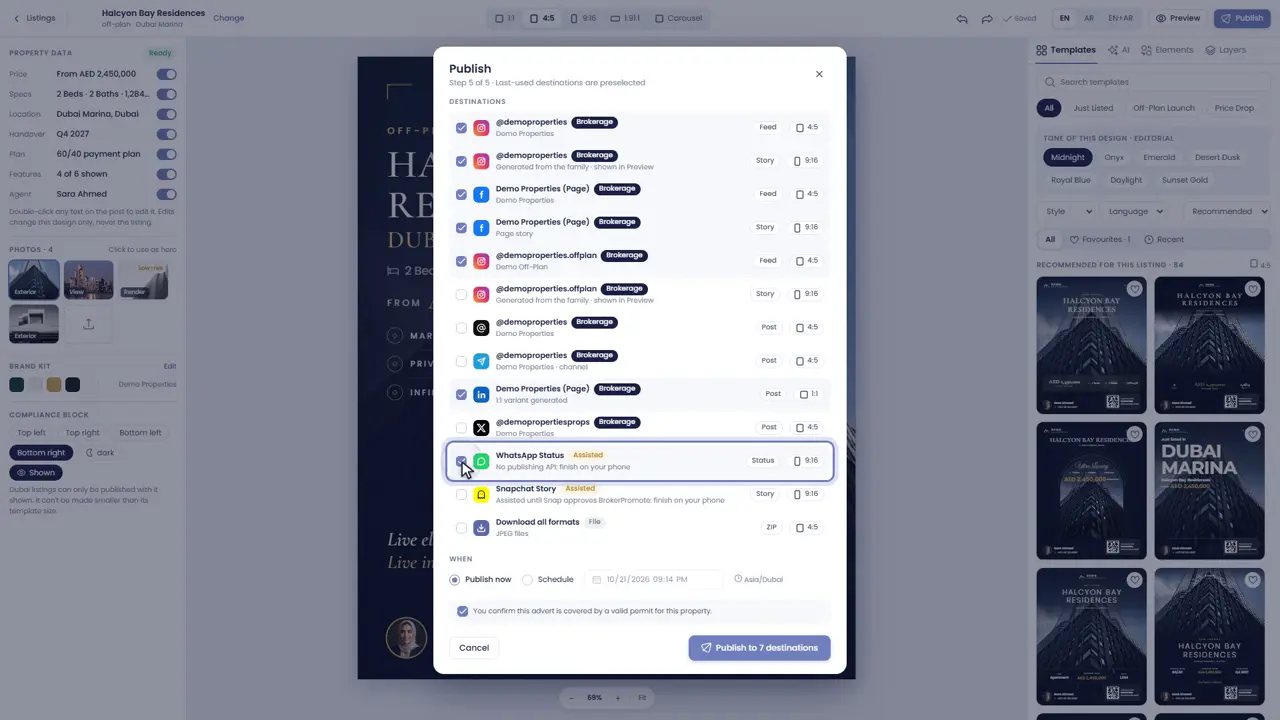
When the design is ready, press Publish. The destinations you used last time are already ticked.
-
Choose where
Tick the accounts to post to. Platforms with no publishing option for apps, like WhatsApp Status, are shared from your phone.
-
Now or later
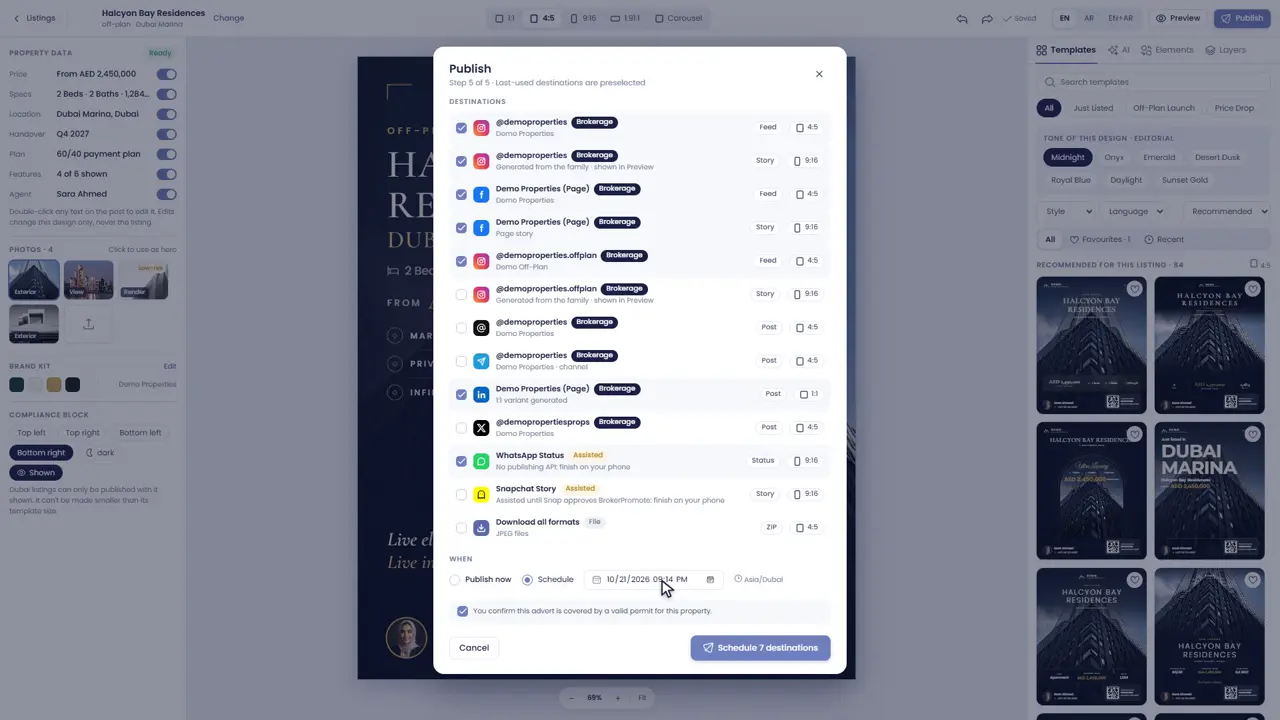
Publish now, or choose a date and time to schedule the post.
-
Track every post
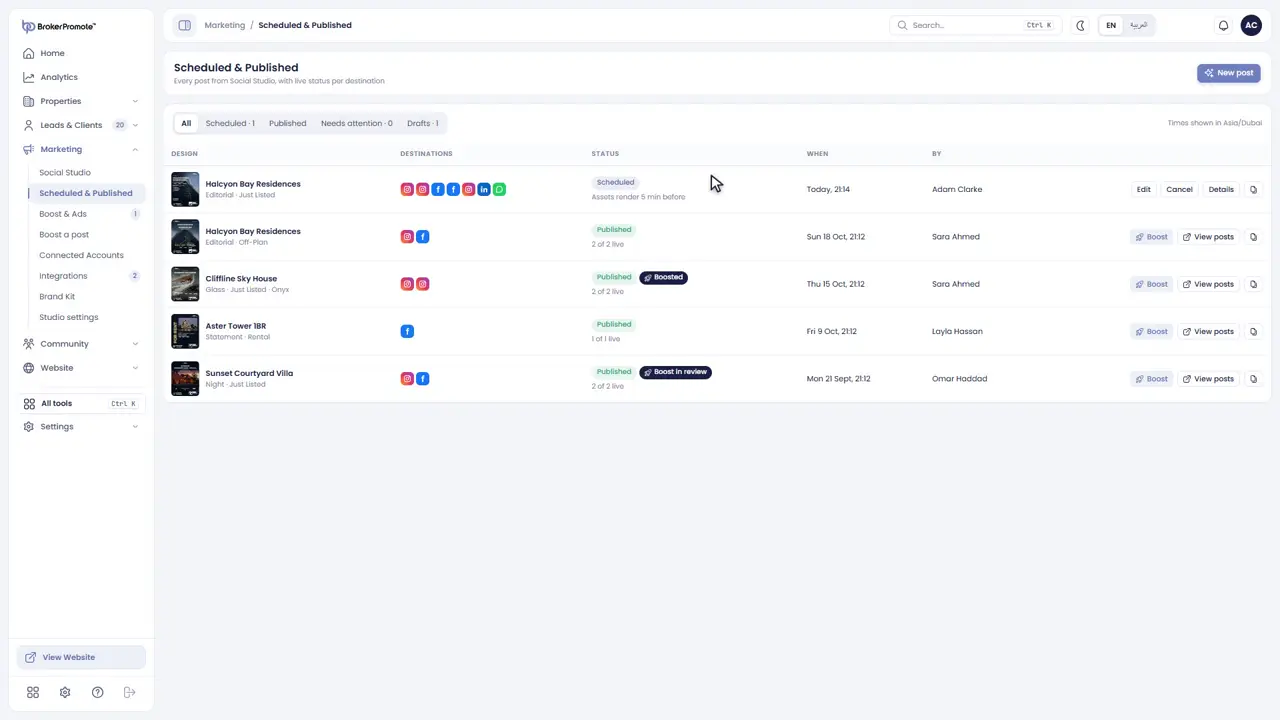
Scheduled and Published lists every post, with its status on each platform: scheduled, published, or needs attention.
-
Quick Publish
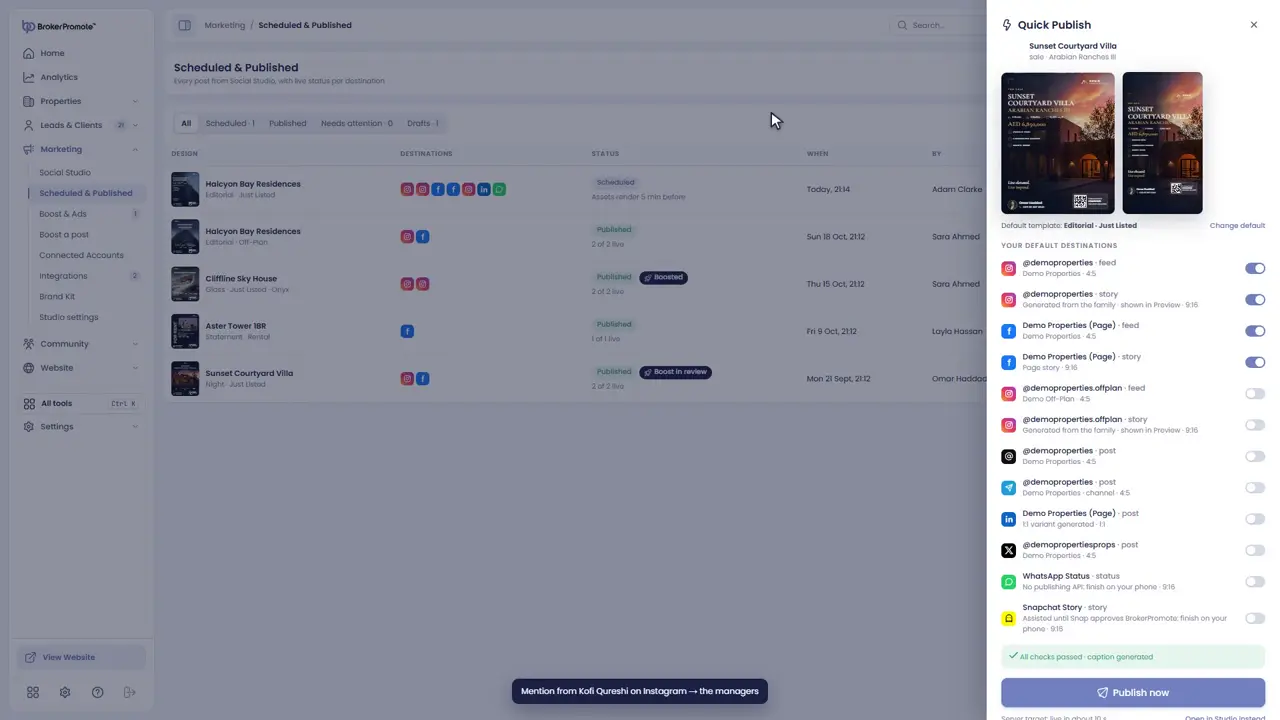
In a hurry? Quick Publish posts a listing in one step, using your default design.
Connect your social accounts
Connect your pages and profiles, and manage who can use them.

-
Connected Accounts
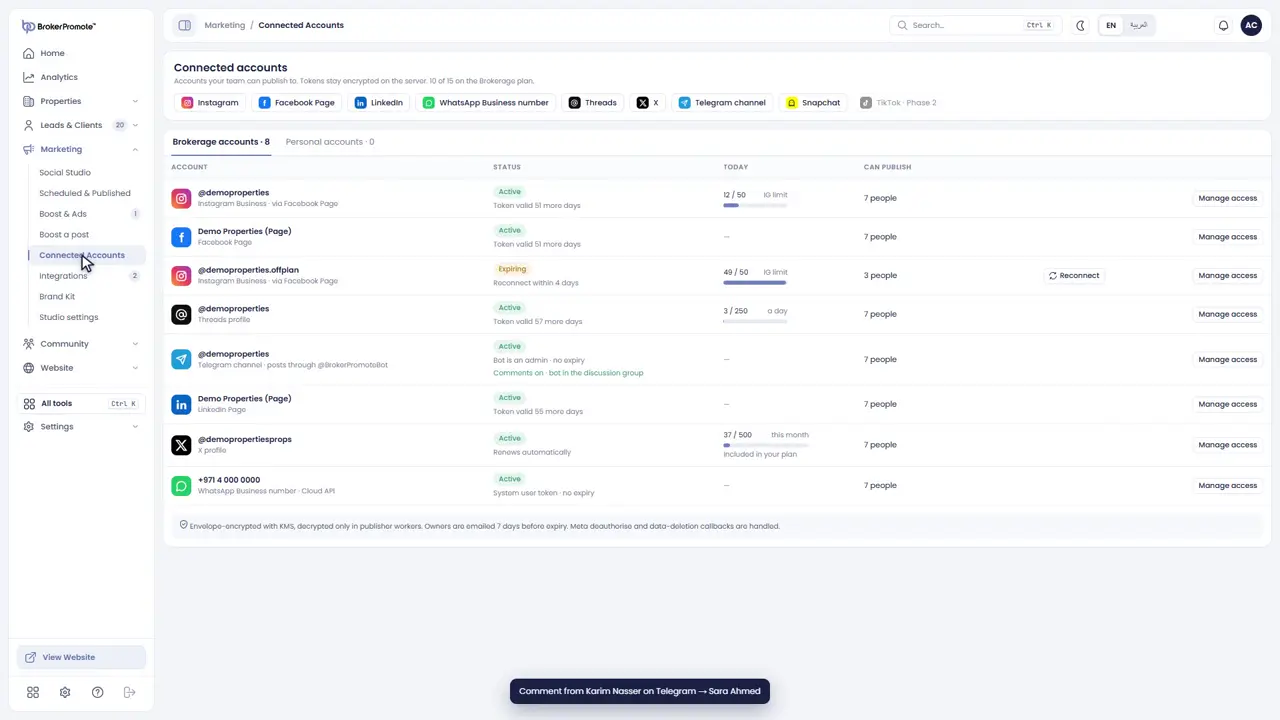
Connected Accounts holds every social account your team can post to. Open it from the Marketing menu.
-
Connect an account
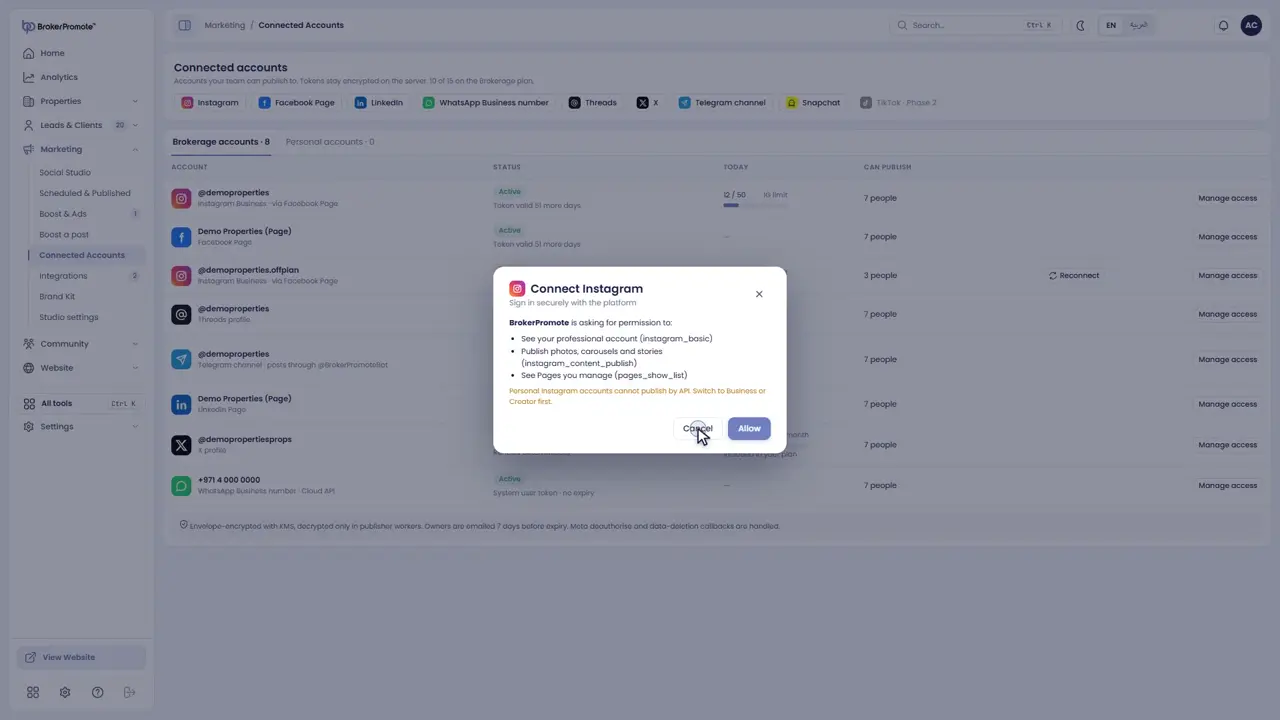
Choose a platform at the top, like Instagram or Facebook Page, and sign in. BrokerPromote asks only for the permissions it needs.
-
Status and limits
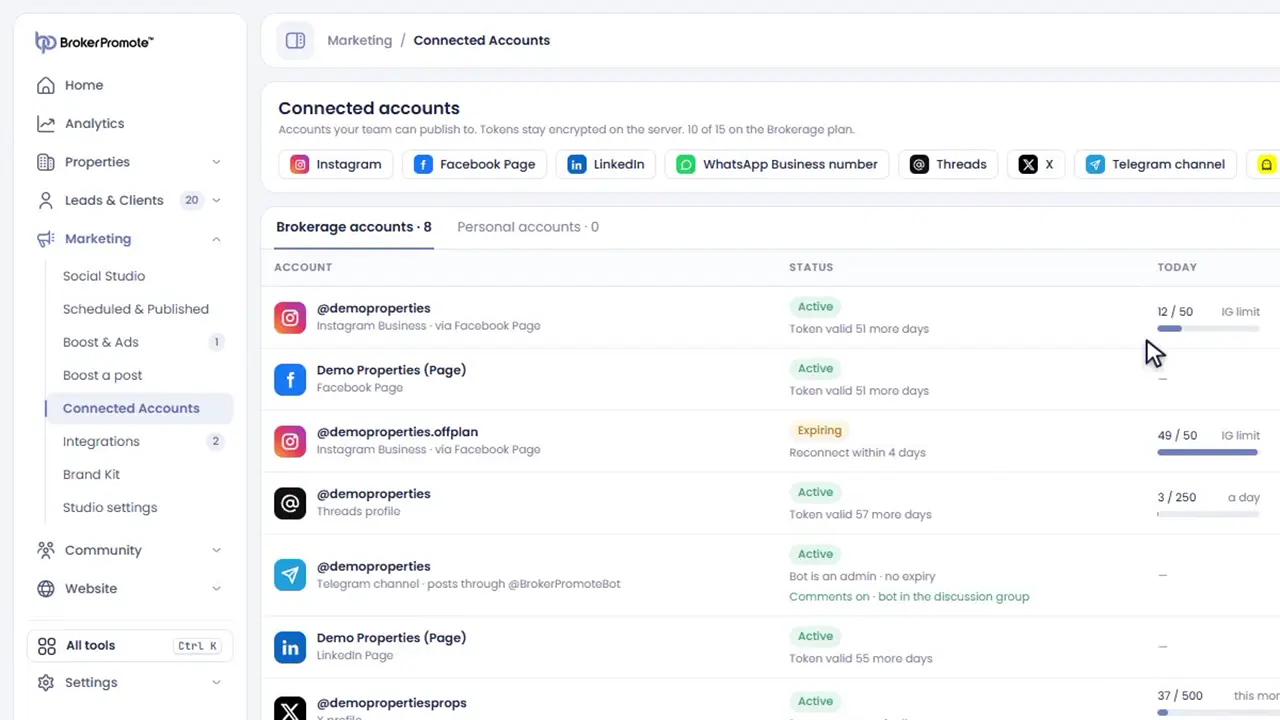
Each account shows its status, how long its sign-in lasts, and how much it has posted today.
-
Manage access
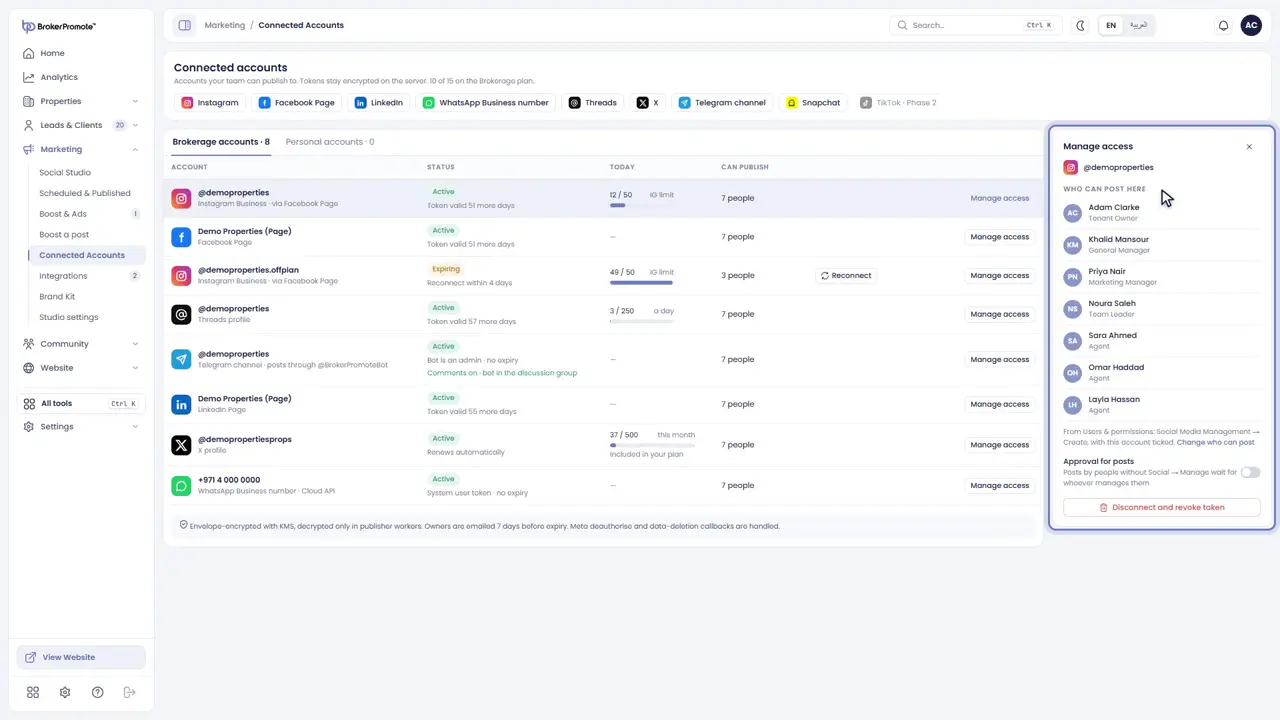
Manage access decides who on your team can post to each account.
-
Reconnect
If a sign-in expires, Reconnect brings the account back in a moment.
Brand Kit and Studio settings
Set your colours, logo and defaults, templates, tones and publishing rules.
-
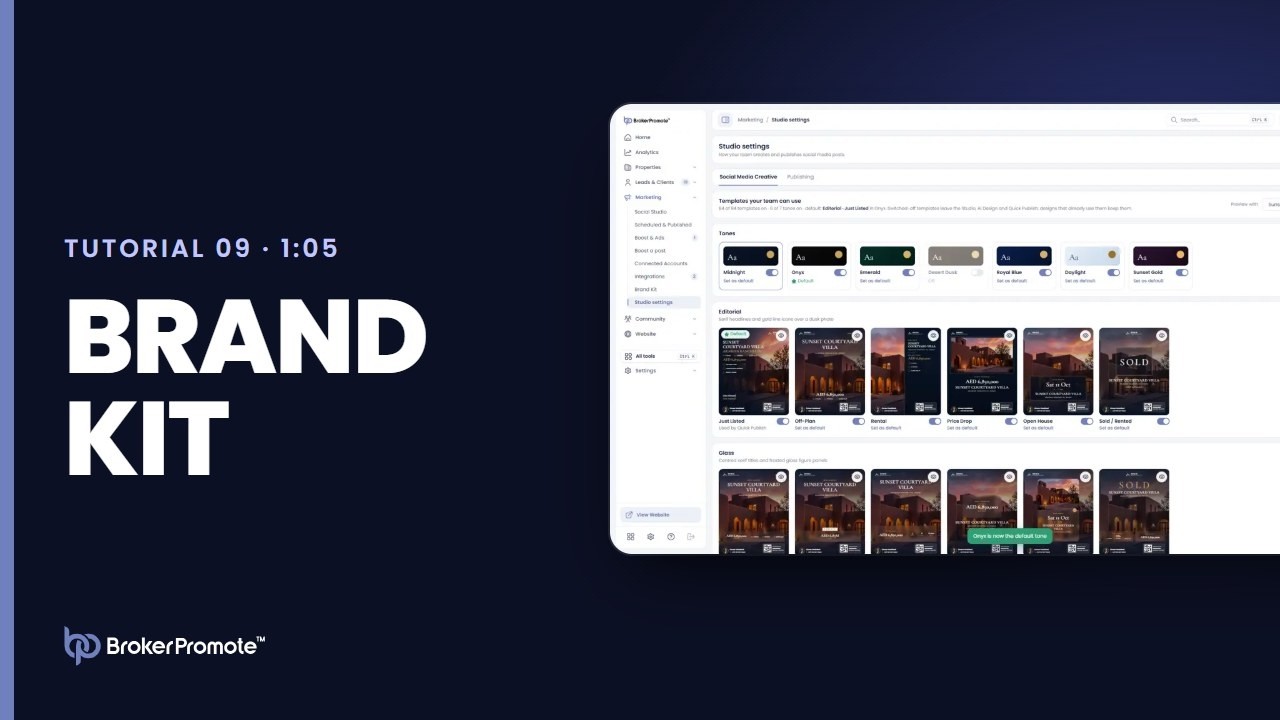
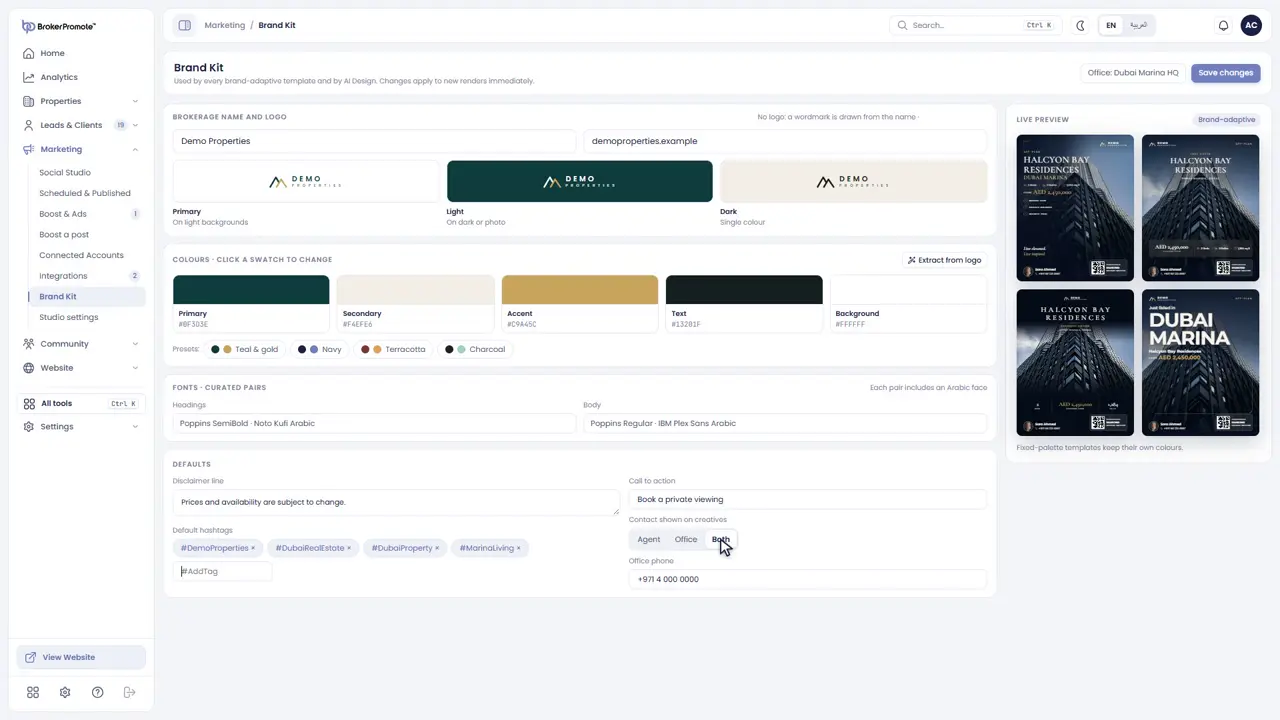
Brand Kit
The Brand Kit holds your logo, colours, fonts and contact details. Every design uses it automatically.
-
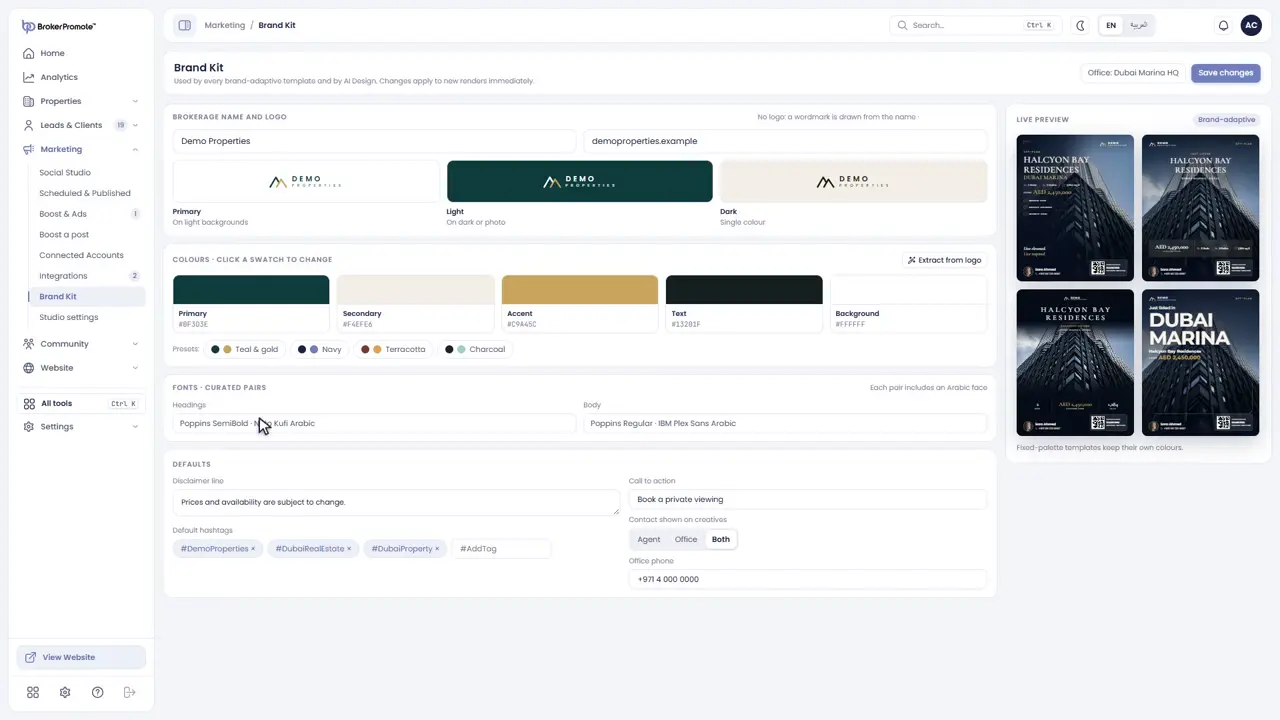
Colours
Click a colour to change it, choose a preset, or extract the colours from your logo.
-
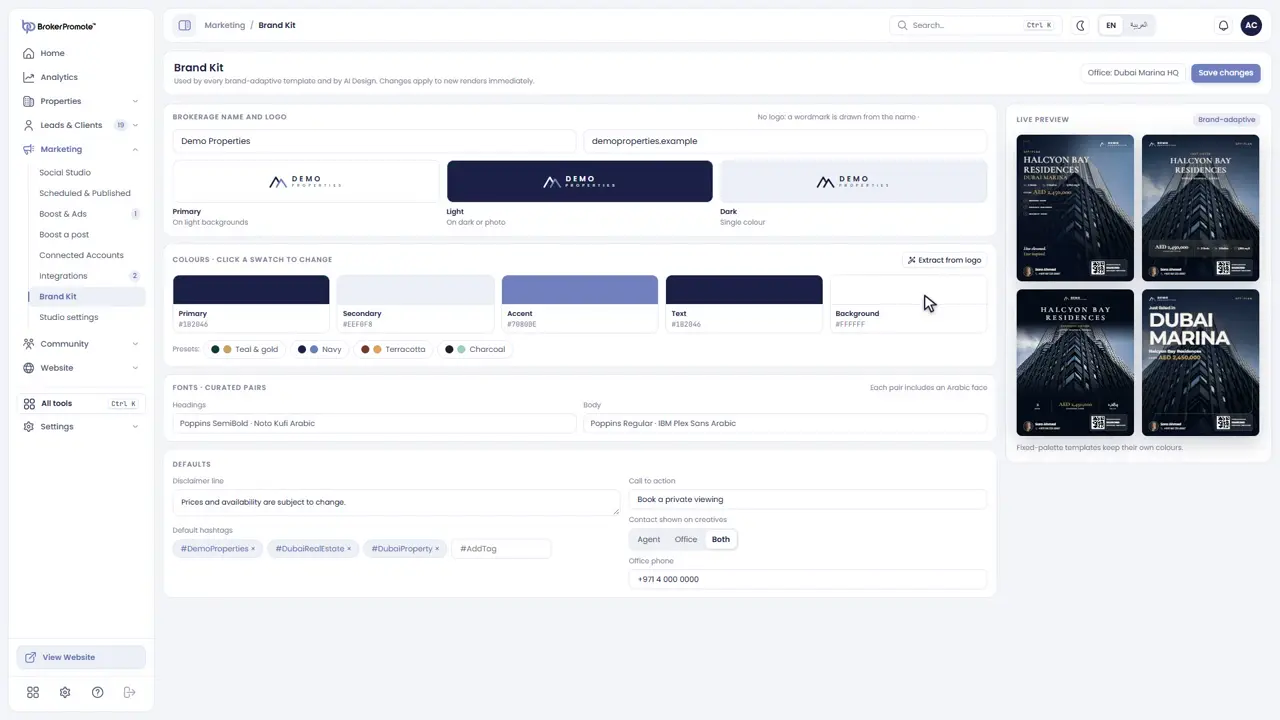
Defaults
Set the disclaimer, the call to action, your hashtags and the contact shown on creatives. Then save your changes.
-
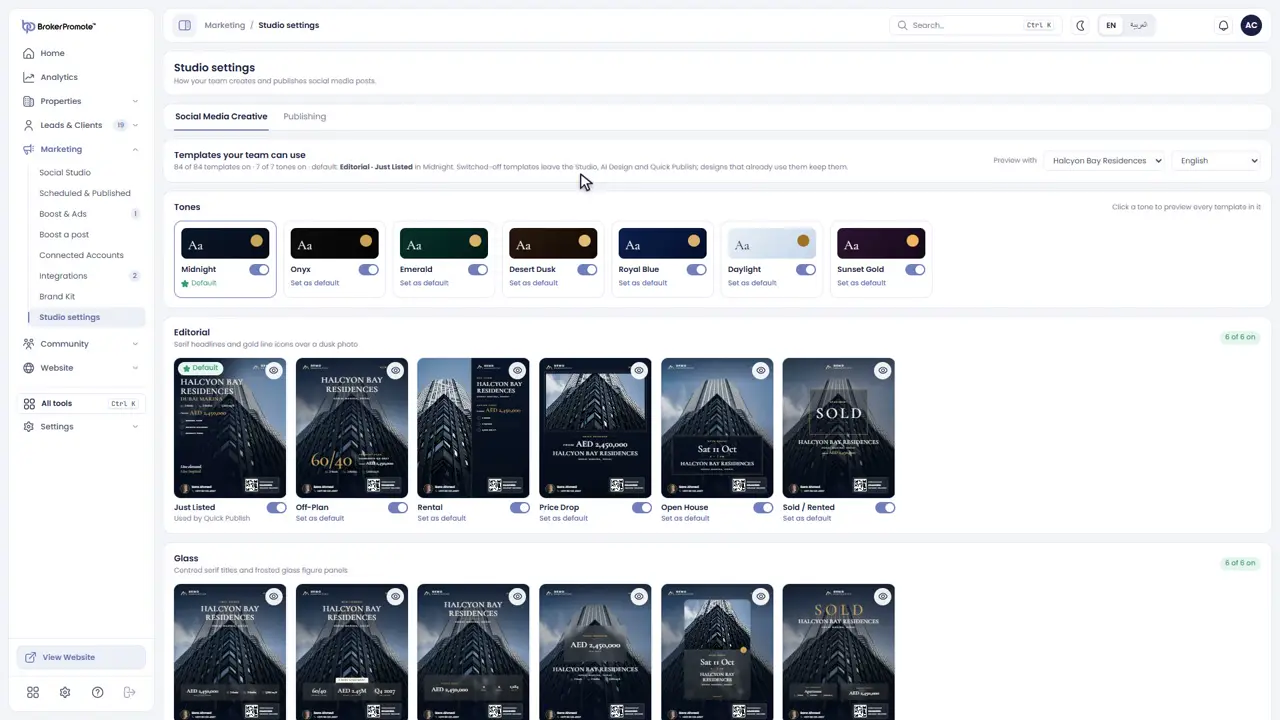
Studio settings
Studio settings decides which templates and colour tones your team can use.
-
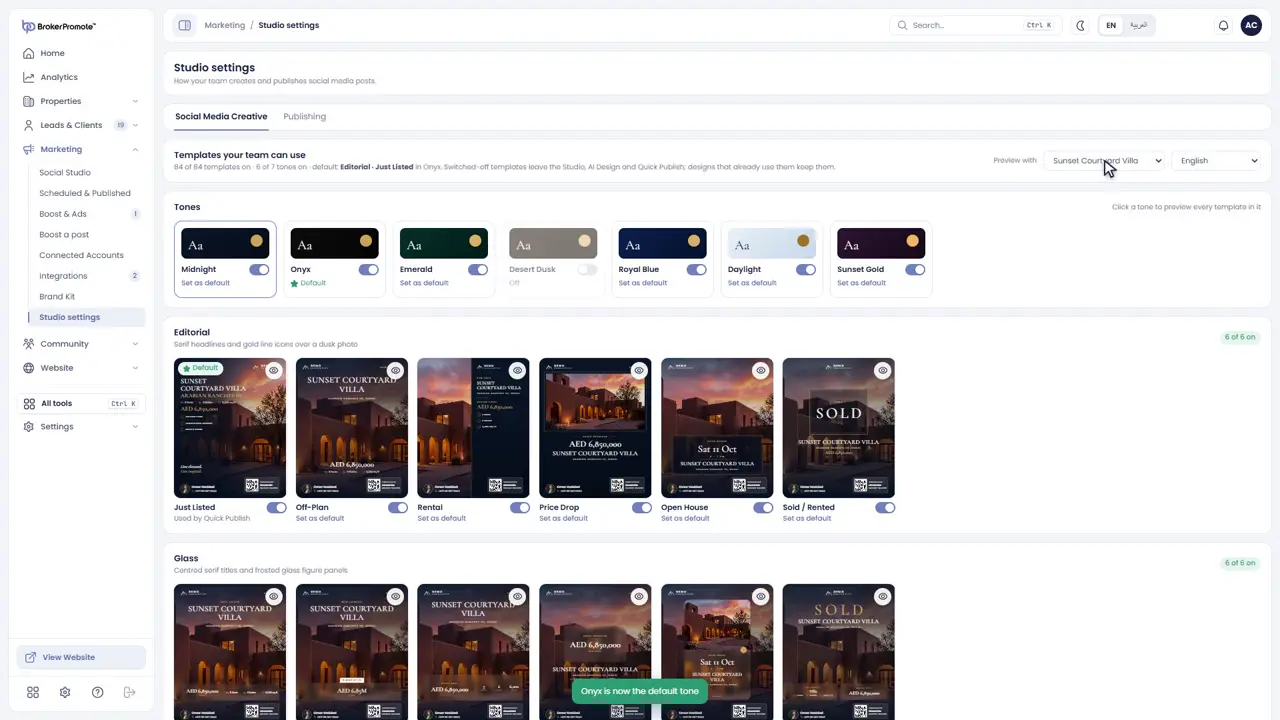
Templates and tones
Switch any template or tone on or off, and set the default. Preview them with any of your listings, in English or Arabic.
-
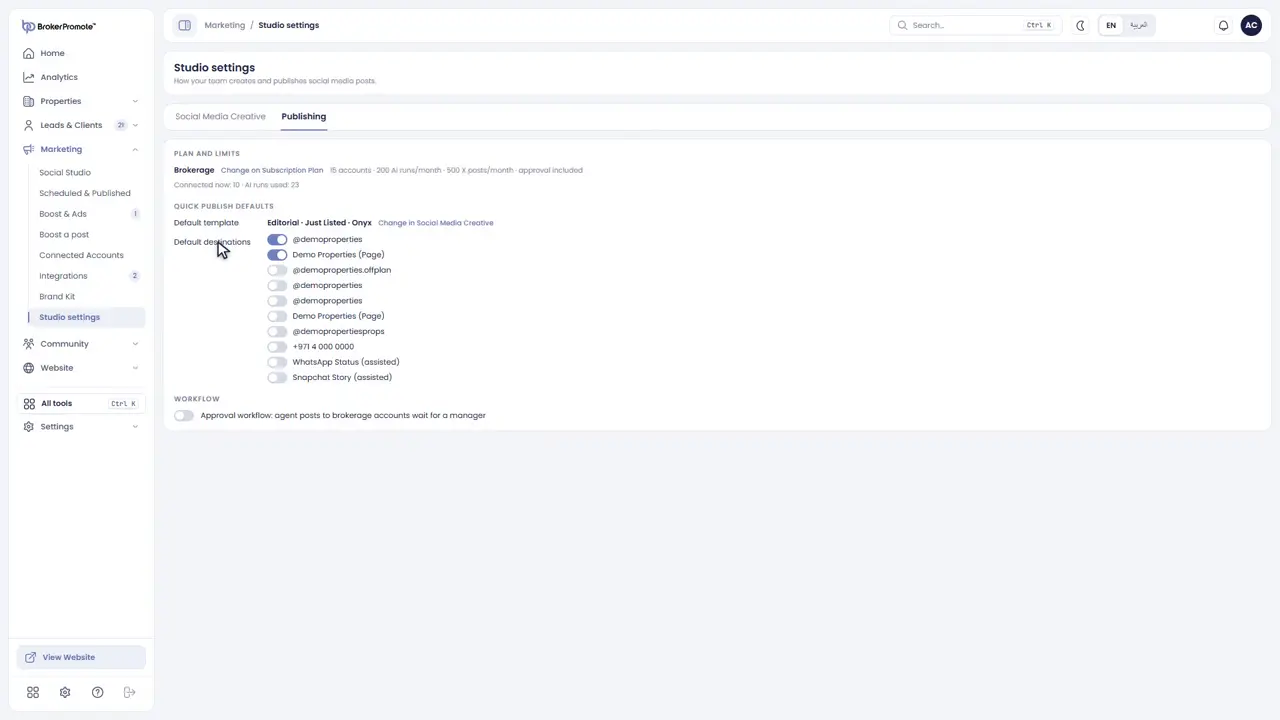
Publishing
The Publishing tab shows your plan's limits, the default destinations, and the approval workflow.
Boost a post
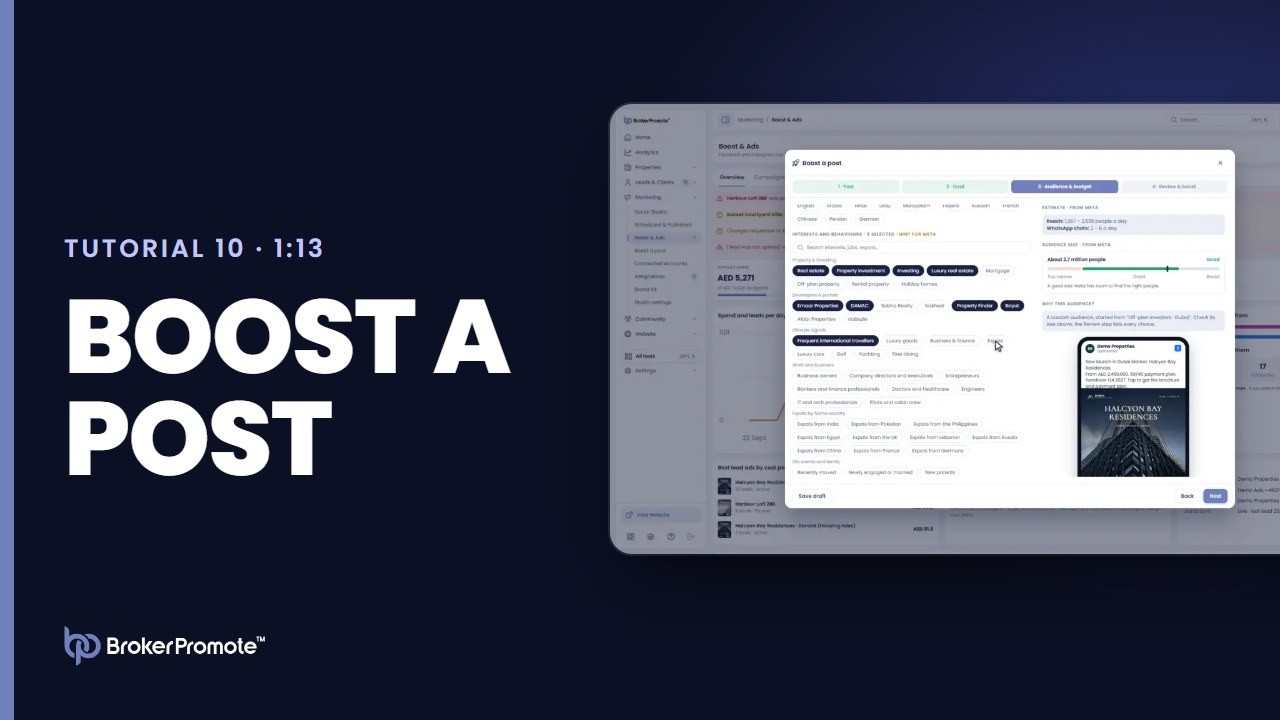
Turn a post into a Facebook and Instagram ad: goal, audience and budget.
-
Start
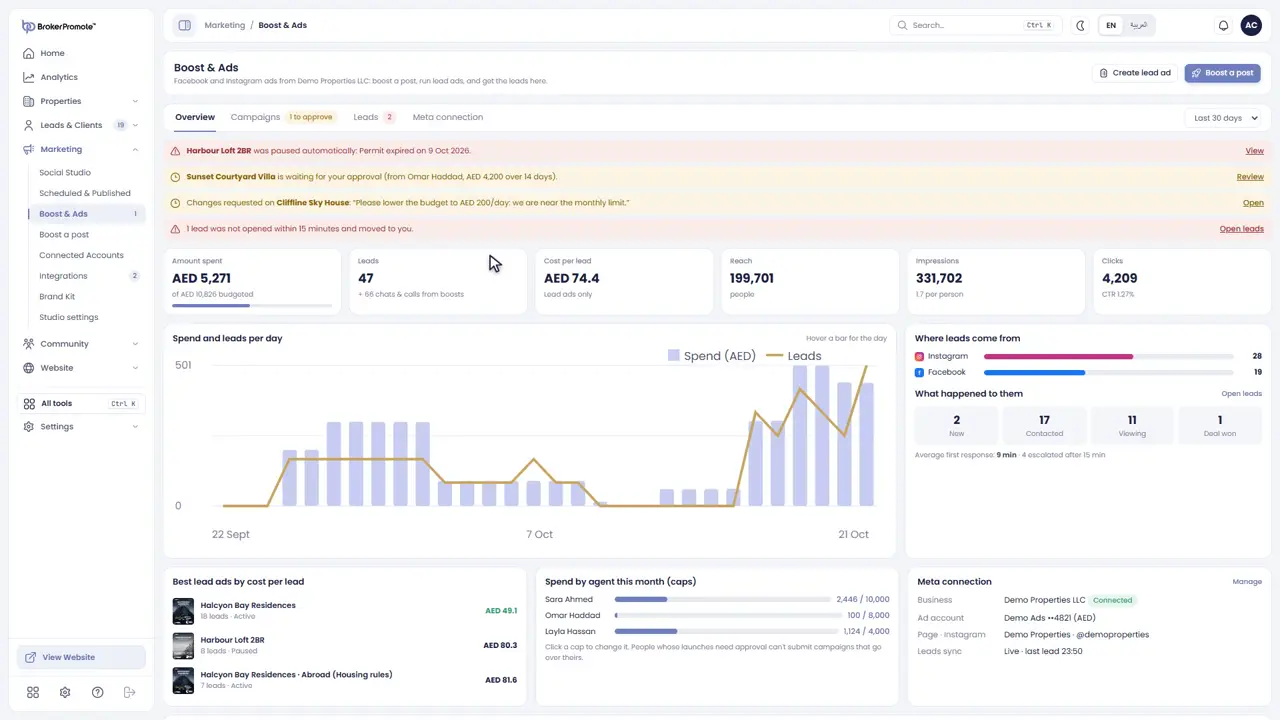
Boosting turns a published post into a Facebook and Instagram ad. Open Boost and Ads, and press Boost a post.
-
Choose the post
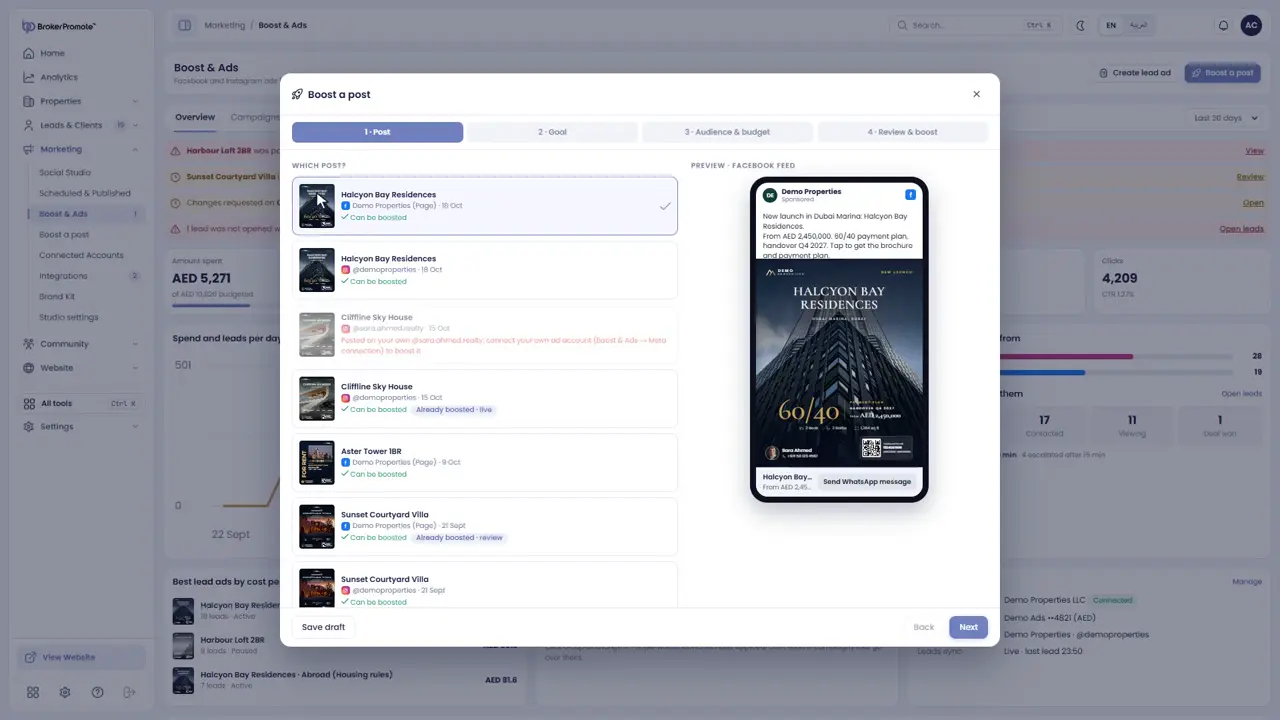
Choose one of your published posts.
-
Choose the goal
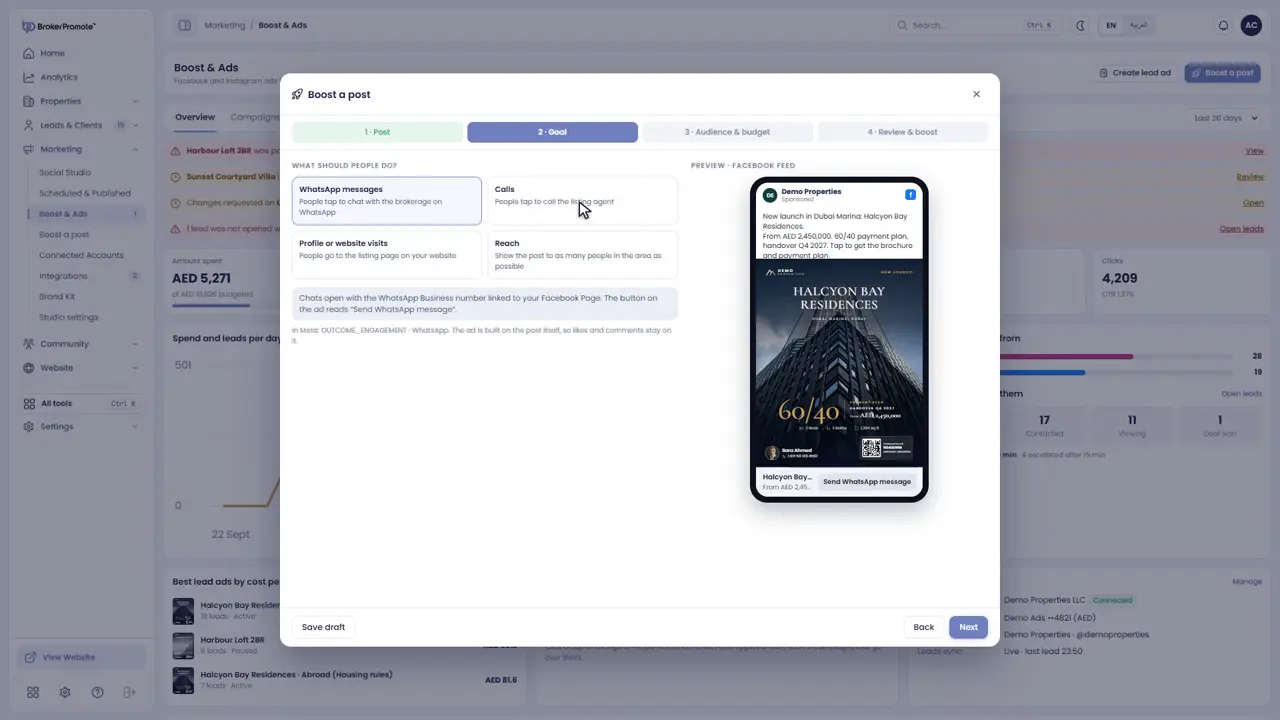
Choose what you want from the ad: WhatsApp chats, calls, visits to the listing, or reach.
-
Audience
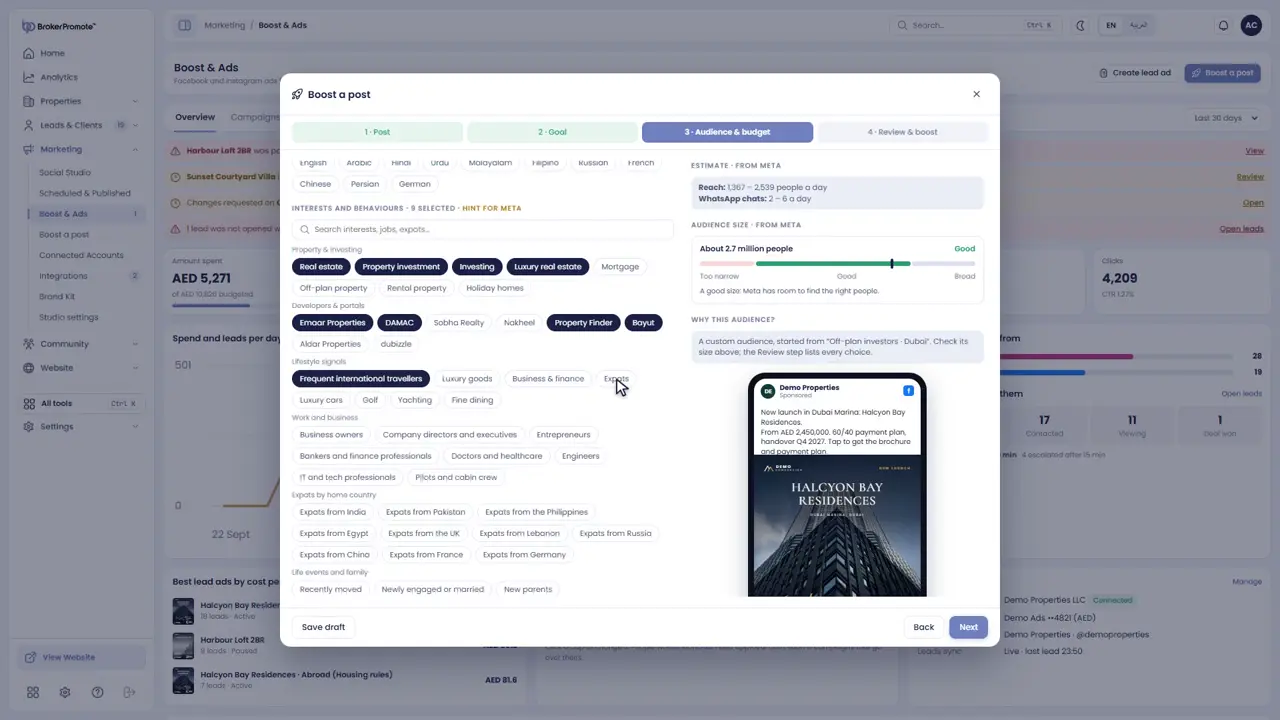
Choose who sees it: the area on a map, the age range and their interests. Meta's rules for housing ads are applied for you.
-
Budget
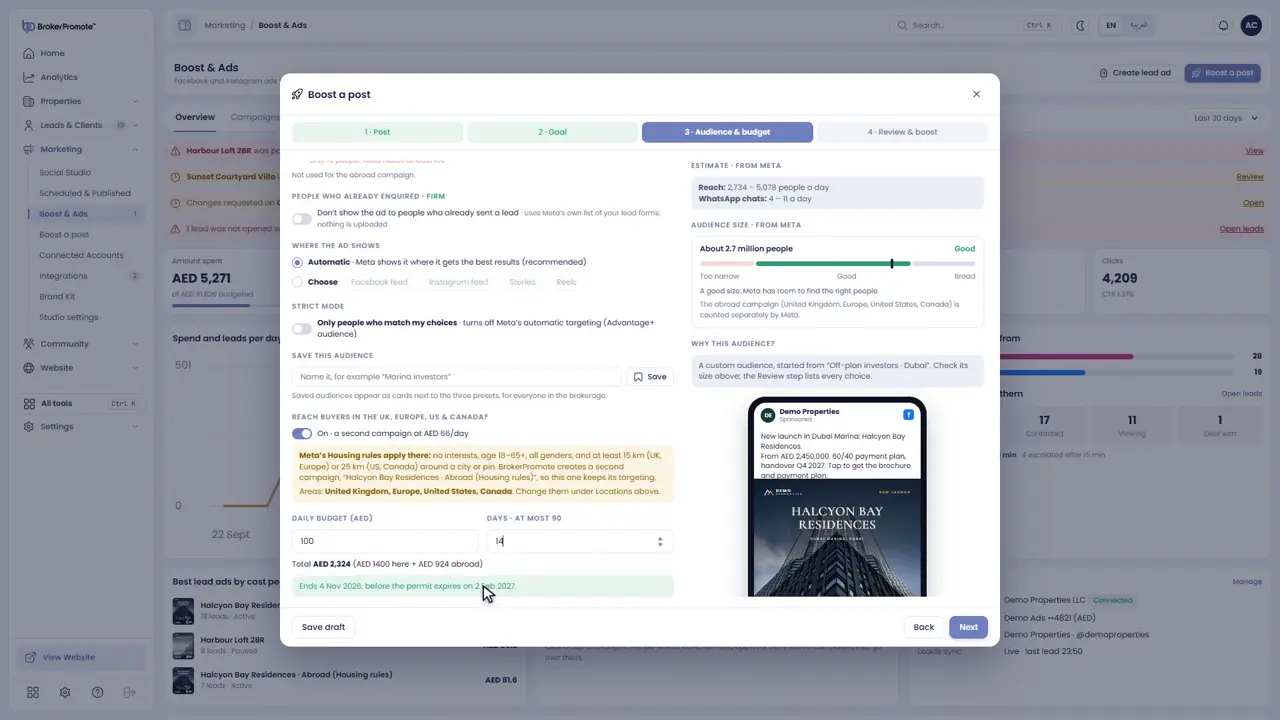
Set a daily budget and an end date. You'll see the reach to expect for that budget.
-
Review and boost
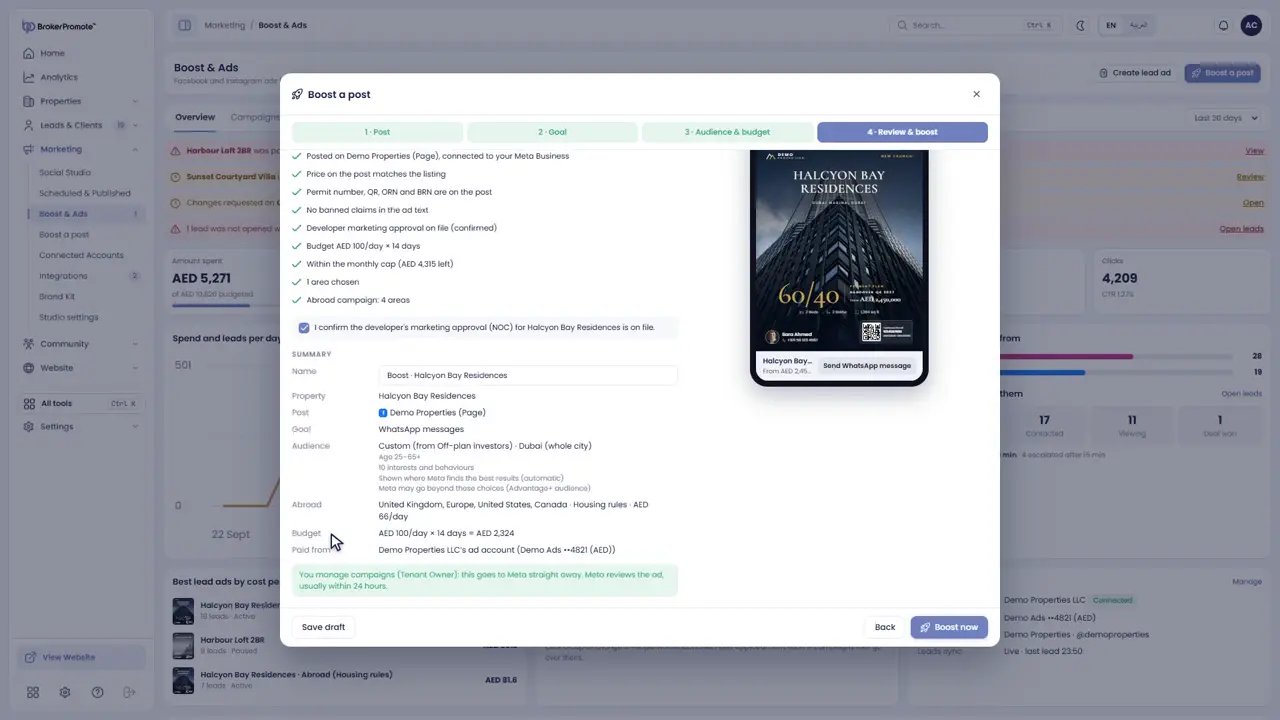
Check the details and the total cost, then press Boost. Meta reviews the ad, and it goes live.
-
Results
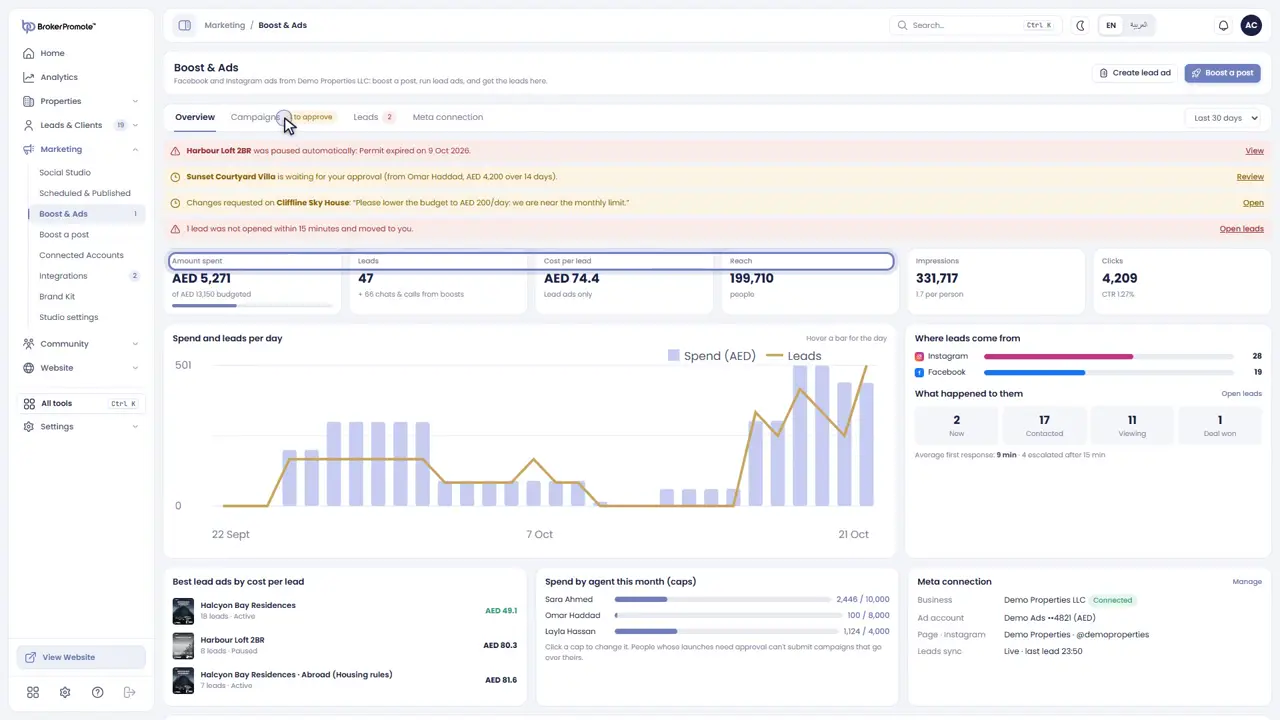
Boost and Ads shows the spend, reach, leads and cost per lead of every campaign.
Create a lead ad, with custom targeting
Run a lead ad with a form, and target areas on a map.

-
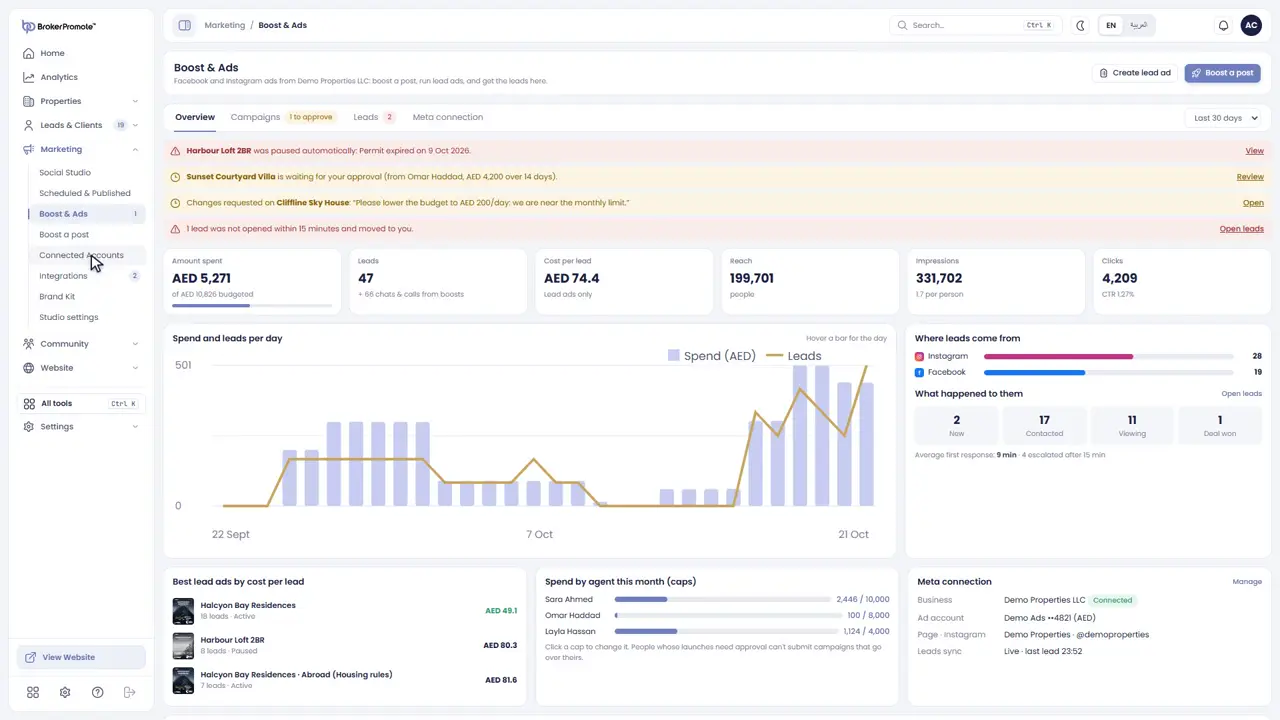
Start
A lead ad collects buyers' details with a form inside Facebook and Instagram. Open Boost and Ads, and press Create lead ad.
-
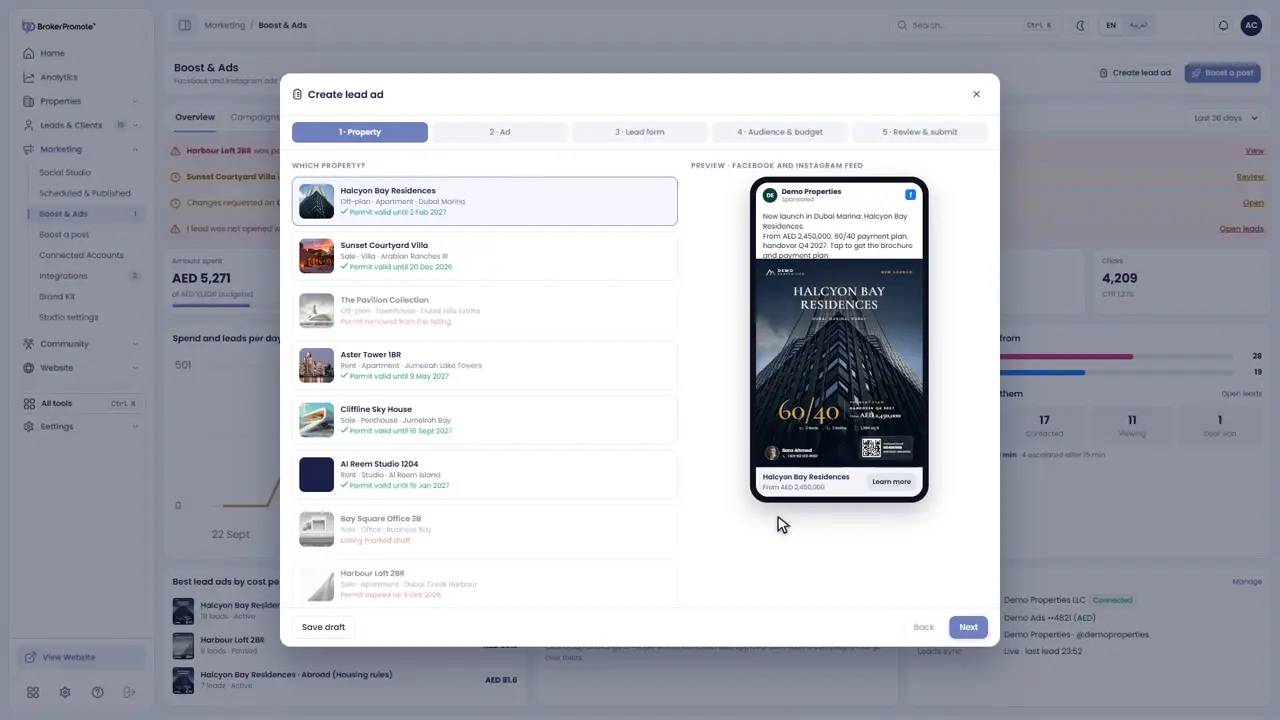
Property
Choose the property to advertise.
-
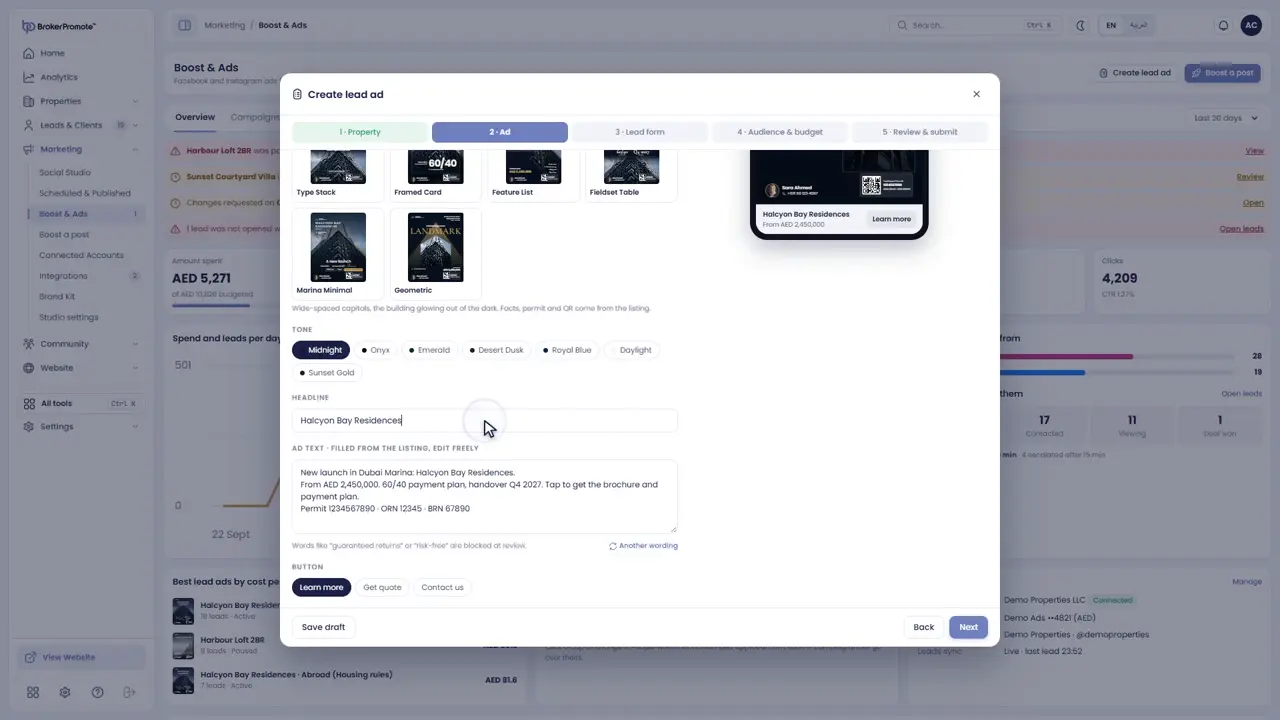
The ad
Choose the design and write the text and the headline.
-
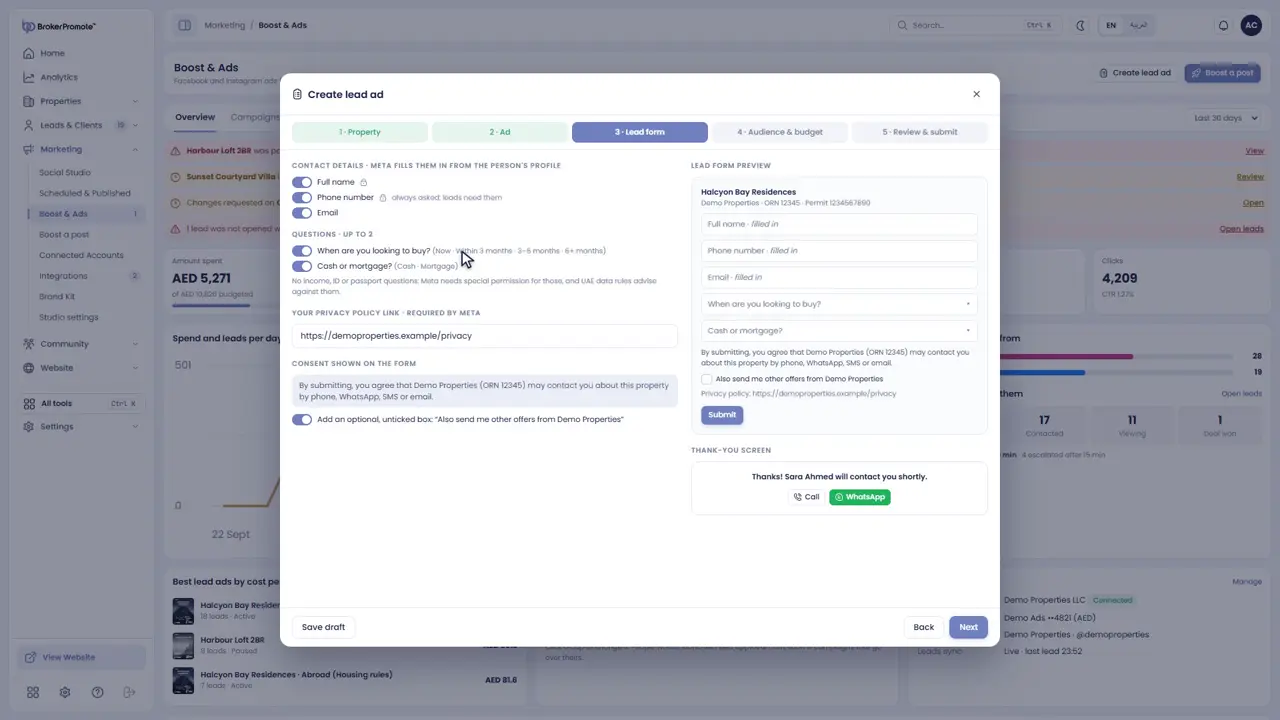
Lead form
Choose what the form asks: their name and phone number, and questions like when they want to buy.
-
Custom targeting
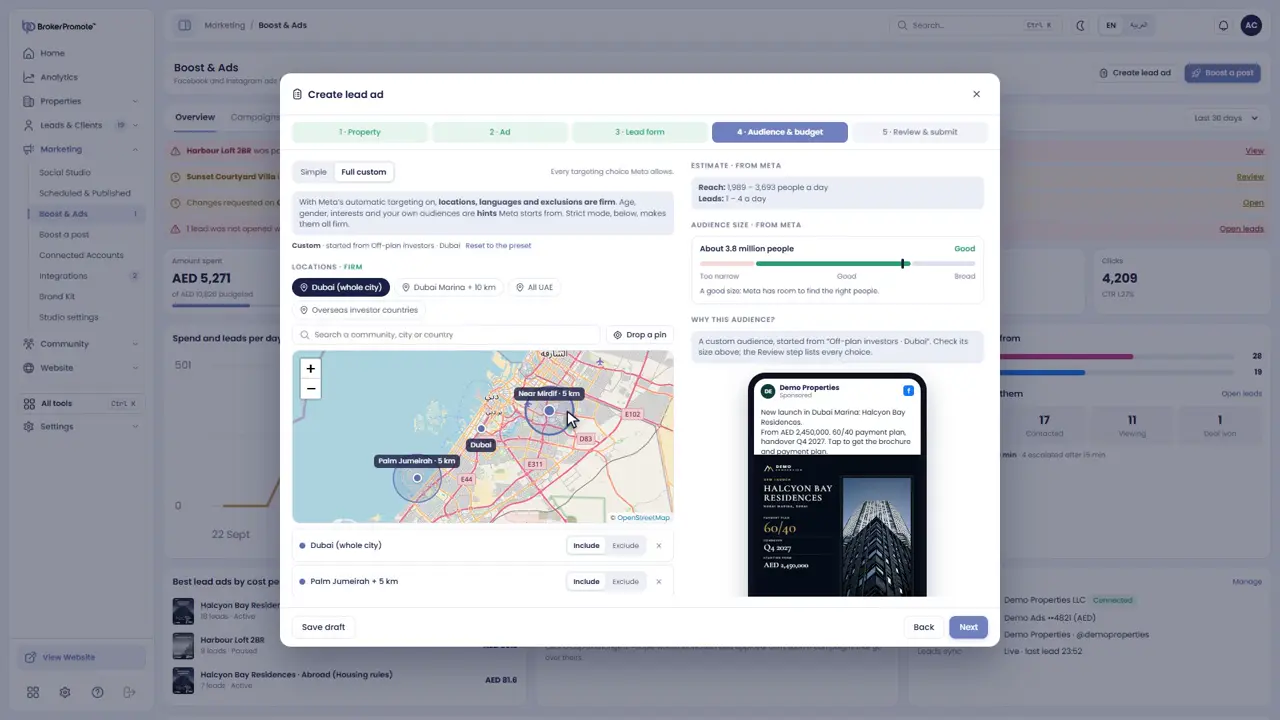
Full custom targeting lets you mark the areas on a map, pin places with a radius, and choose ages and interests. You'll see the size of your audience as you go.
-
Budget
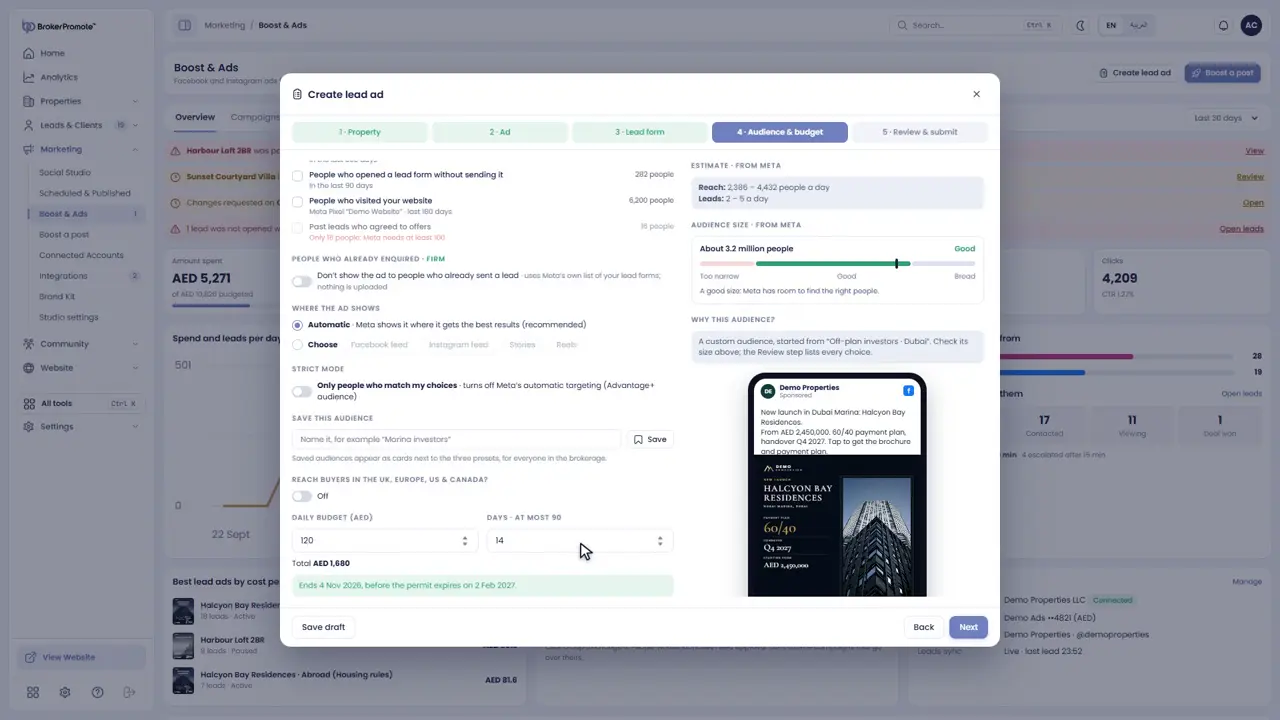
Set the daily budget and the end date.
-
Review and submit
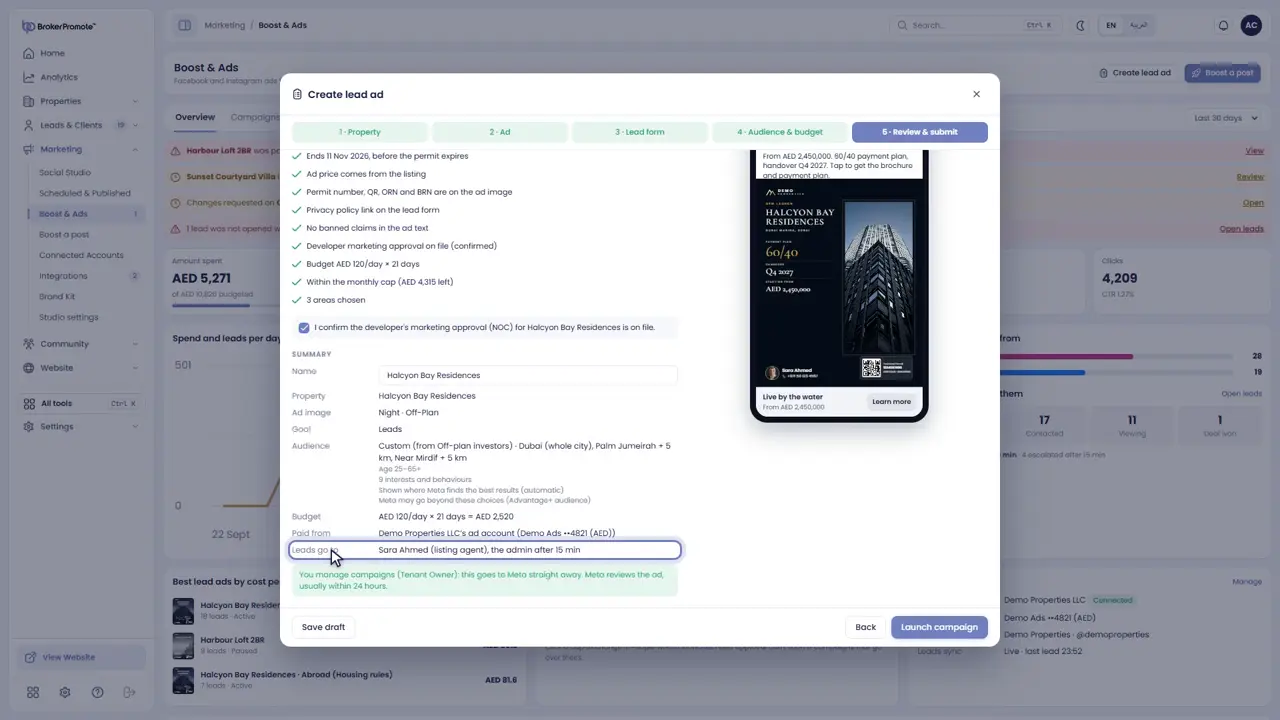
Review everything and submit. Every lead the form collects arrives in Leads, with the listing's agent.
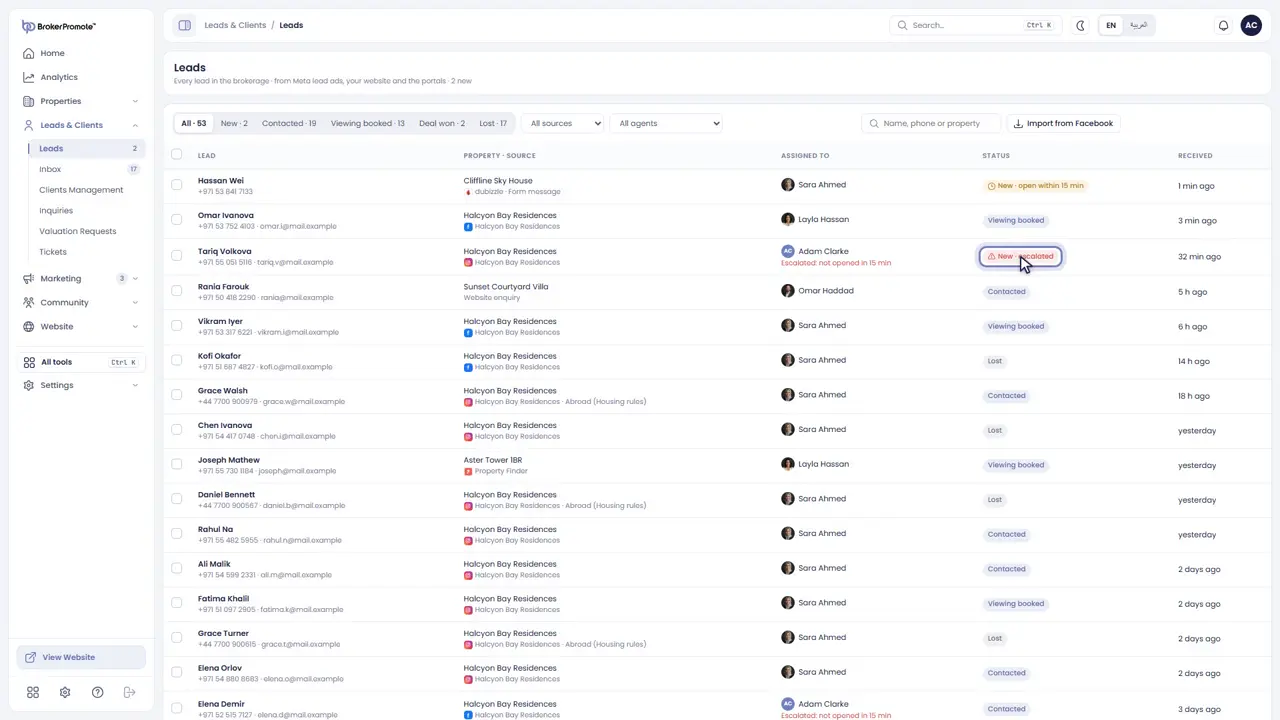
Manage your leads
Filter, open, update and assign leads, and the fifteen-minute rule.

-
Every lead
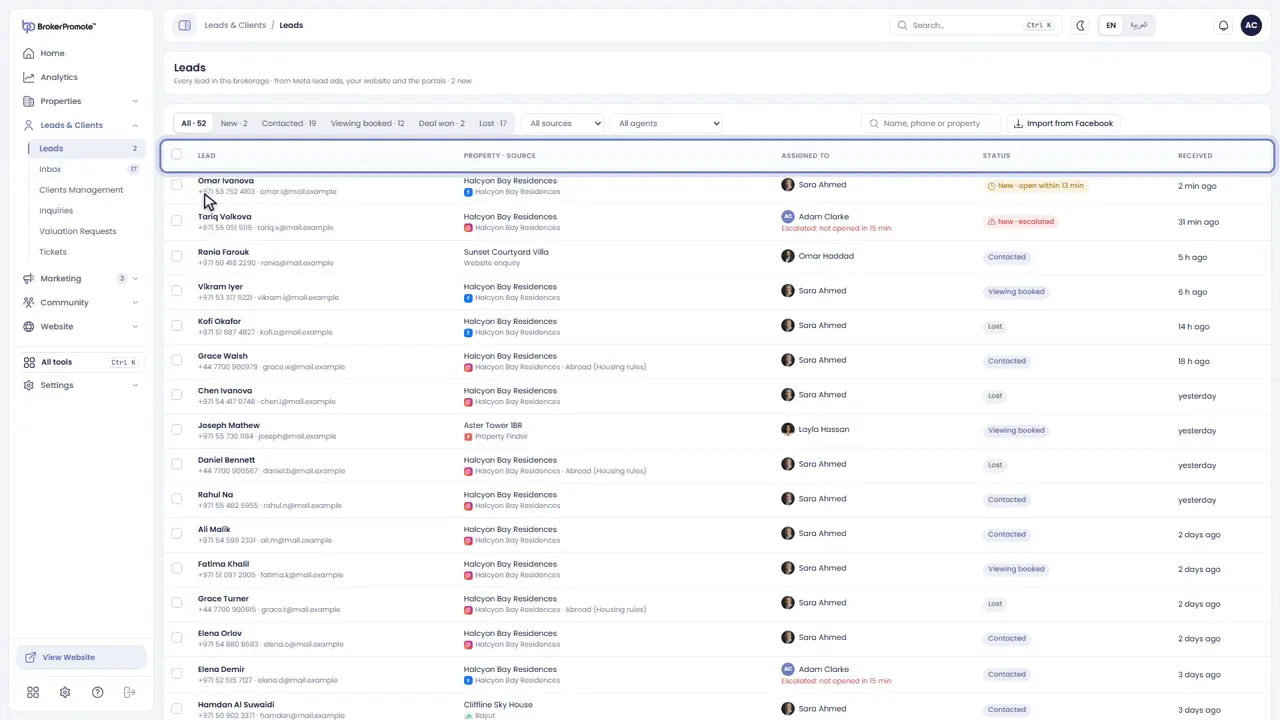
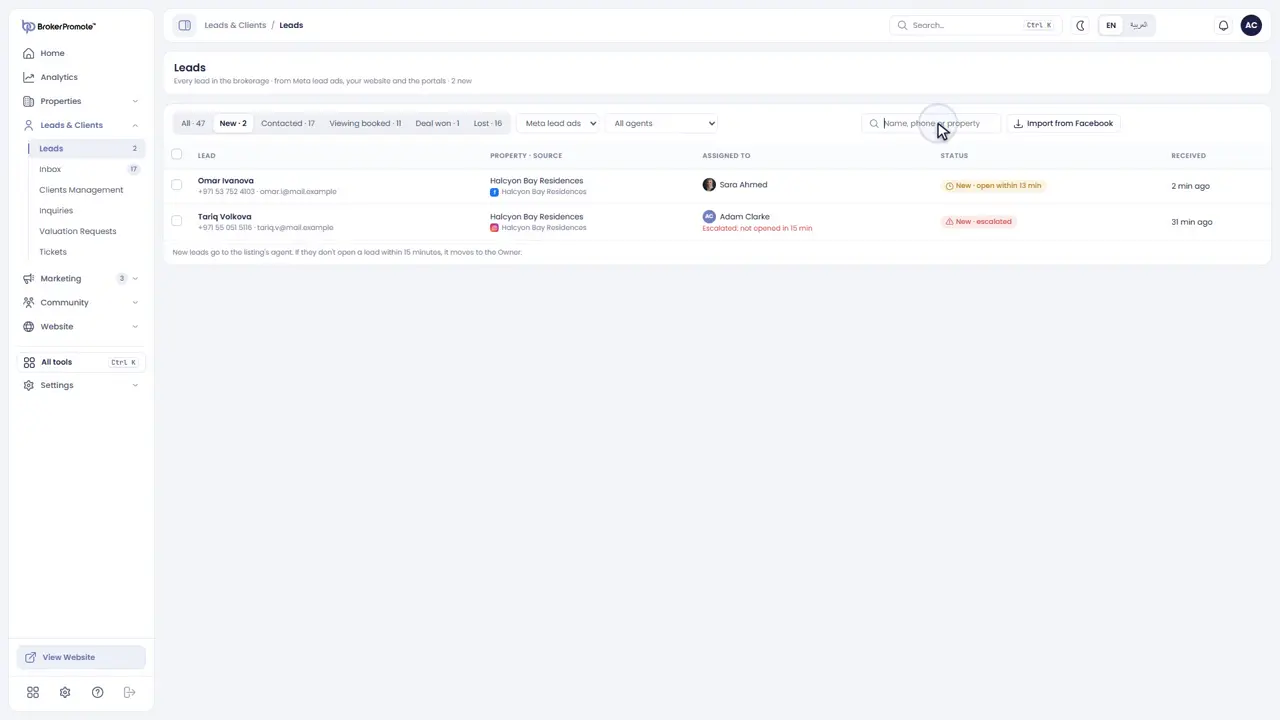
Leads lists every enquiry in the brokerage: from Meta lead ads, your website, the portals and social media.
-
Filter
Filter by status, by source or by agent, or search by name, phone or property.
-
Open a lead
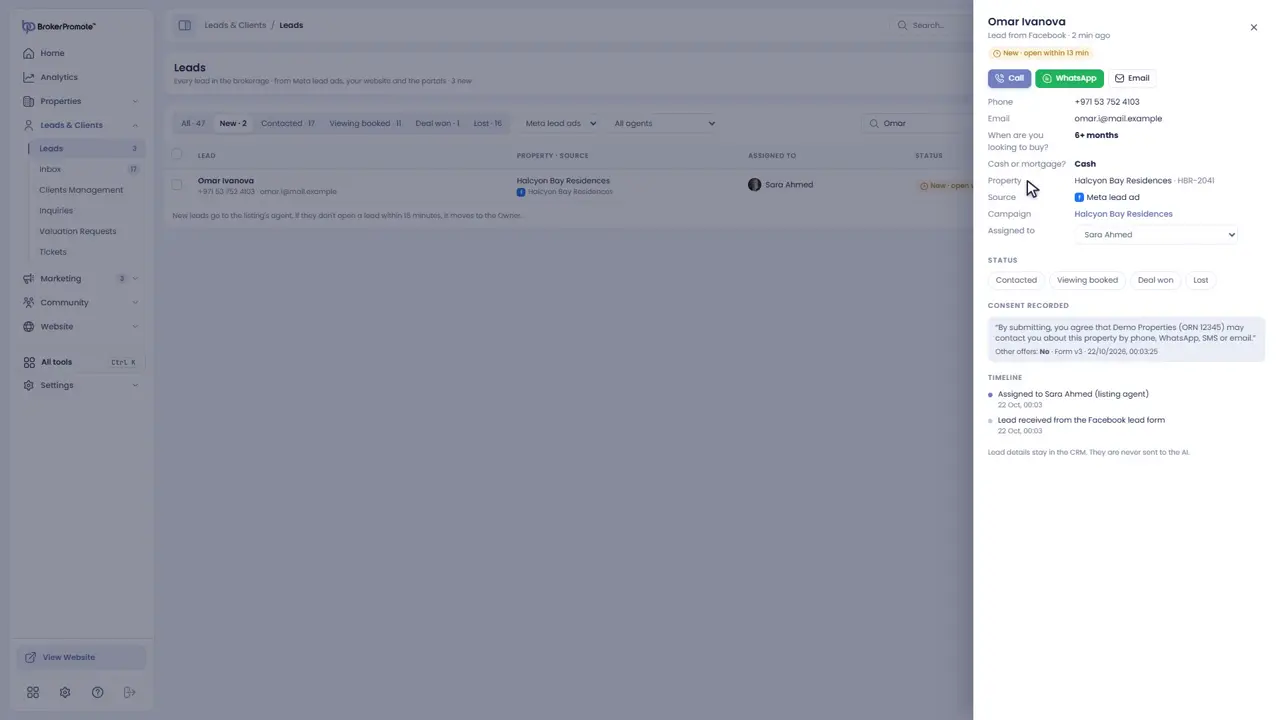
Open a lead to see the buyer's details, the property they asked about, and everything that has happened since.
-
Update the status
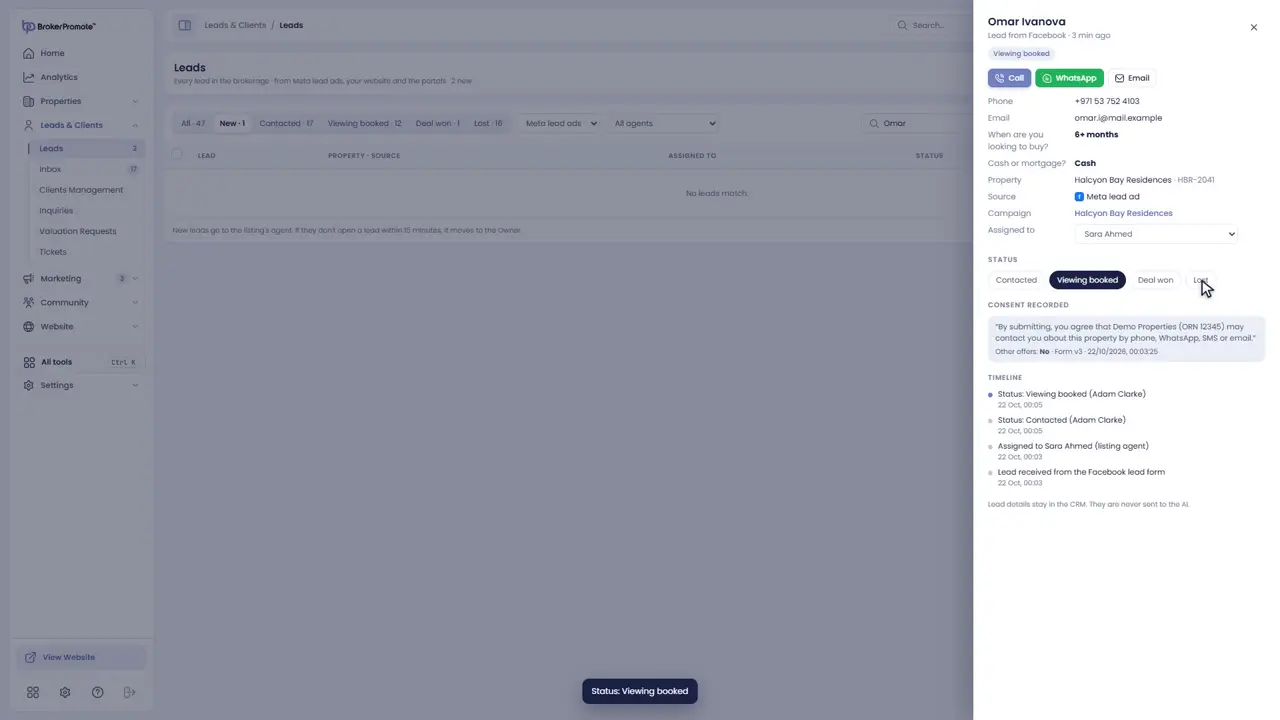
As you work the lead, move it along: contacted, viewing booked, and then deal won or lost.
-
Assign
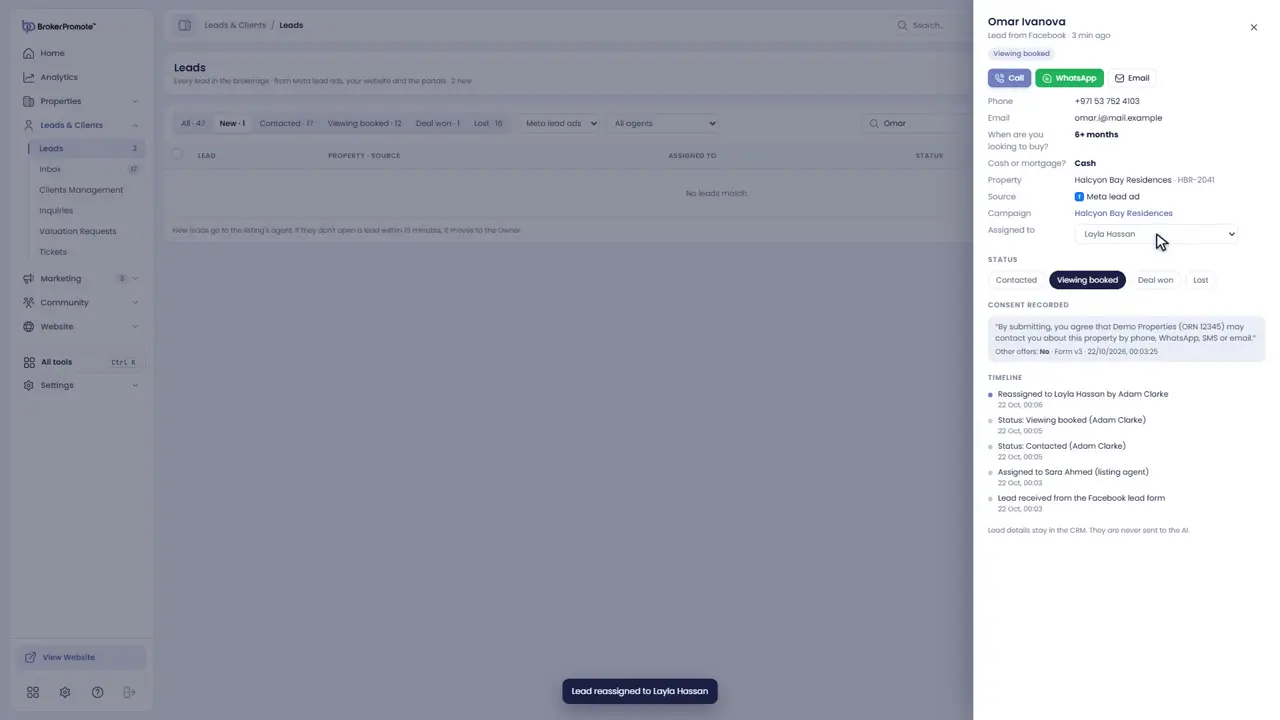
Assign a lead to another agent when needed.
-
The fifteen-minute rule
A new lead goes to the listing's agent. If they don't open it within fifteen minutes, it moves to the owner, because buyers call the next agent.
The social inbox
Answer messages and comments from every platform, or turn them into leads.

-
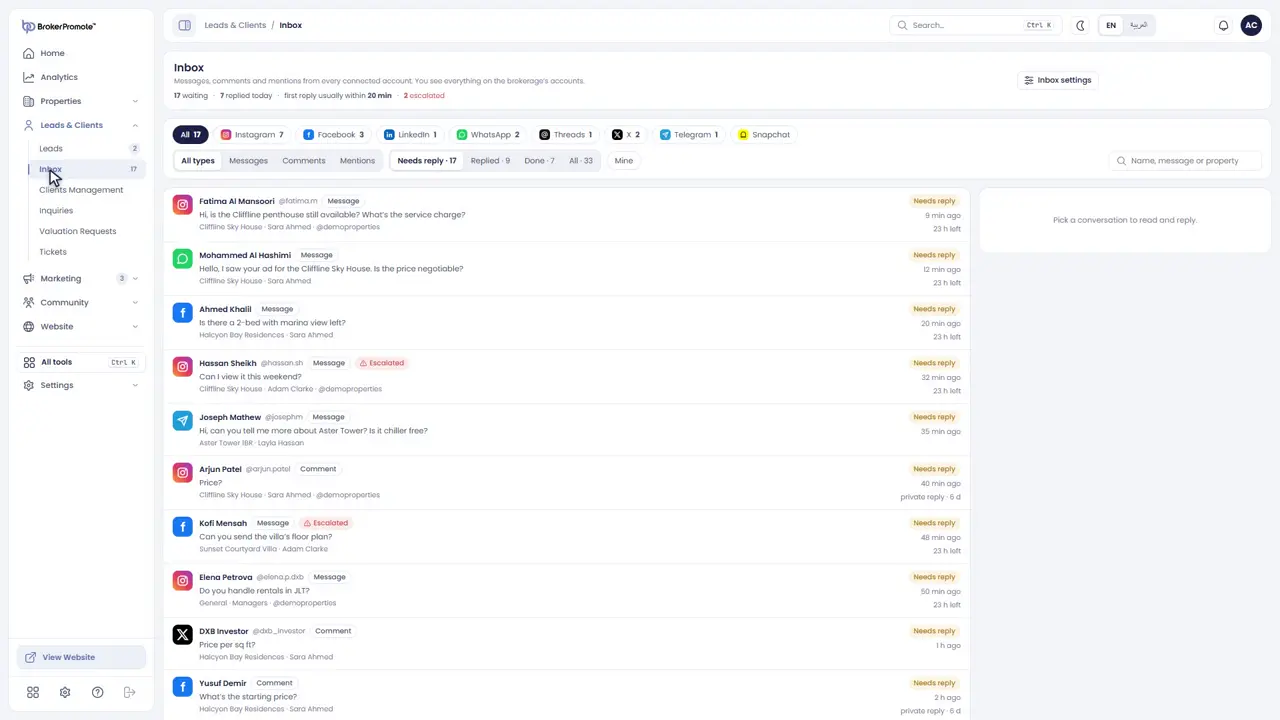
One inbox
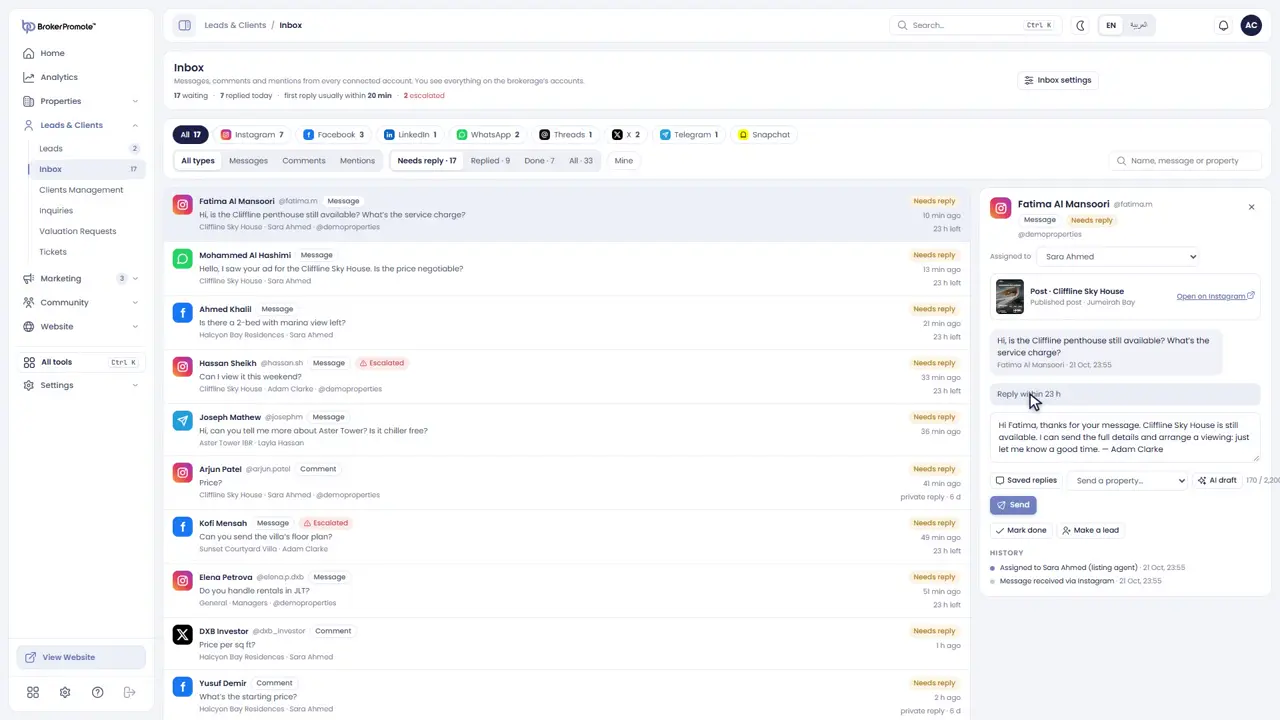
The Inbox collects messages, comments and mentions from every connected account, in one list.
-
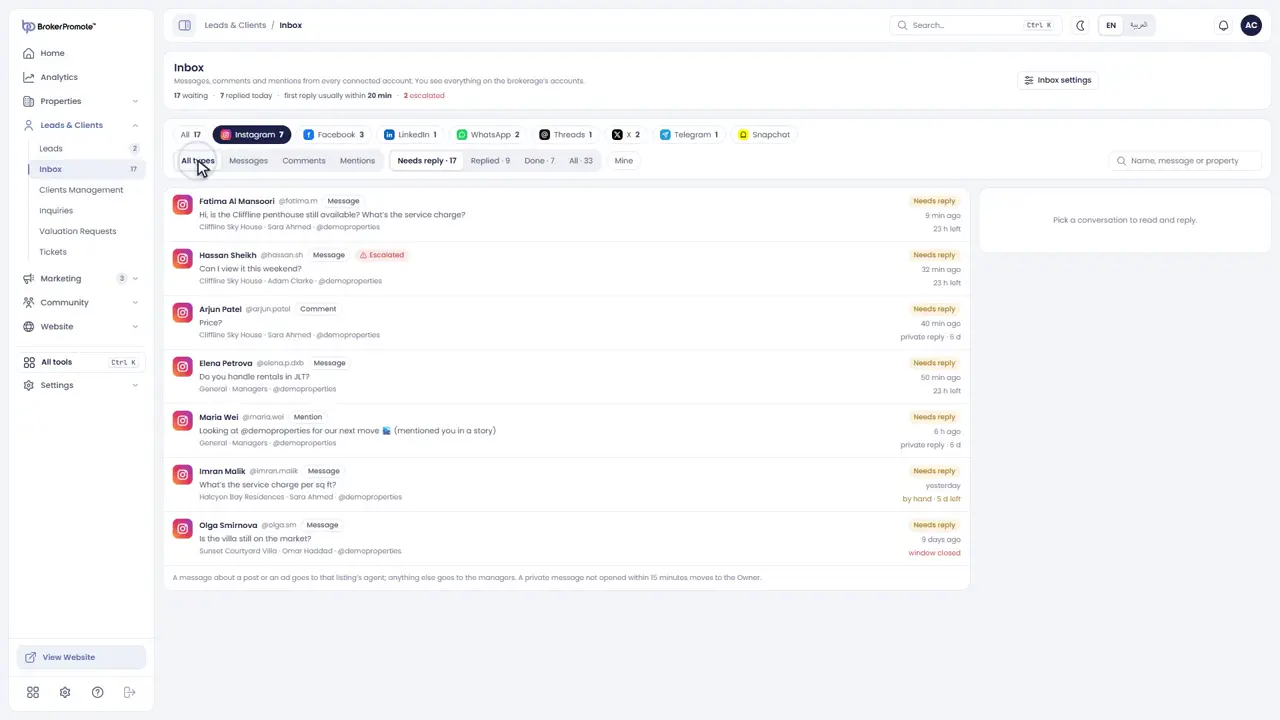
Filter
Filter by platform, by type and by status, to see what needs a reply.
-
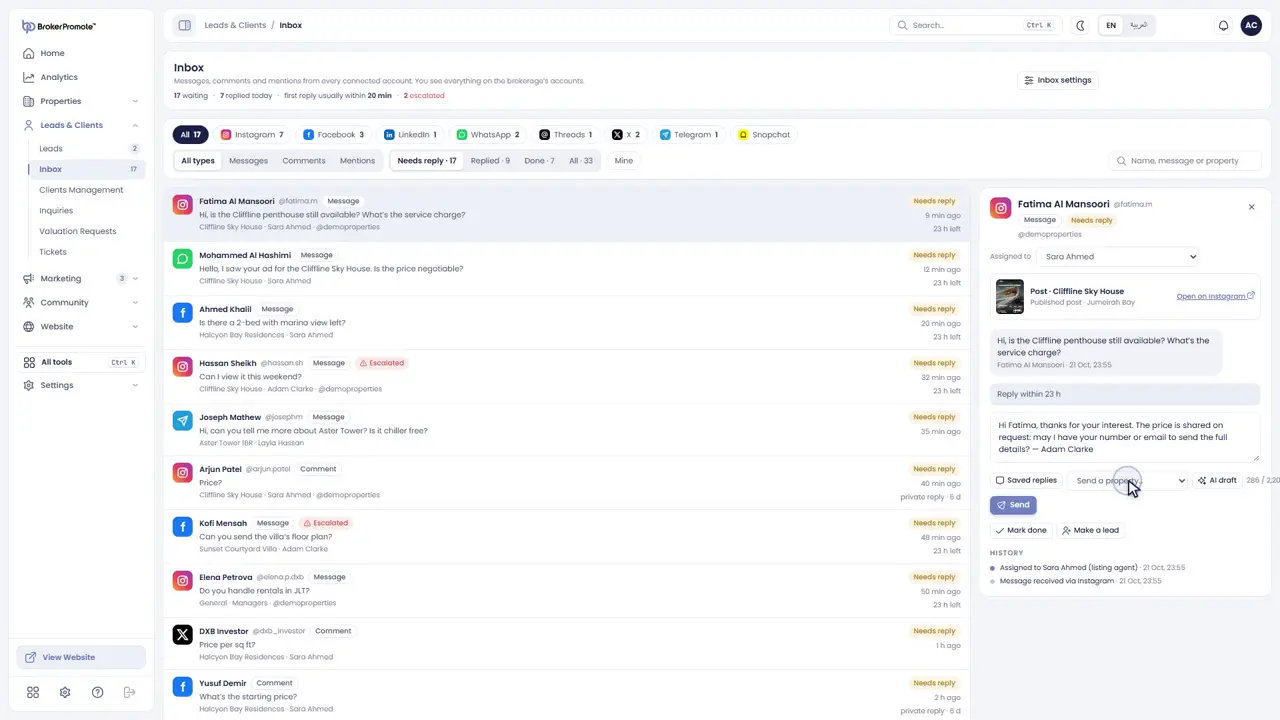
Reply
Open a conversation and reply. Use a saved reply, send a property card, or start from a suggested reply.
-
Reply windows
The reply box shows each platform's rules, like how long you have to answer a message.
-
Assign or make a lead
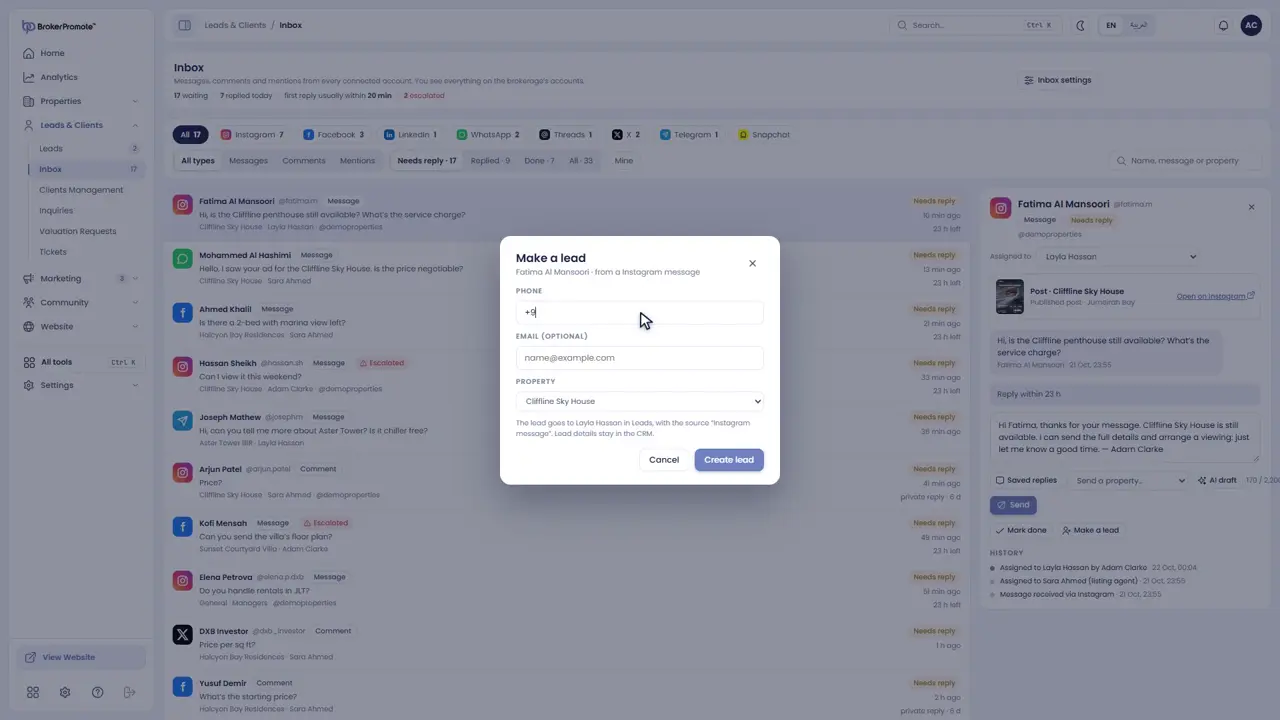
Assign the conversation to someone else, or turn it into a lead in one click.
Analytics
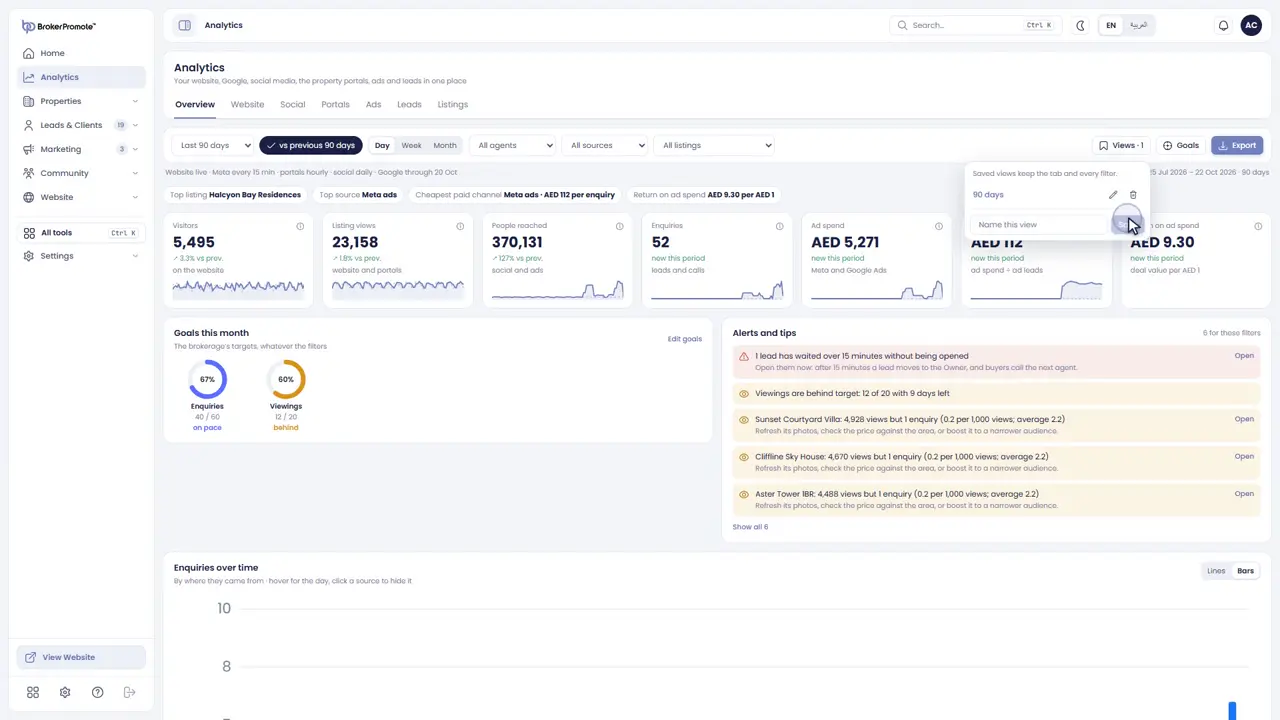
Your website, social media, portals, ads and leads on one page, with goals and alerts.
-
Overview
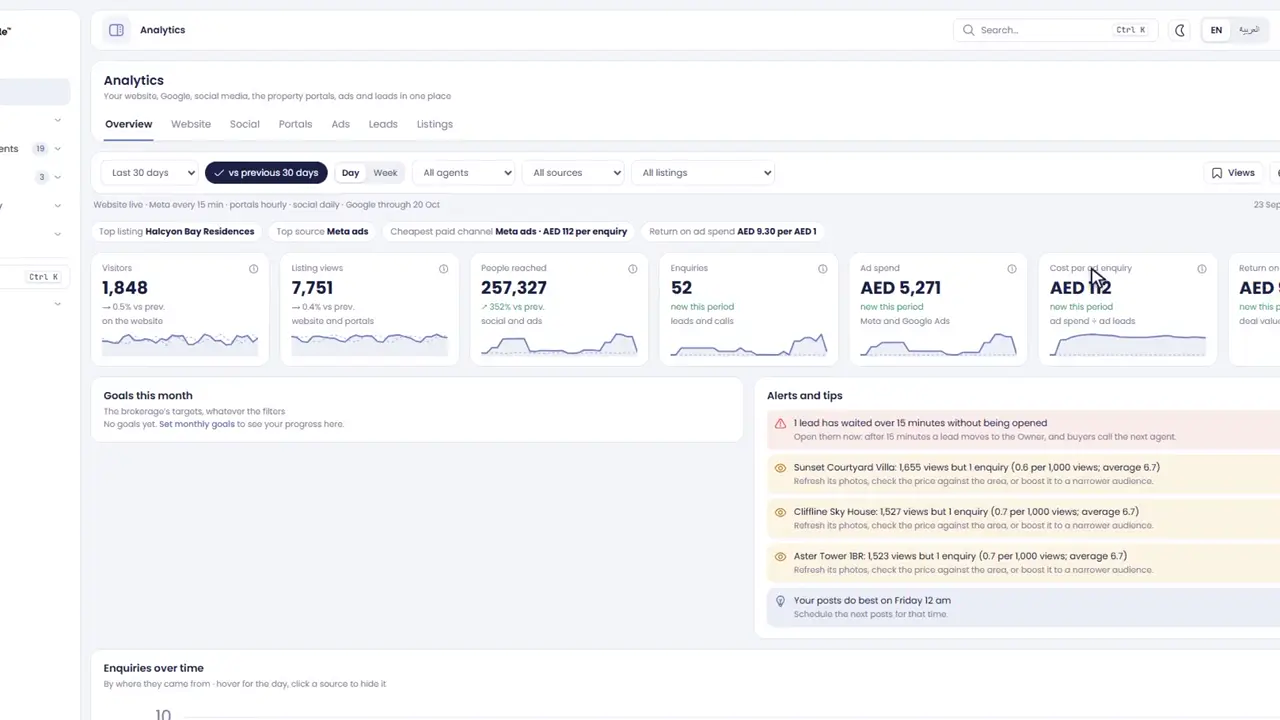
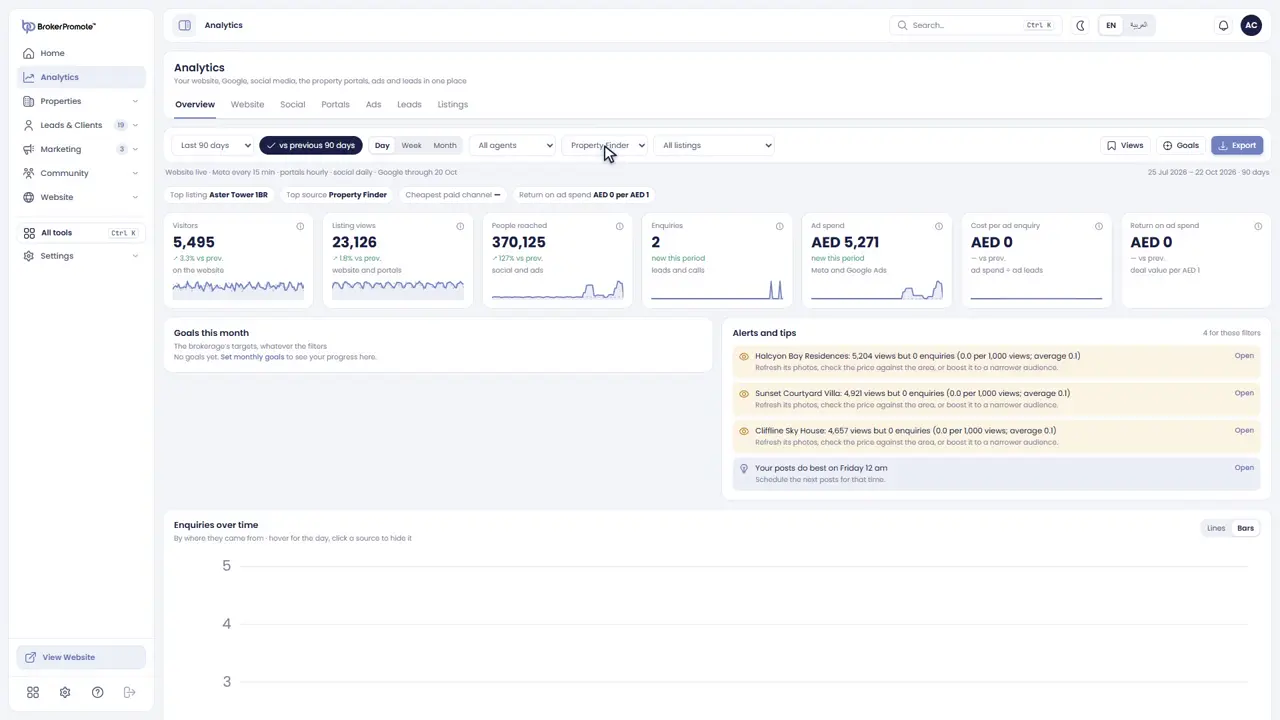
Analytics puts every number on one page. The top row shows visitors, listing views, people reached, enquiries, ad spend and the cost of each enquiry.
-
Filters
Choose the dates and compare with the previous period. Filter by agent, by source or by listing.
-
Charts
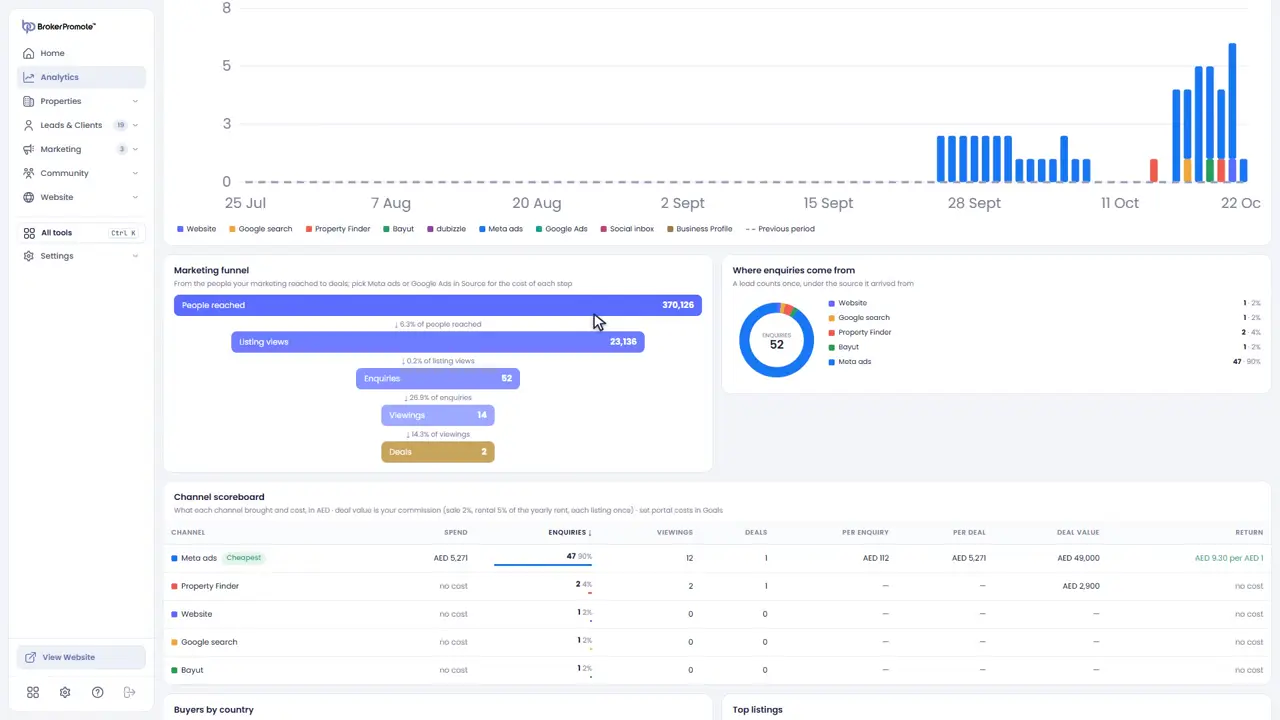
See enquiries over time, the marketing funnel, where enquiries come from, and how each channel performs.
-
Each source
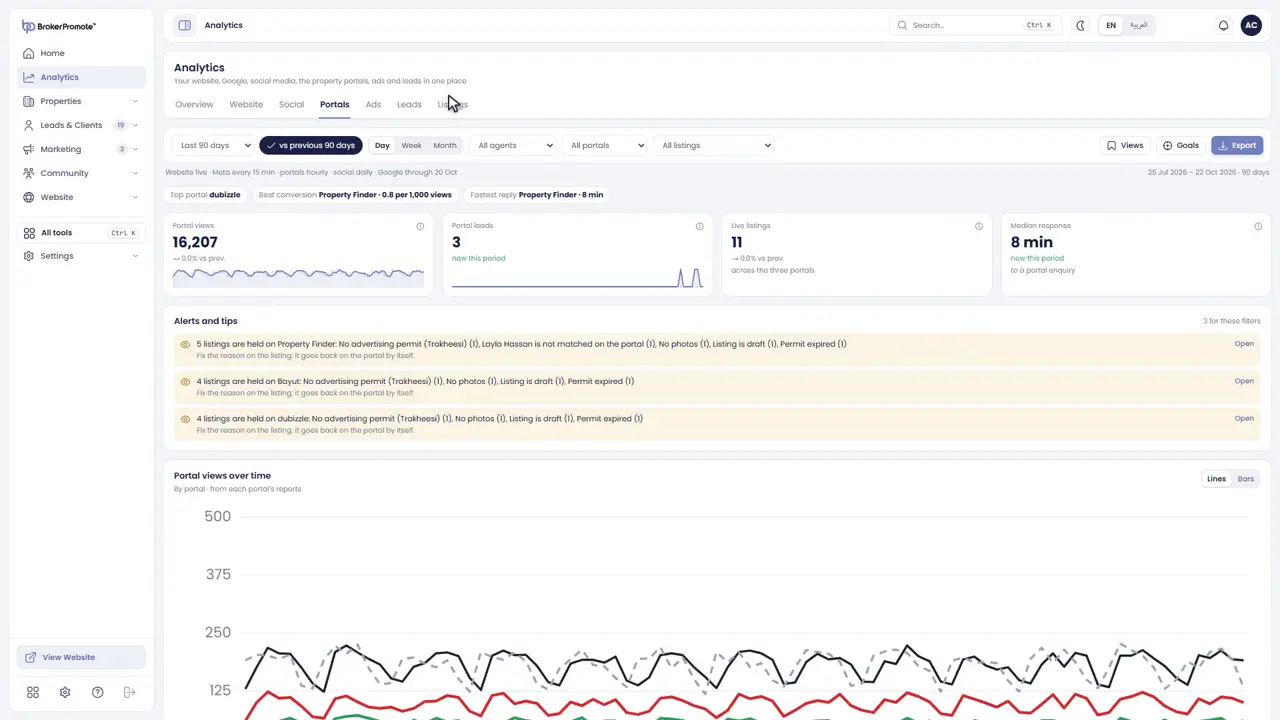
The tabs go deeper: Website, Social, Portals, Ads, Leads and Listings.
-
Goals and alerts
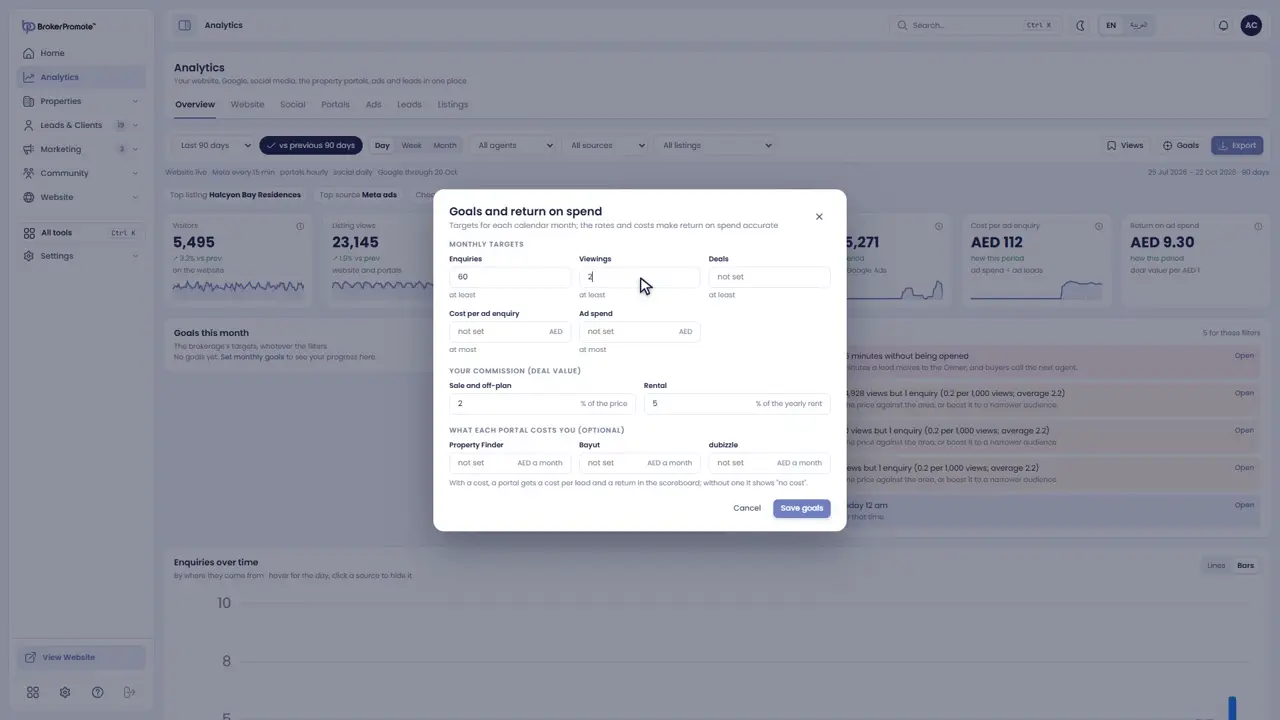
Set monthly goals to track your progress, and act on the alerts, such as leads left waiting.
-
Views and export
Save the filters you use most as a view, and export a report.
Connect the property portals and Google
Connect Property Finder, Bayut and dubizzle, and your Google services.

-
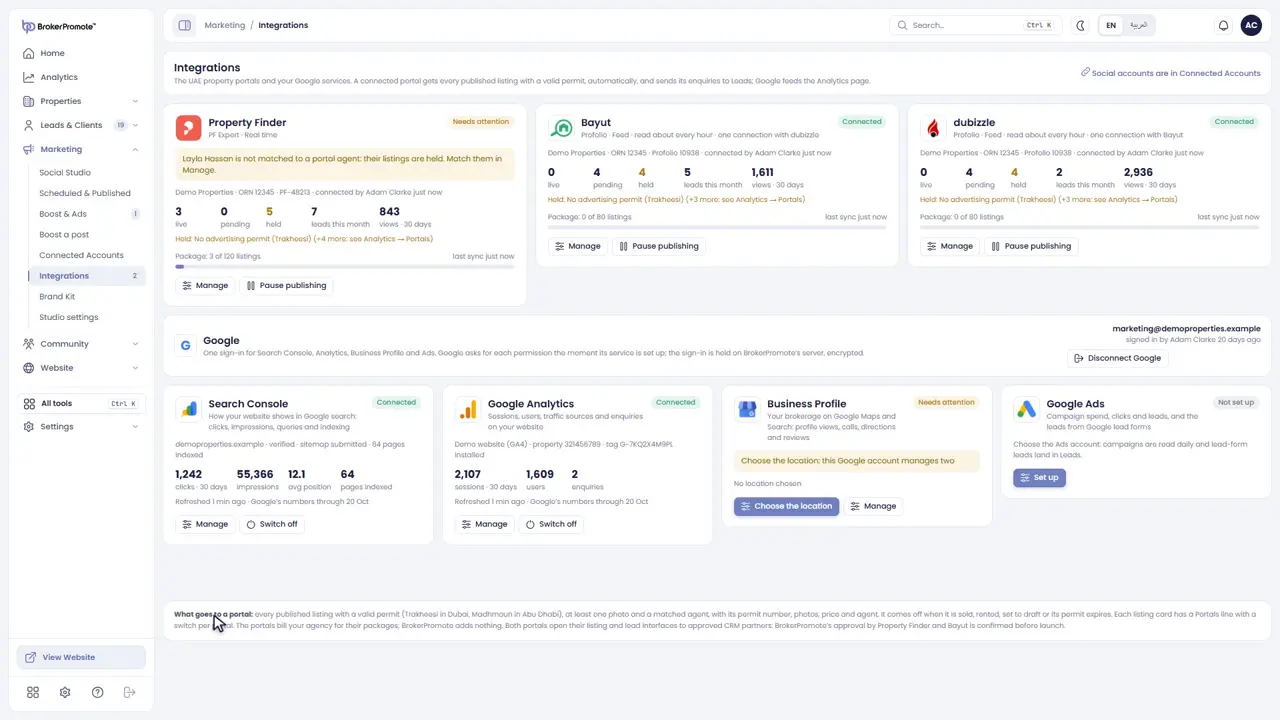
Integrations
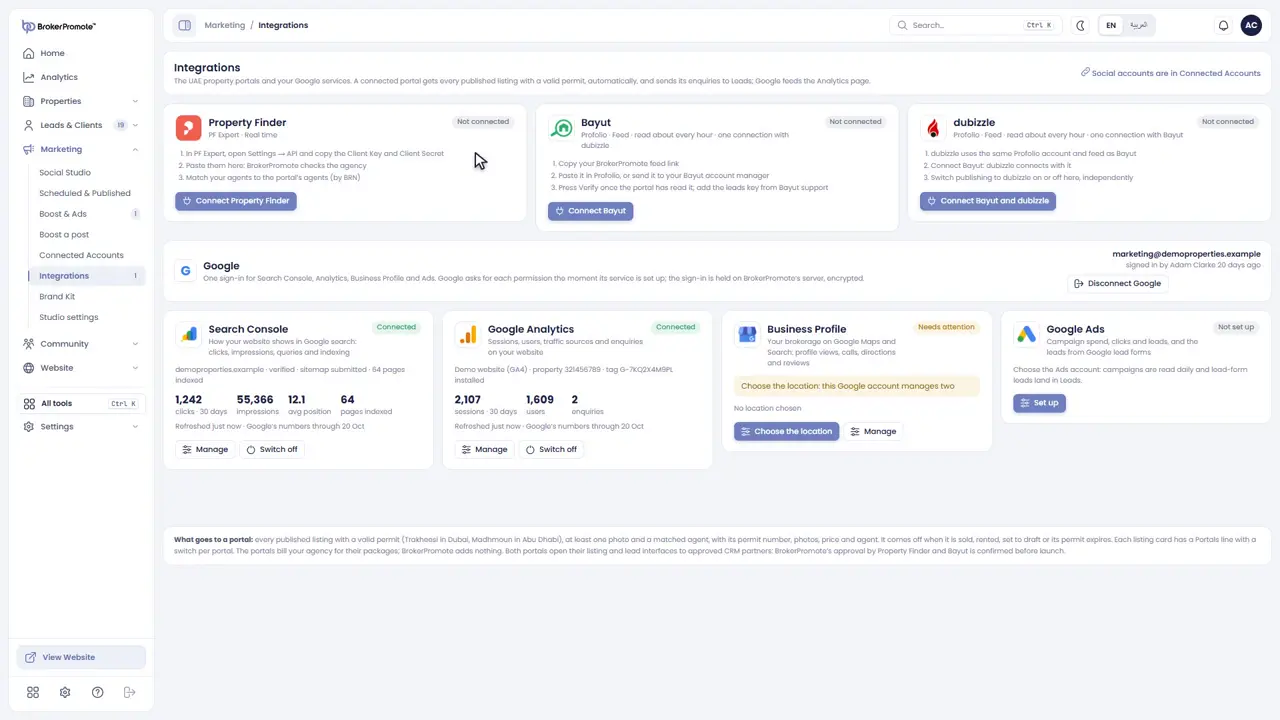
Integrations connects the UAE property portals and your Google services. Open it from the Marketing menu.
-
Property Finder
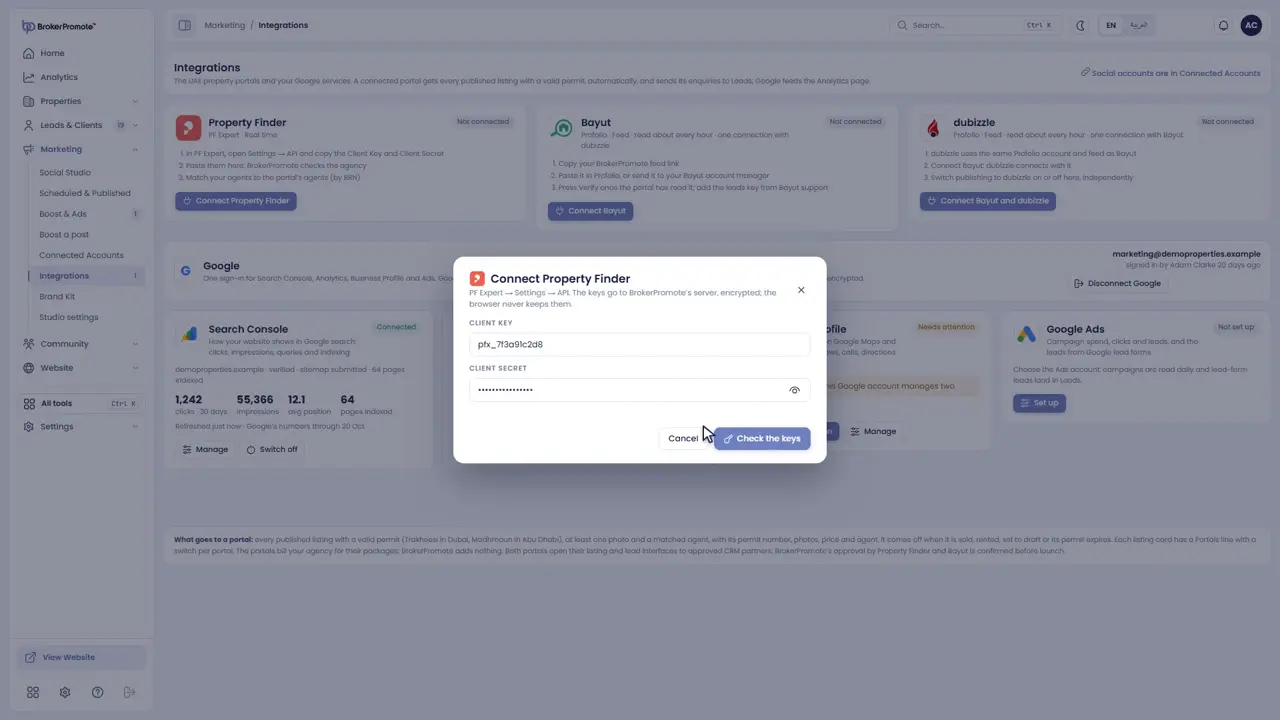
To connect Property Finder, paste the keys from PF Expert, then match your agents to theirs by BRN.
-
Bayut and dubizzle
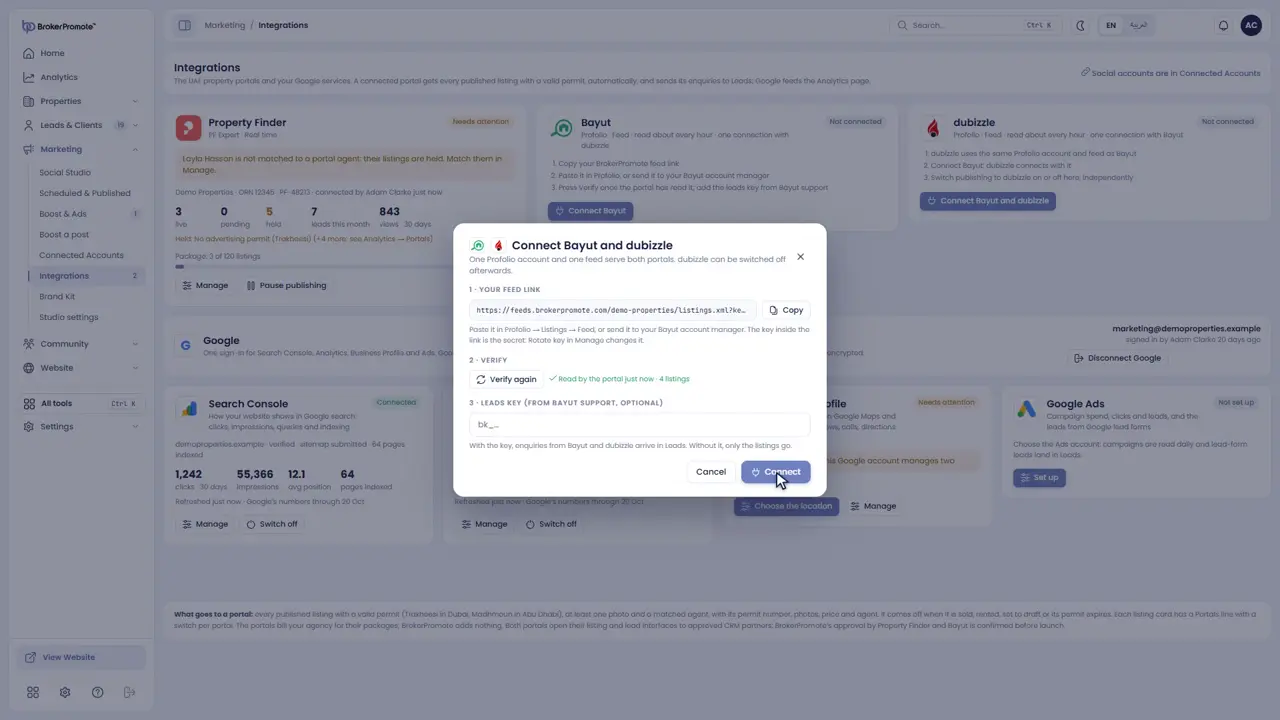
Bayut and dubizzle share one feed. Copy your feed link into Profolio, and both portals read your listings from it.
-
What goes to the portals
Every published listing with a valid permit goes to the portals automatically. Their enquiries arrive in Leads.
-
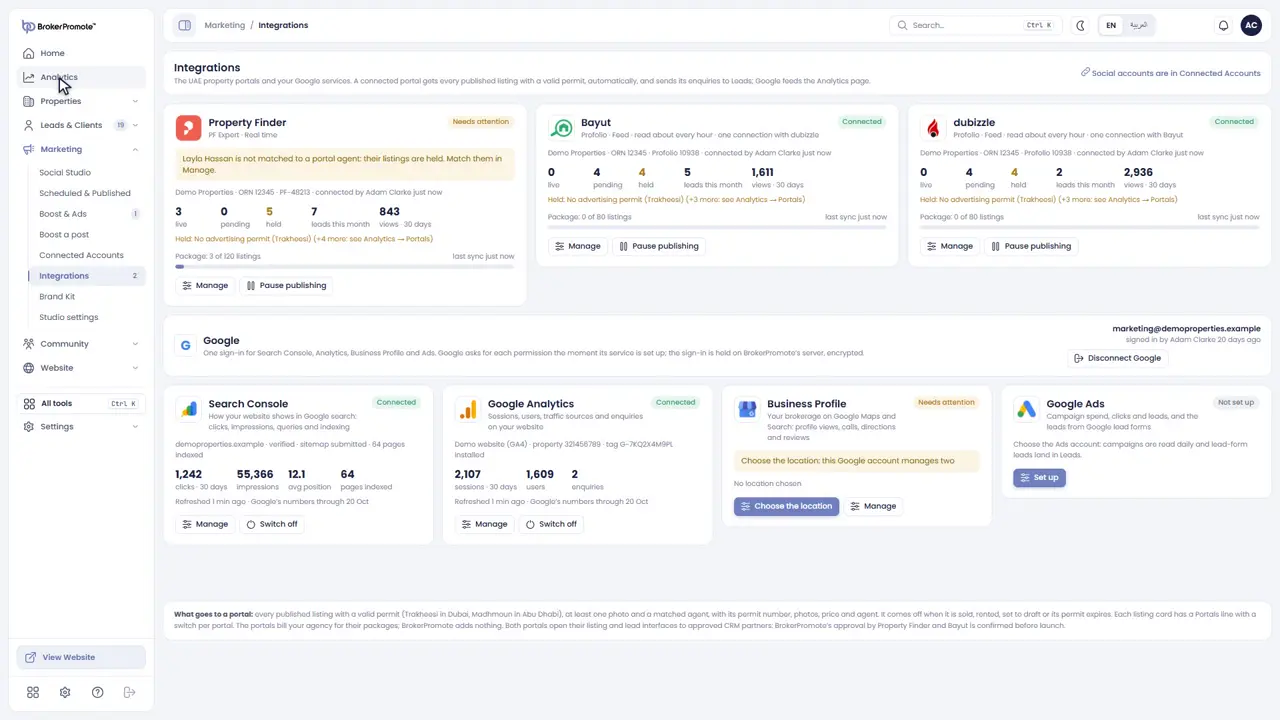
Google
Sign in to Google once, then set up Search Console, Google Analytics, Business Profile and Google Ads. Their numbers appear in Analytics.
Community and co-broking
Share listings, match requirements, chat, sign agreements and follow deals.
-
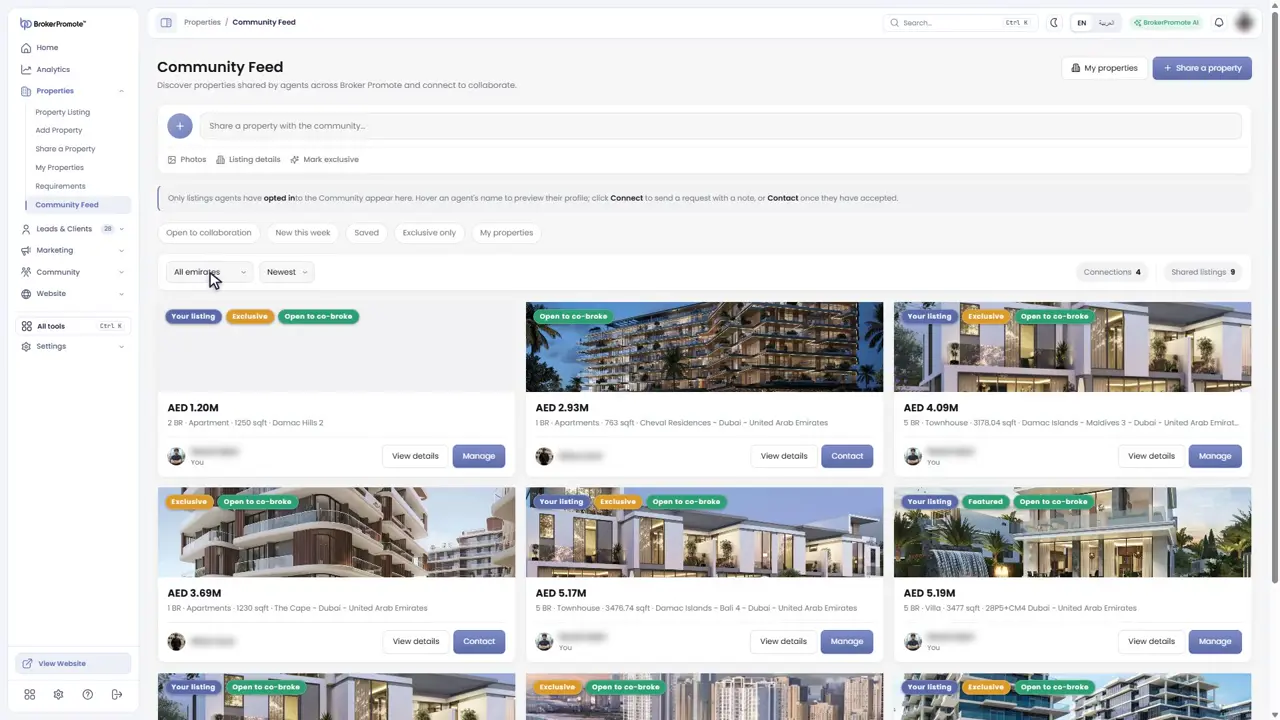
Community Feed
The Community Feed shows listings shared by agents across BrokerPromote. Filter by emirate, or show only exclusives.
-
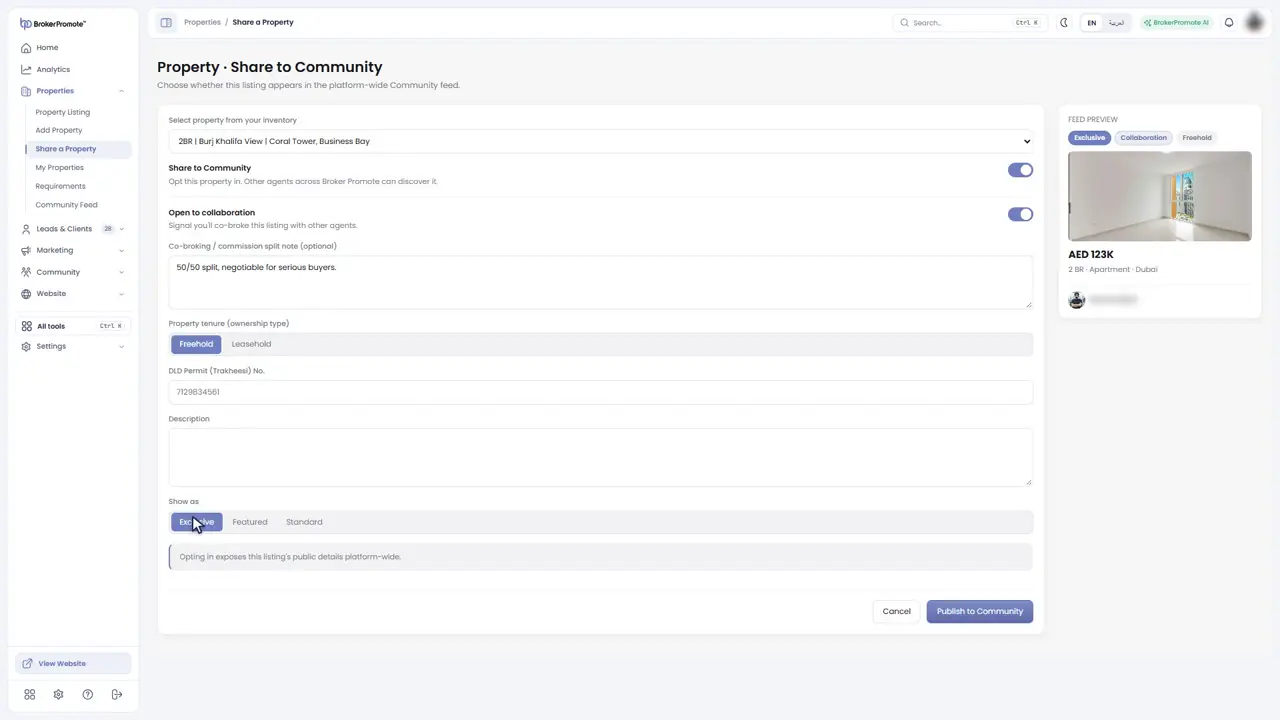
Share a property
Share one of your listings with the Community, and mark it exclusive or open to co-broke.
-
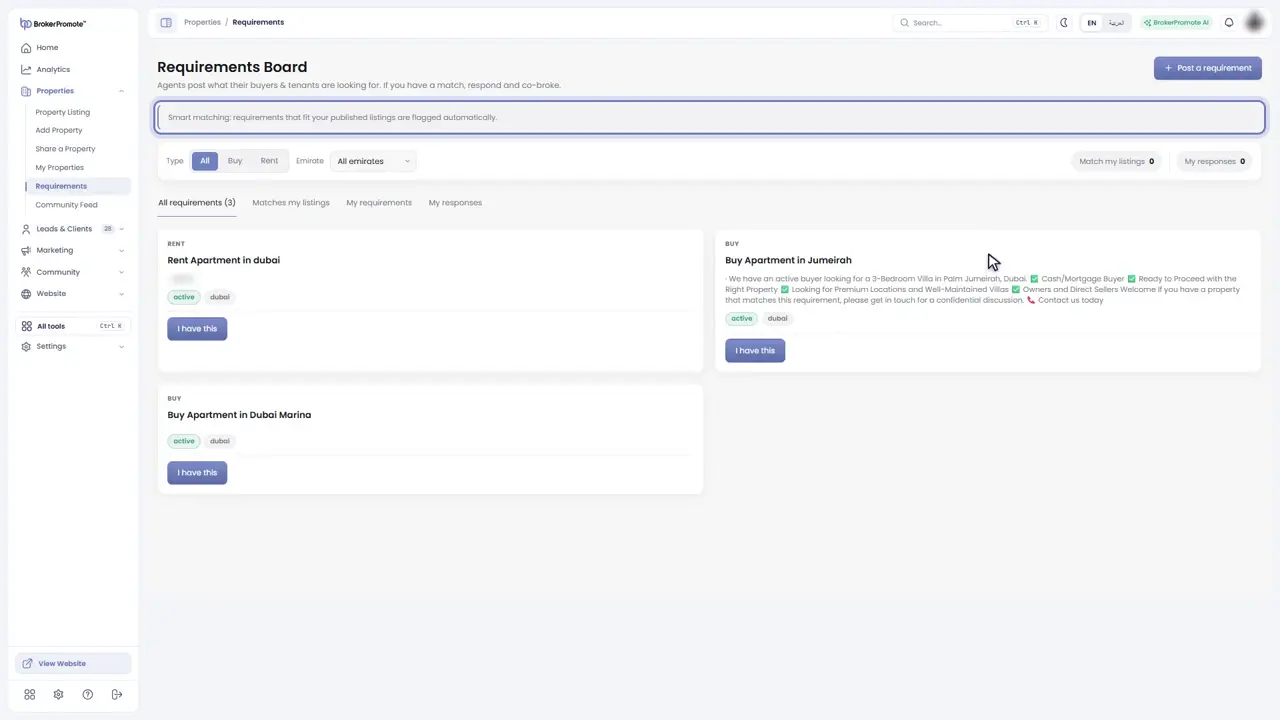
Requirements
On the Requirements board, agents post what their buyers and tenants need. Requirements that match your listings are flagged for you.
-
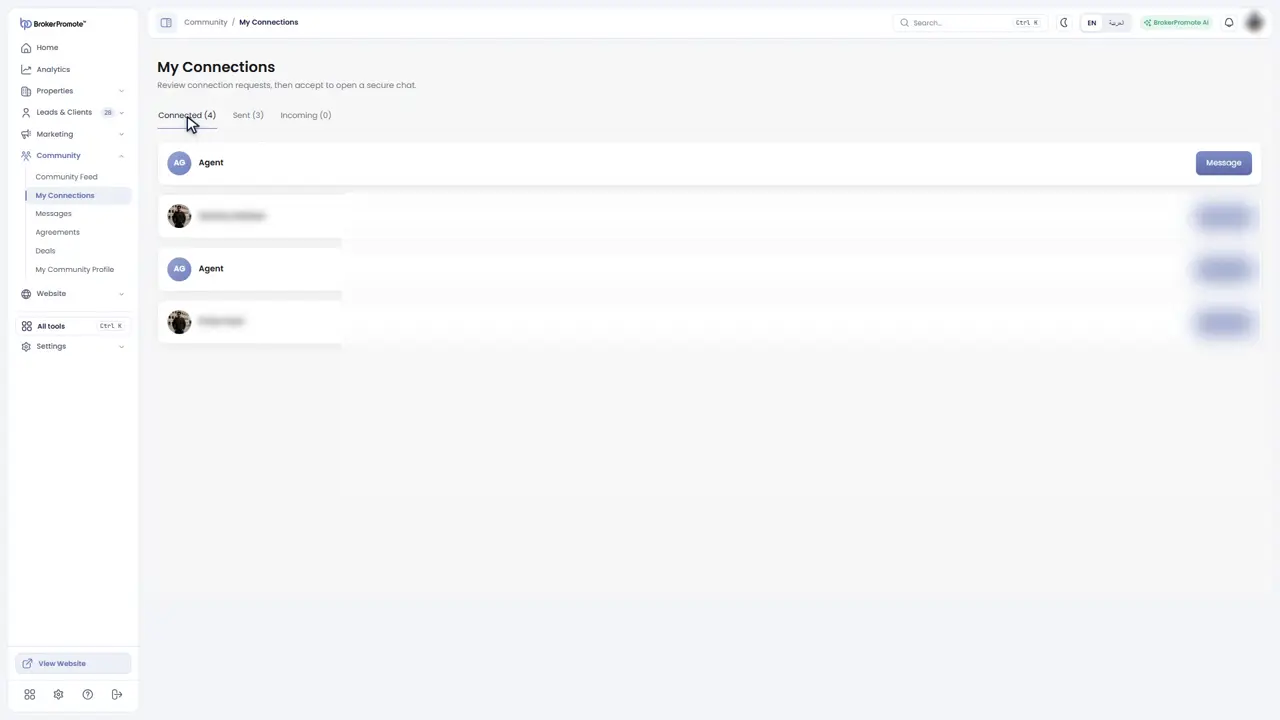
Connect and chat
Send another agent a connection request. Once they accept, you can chat privately.
-
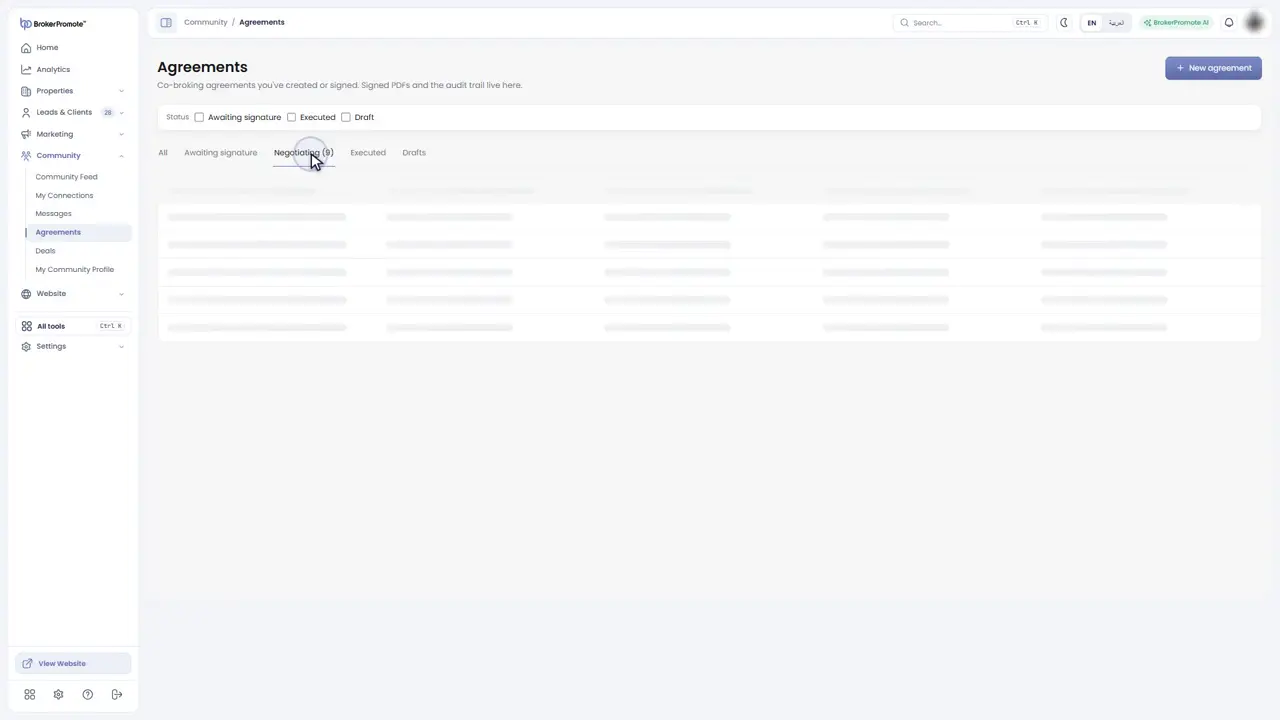
Agreements
Draft a co-broking agreement, negotiate it, and sign it. The signed copy and its history are kept here.
-
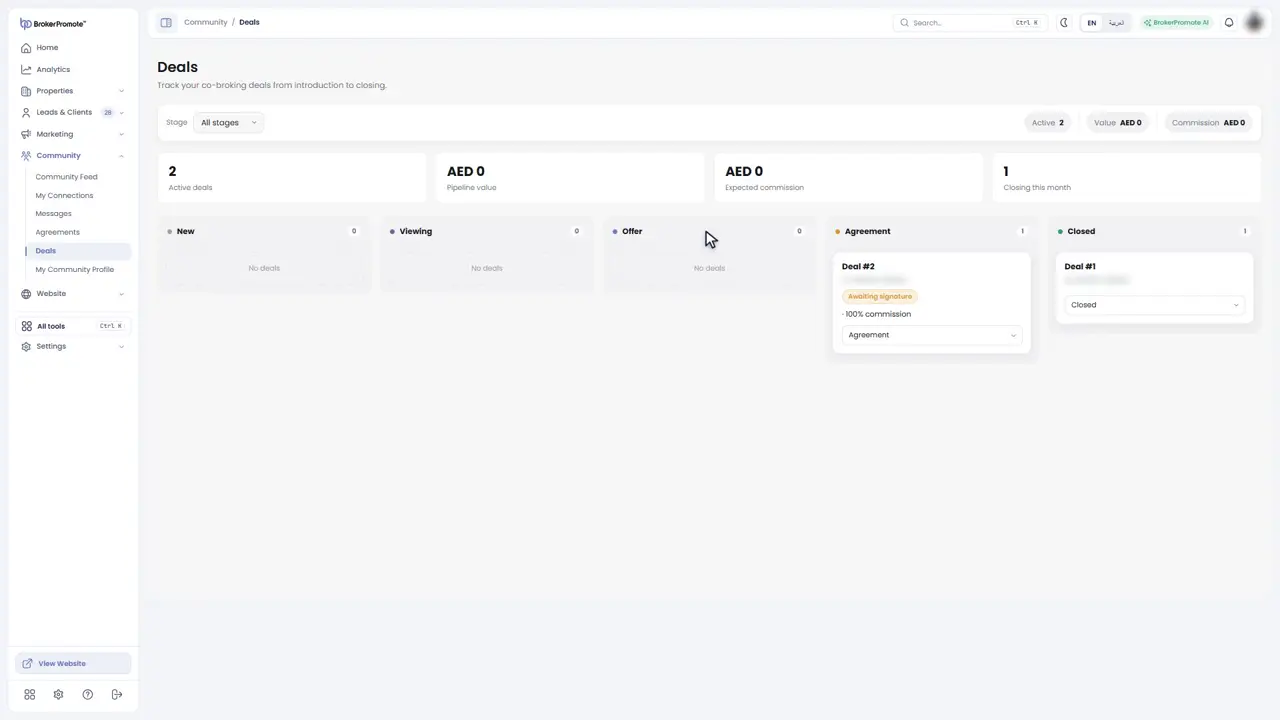
Deals
Follow each co-broking deal from the first contact to viewing, offer, agreement and closing.
-
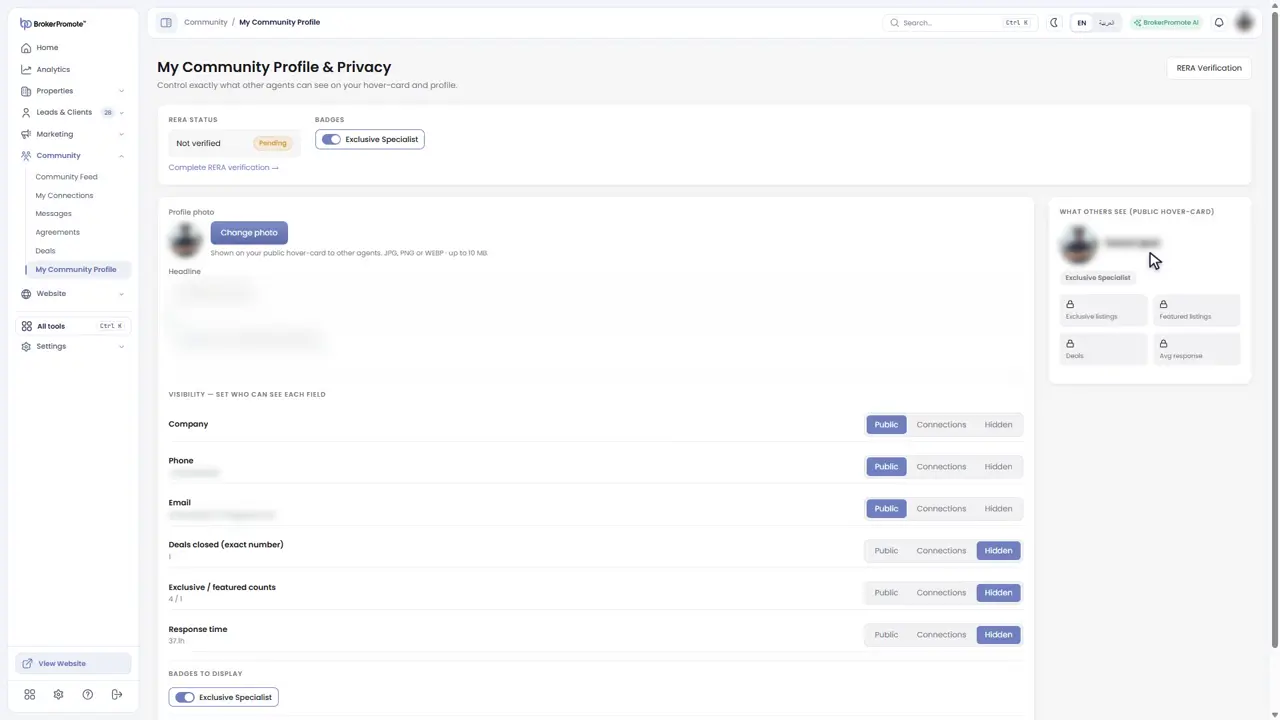
Your profile
My Community Profile controls what other agents can see about you, and where you verify your RERA registration.
Your website: themes, customisation and pages
Choose a theme, set colours and fonts, edit pages and connect your domain.

-
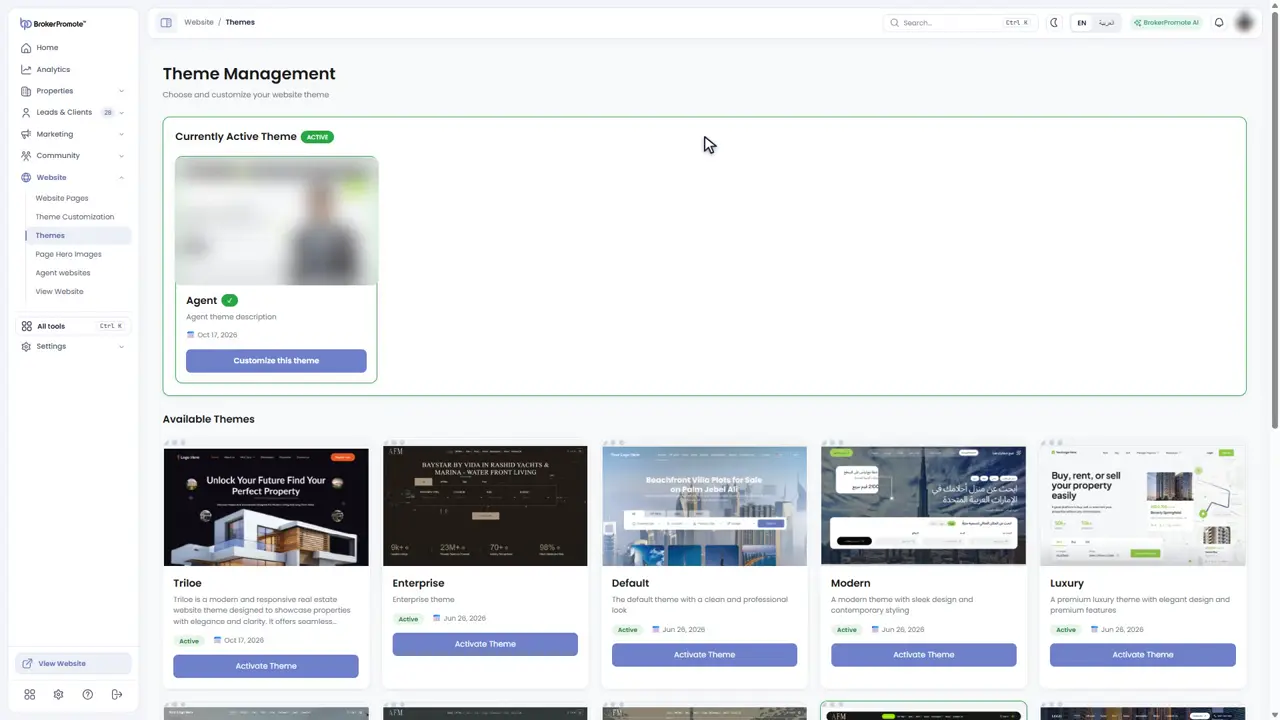
Themes
Your brokerage website is managed from the Website menu. Start with Themes, and choose the look you like.
-
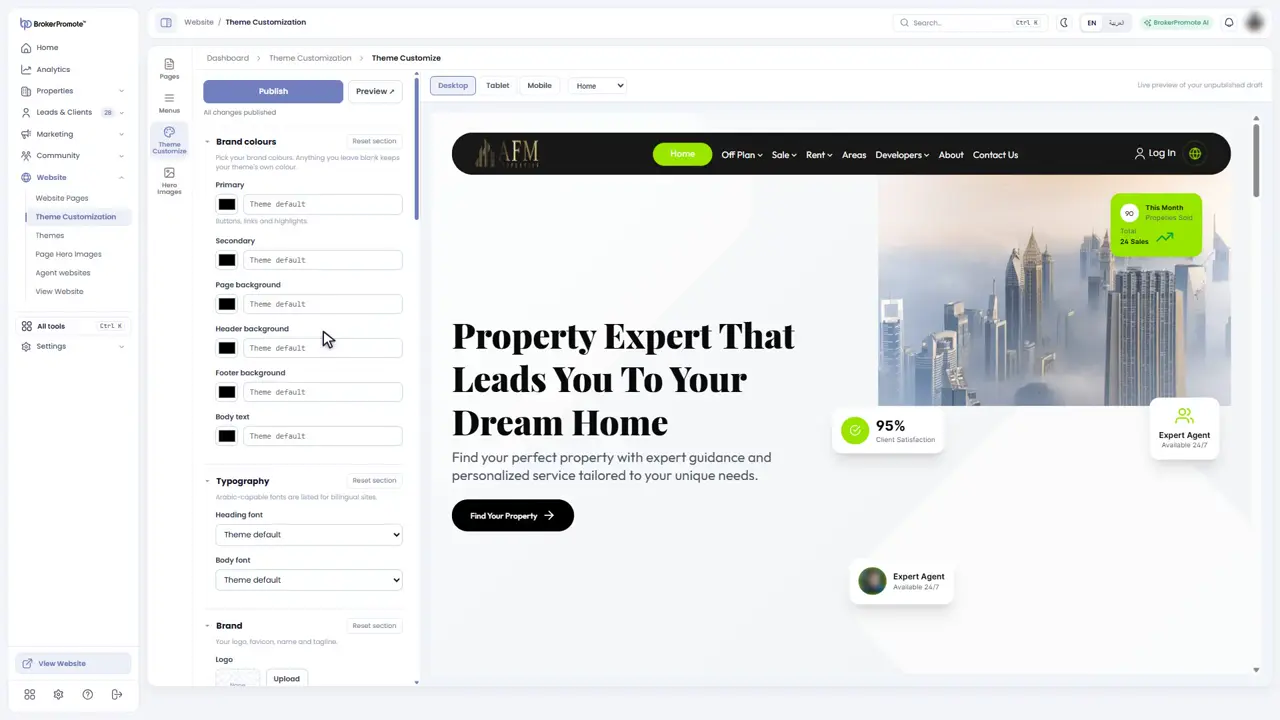
Customise
Theme Customization sets your colours, fonts, header and footer, with a live preview on desktop, tablet and phone.
-
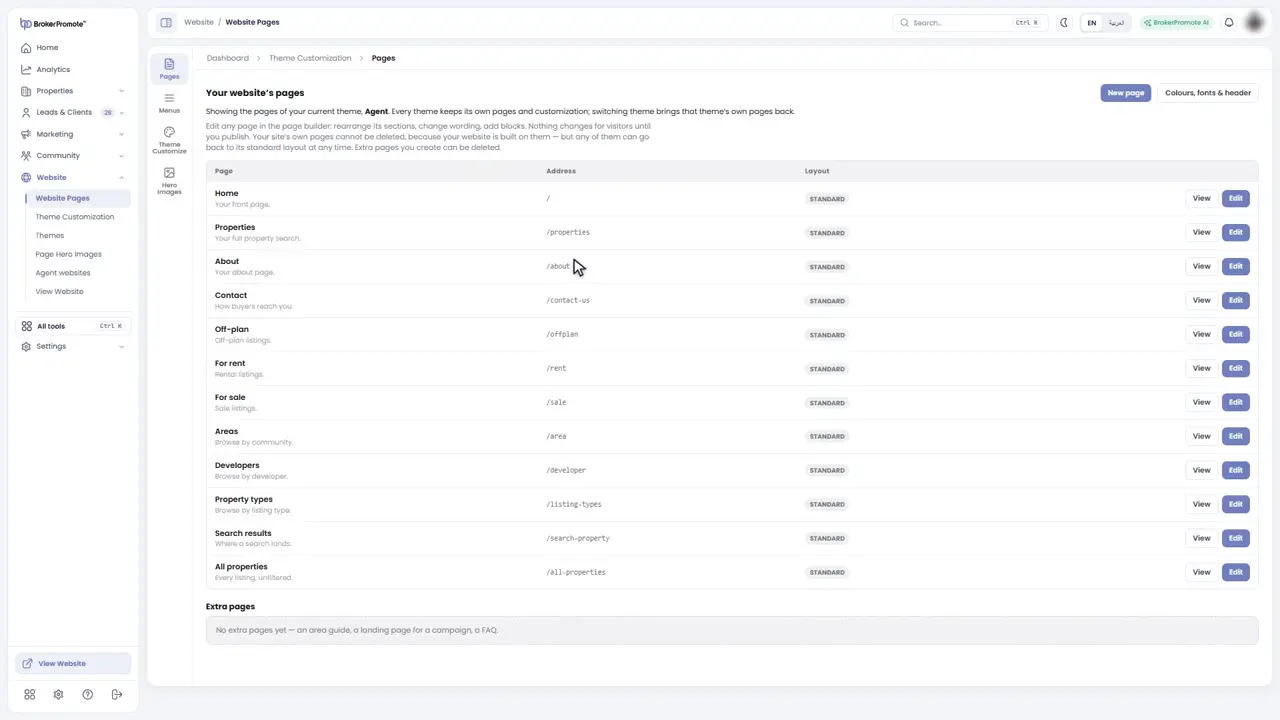
Pages
Website Pages lists the pages of your site. Edit any of them in the page builder.
-
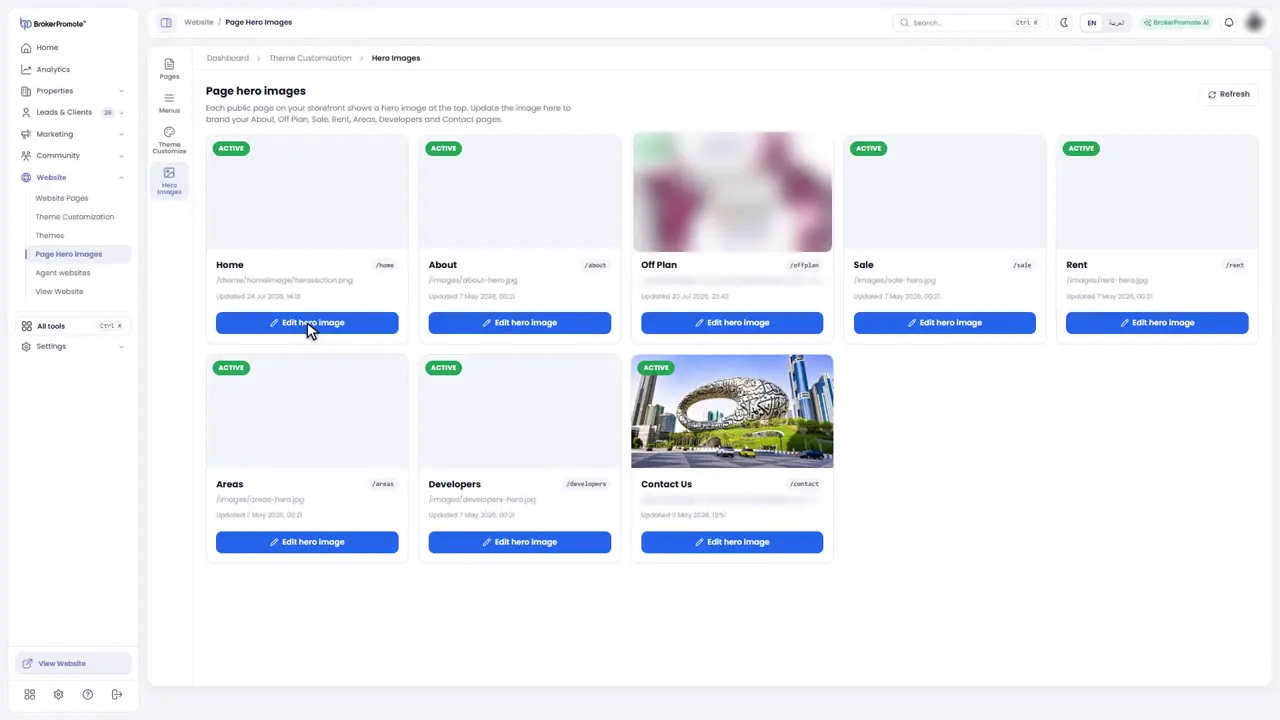
Hero images
Page Hero Images sets the large image at the top of each page.
-
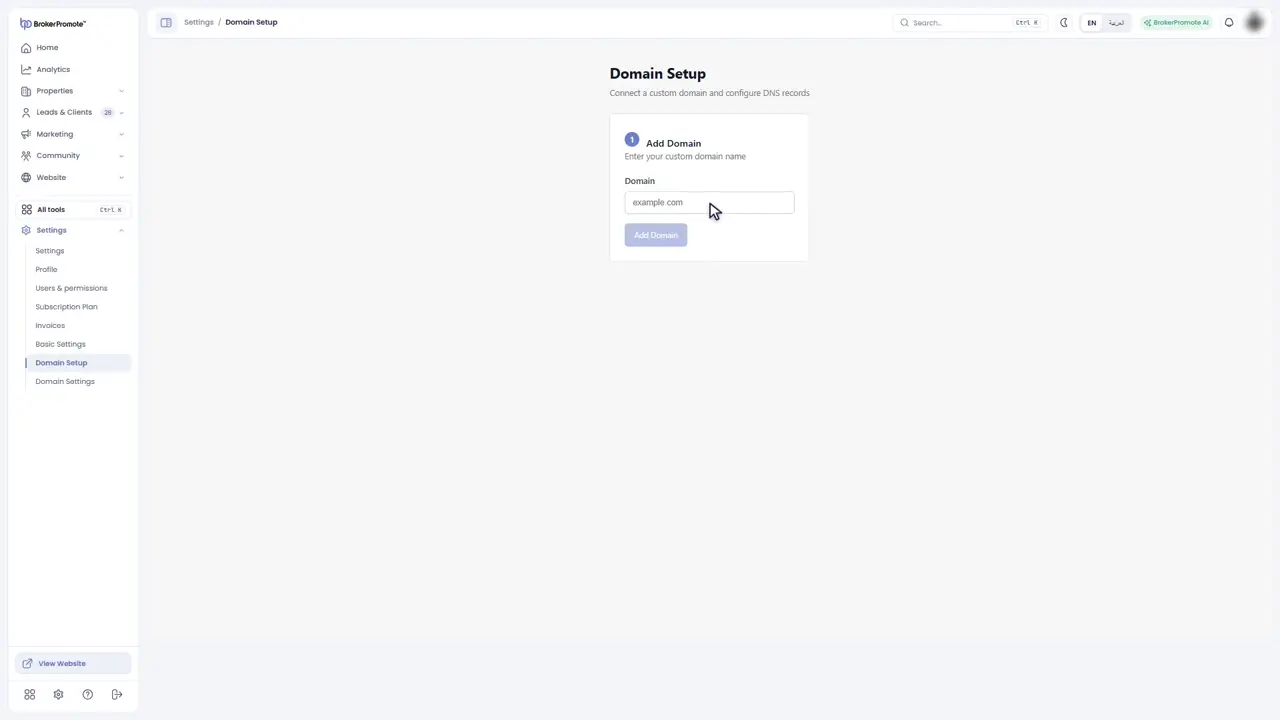
Your domain
Connect your own domain in Settings, under Domain Setup.
Agent websites
Give every agent a profile site on your domain, approved by you.

-
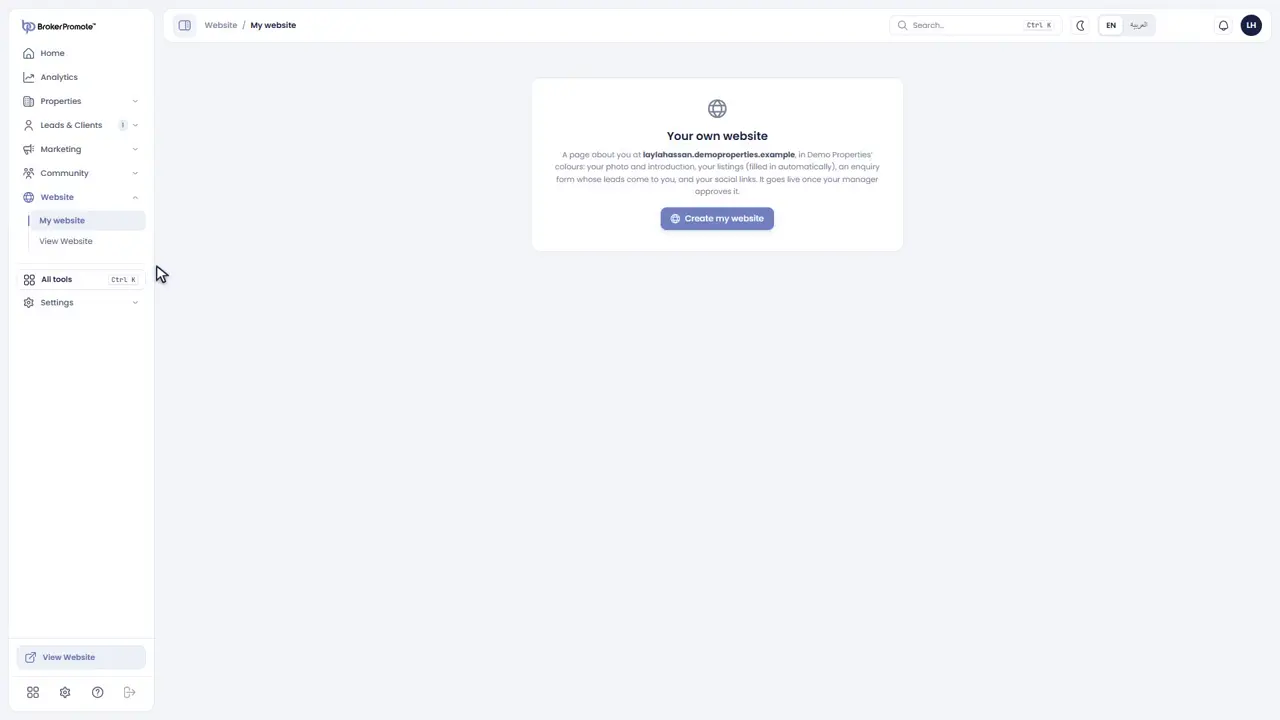
My website
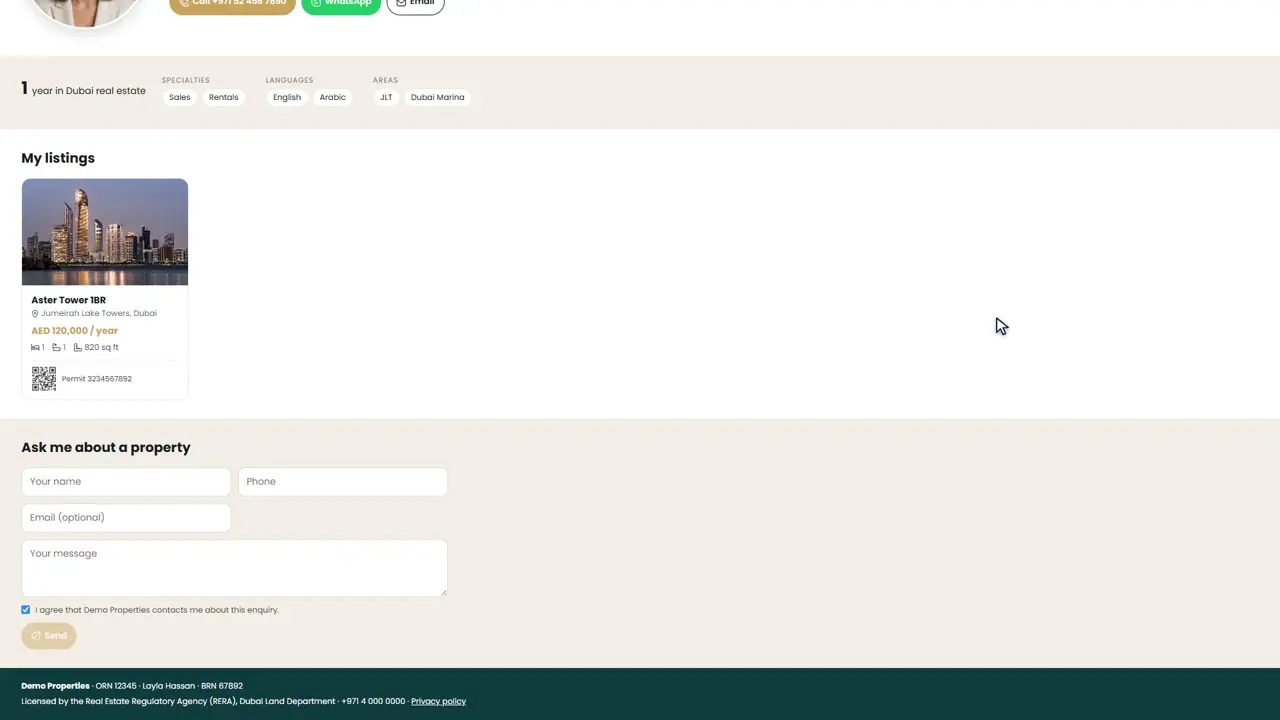
Every agent can have a profile site of their own on the brokerage's domain. Open My website from the Website menu.
-
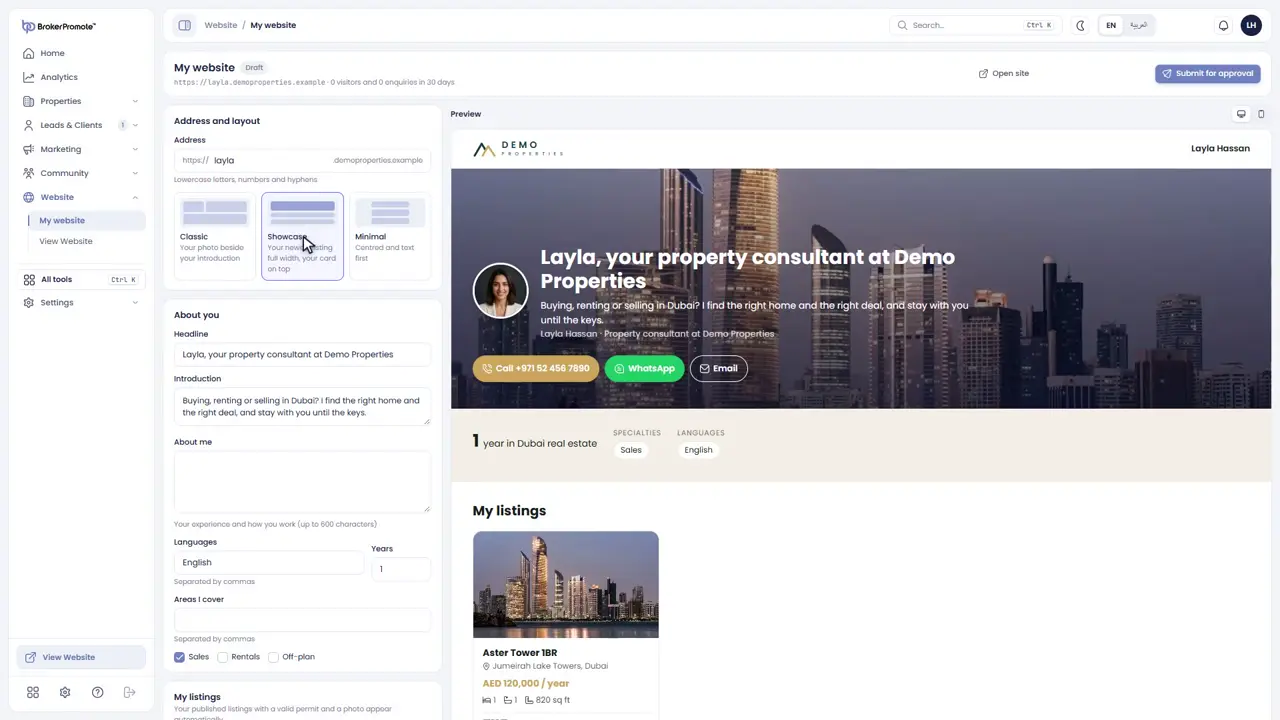
Address and layout
Choose the address and a layout: Classic, Showcase or Minimal.
-
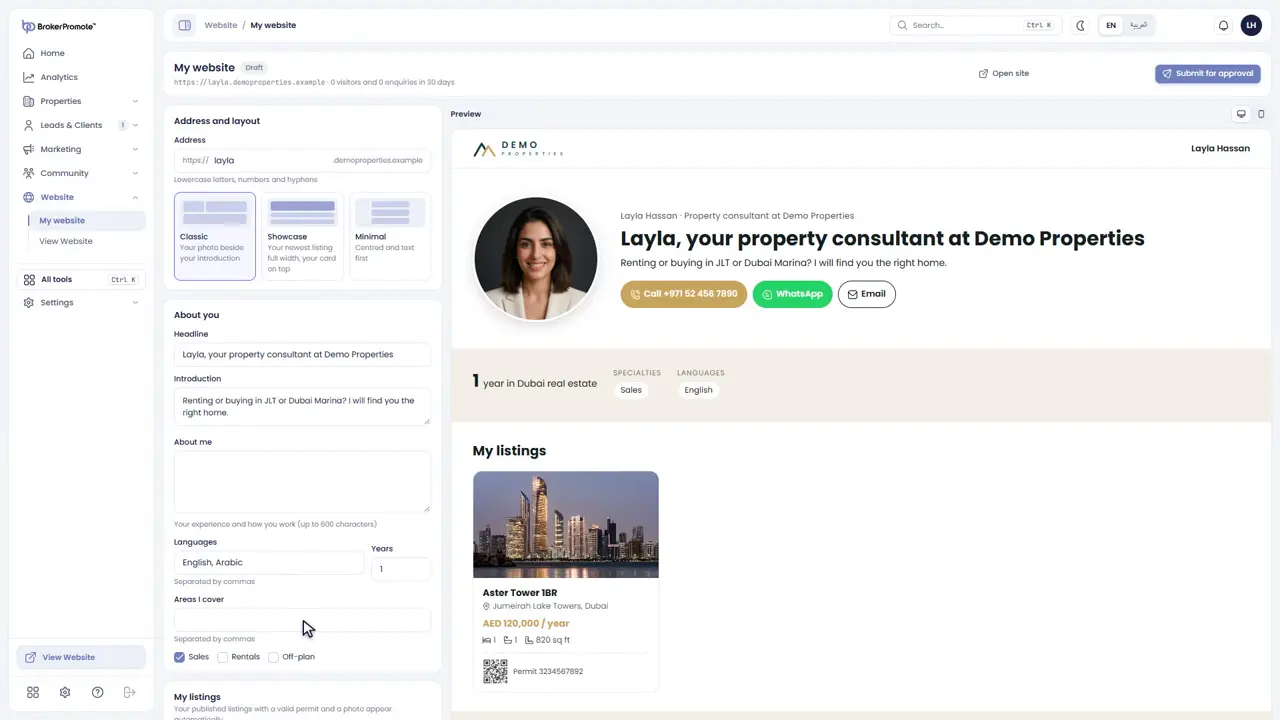
About you
Write a short introduction, and add your languages, areas and specialities. The preview shows the site as you type.
-
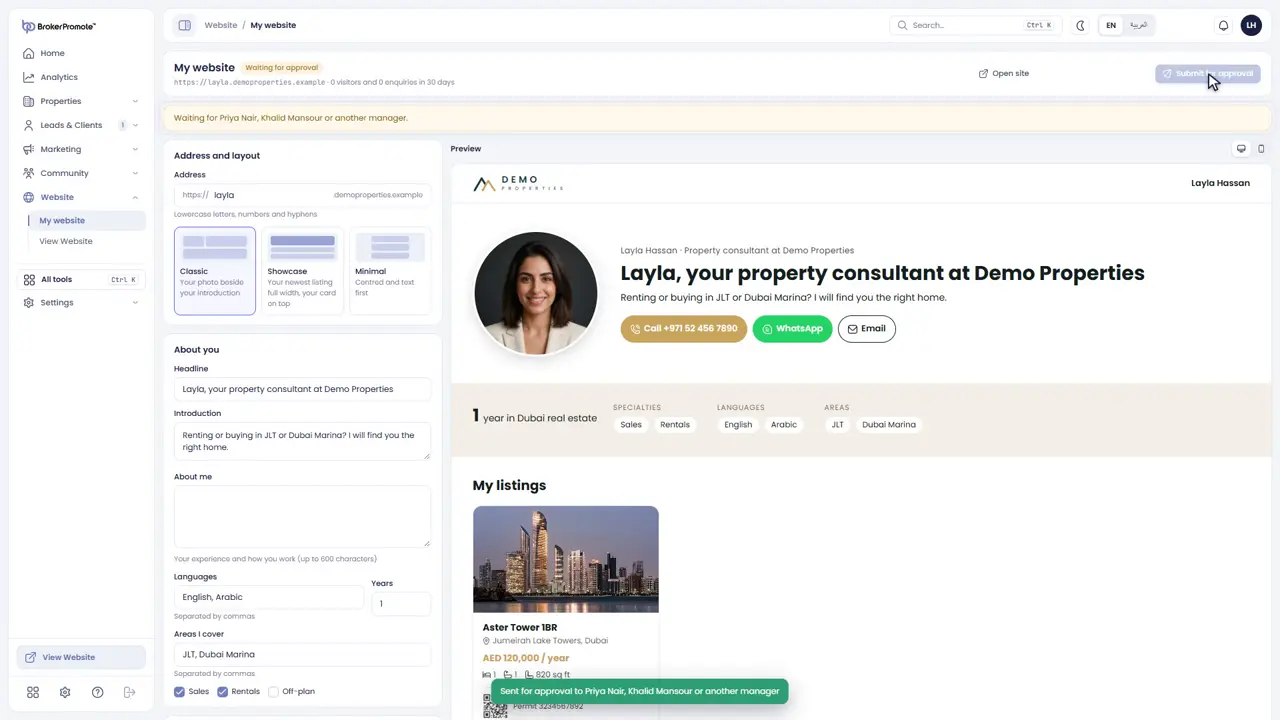
Submit
Submit the site. It waits for the brokerage to approve it.
-
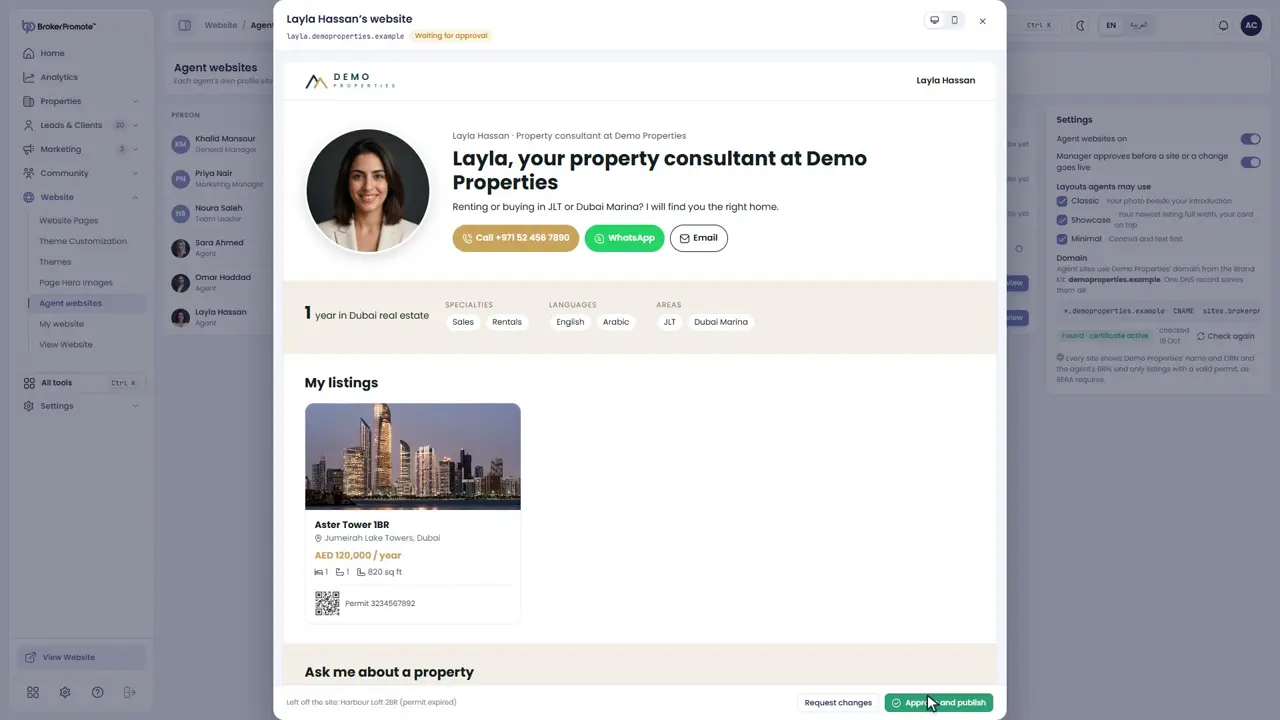
Approve
Managers see every agent's site in Agent websites, with its status, visitors and enquiries, and approve it from there.
-
Live
Once approved, the site goes live with the agent's published listings, and every enquiry arrives in Leads.
Users and permissions
Invite your team, give each person a role and choose what they can see and do.
-
People
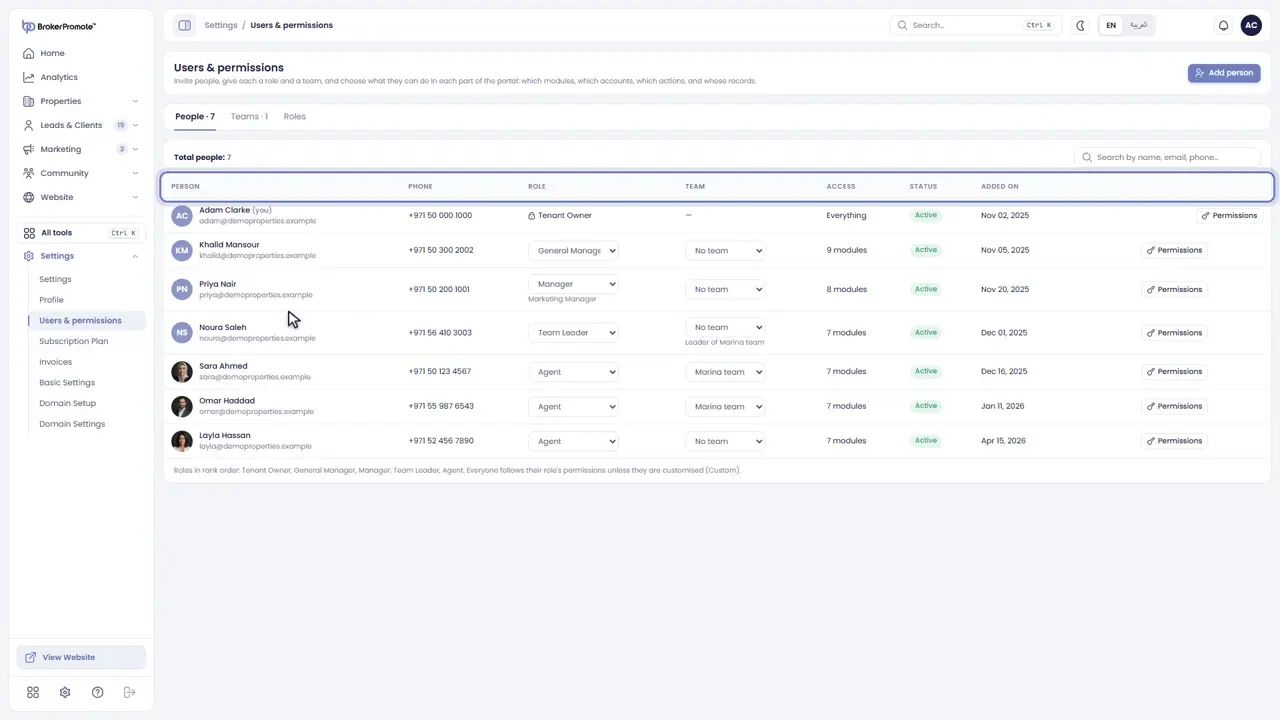
Users and permissions lists everyone on your account, with their role, team and access.
-
Invite a person
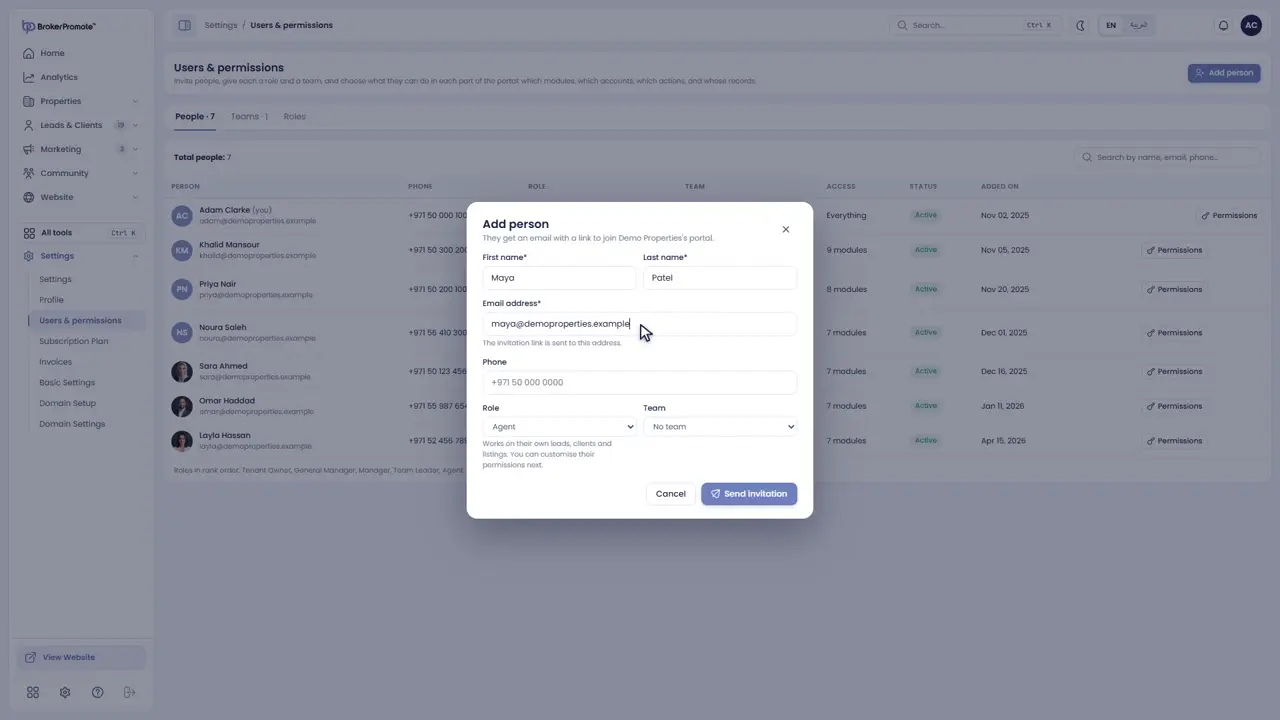
To add someone, press Add person, enter their details, and choose their role and team. They receive an invitation.
-
Roles
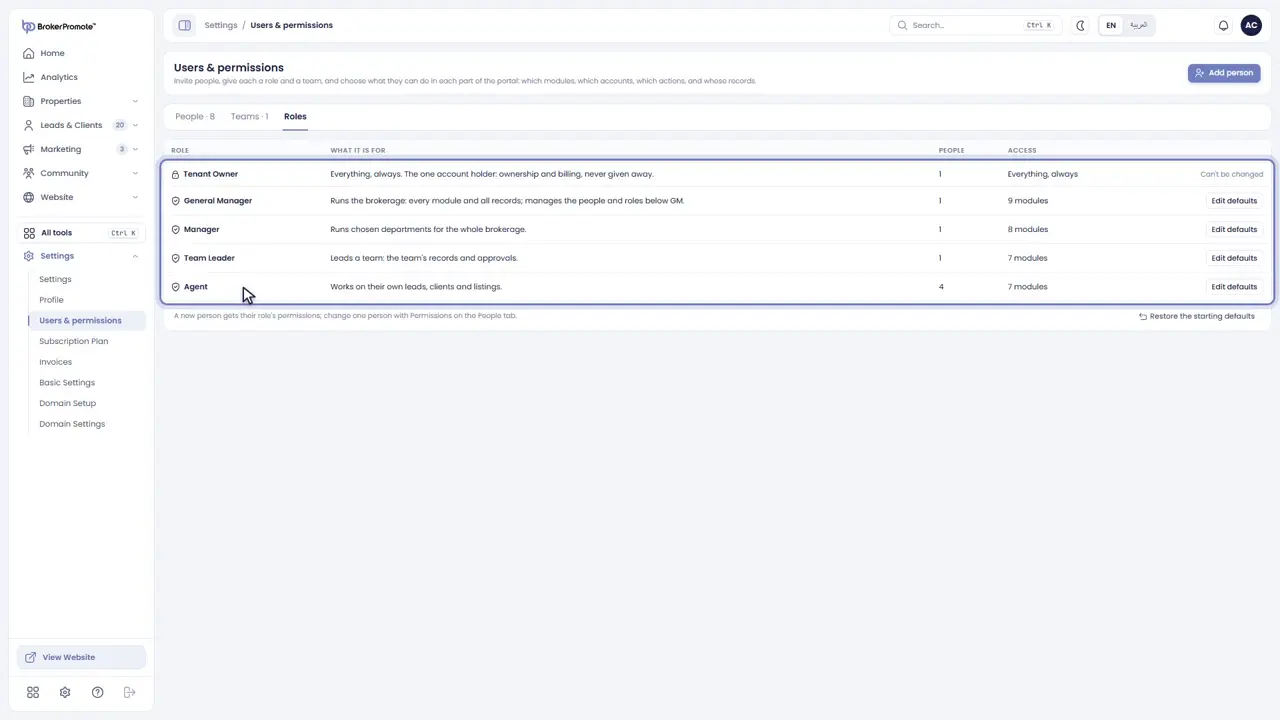
There are five roles: Tenant Owner, General Manager, Manager, Team Leader and Agent. Each comes with sensible permissions.
-
Permissions
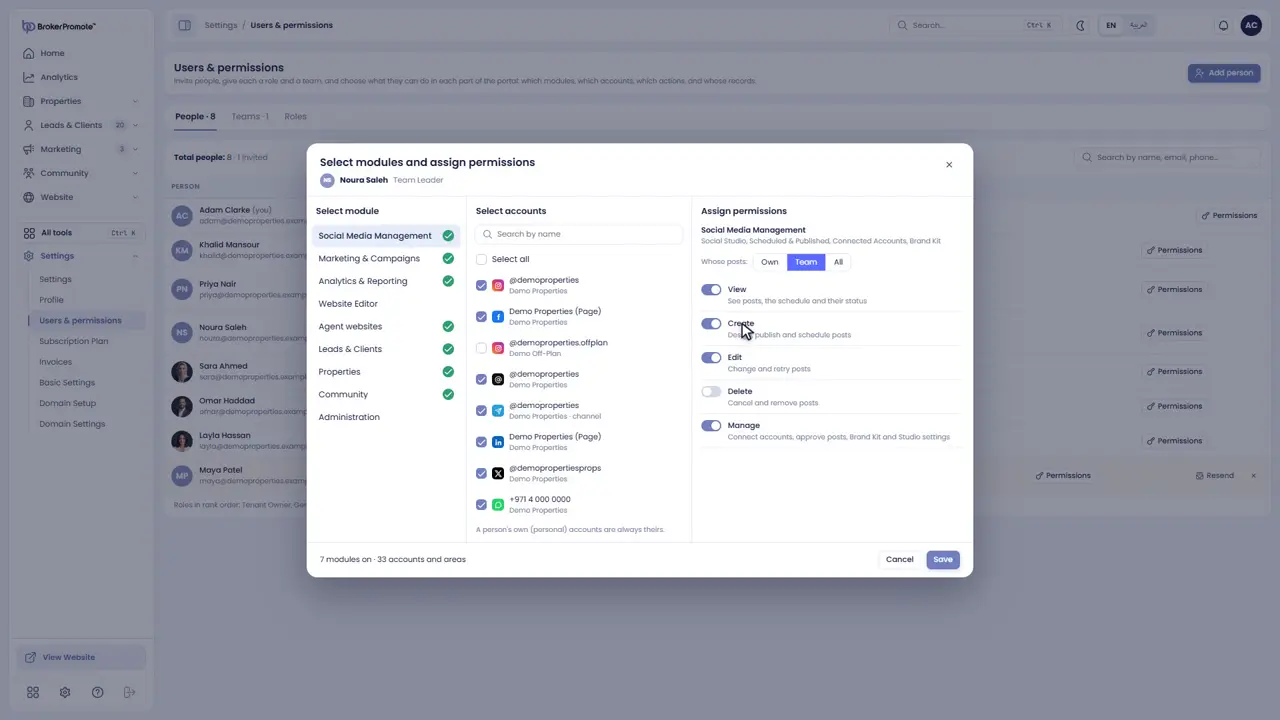
Permissions shows, for each part of the portal, what a person can see, create or manage, and whose records: their own, their team's, or everyone's.
-
Teams
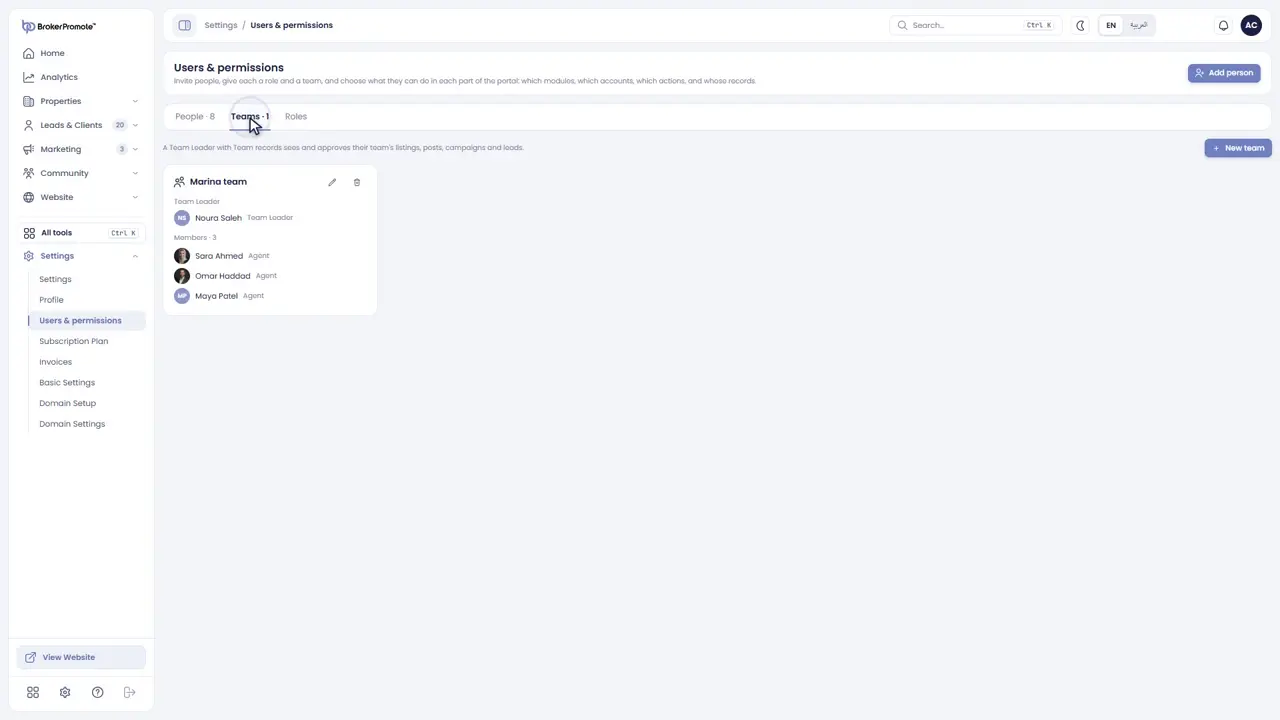
Teams group agents under a team leader.
Plans and invoices
Compare plans, upgrade and find your tax invoices.

-
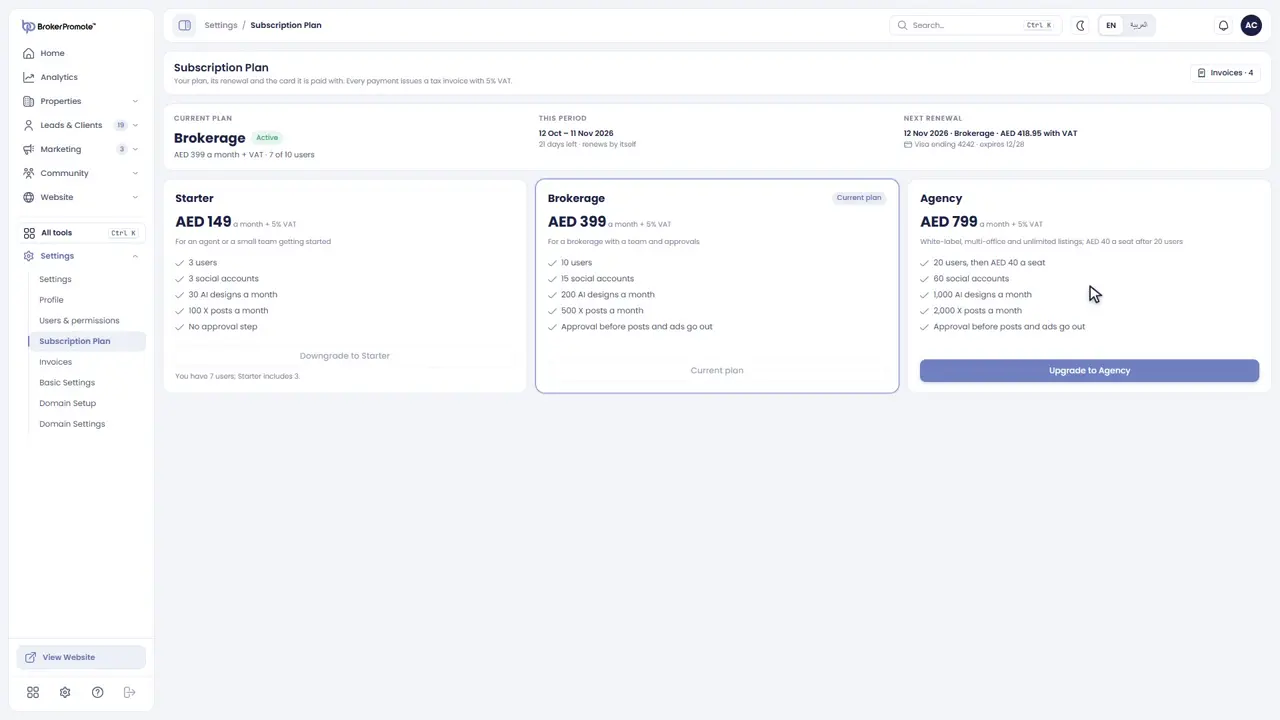
Your plan
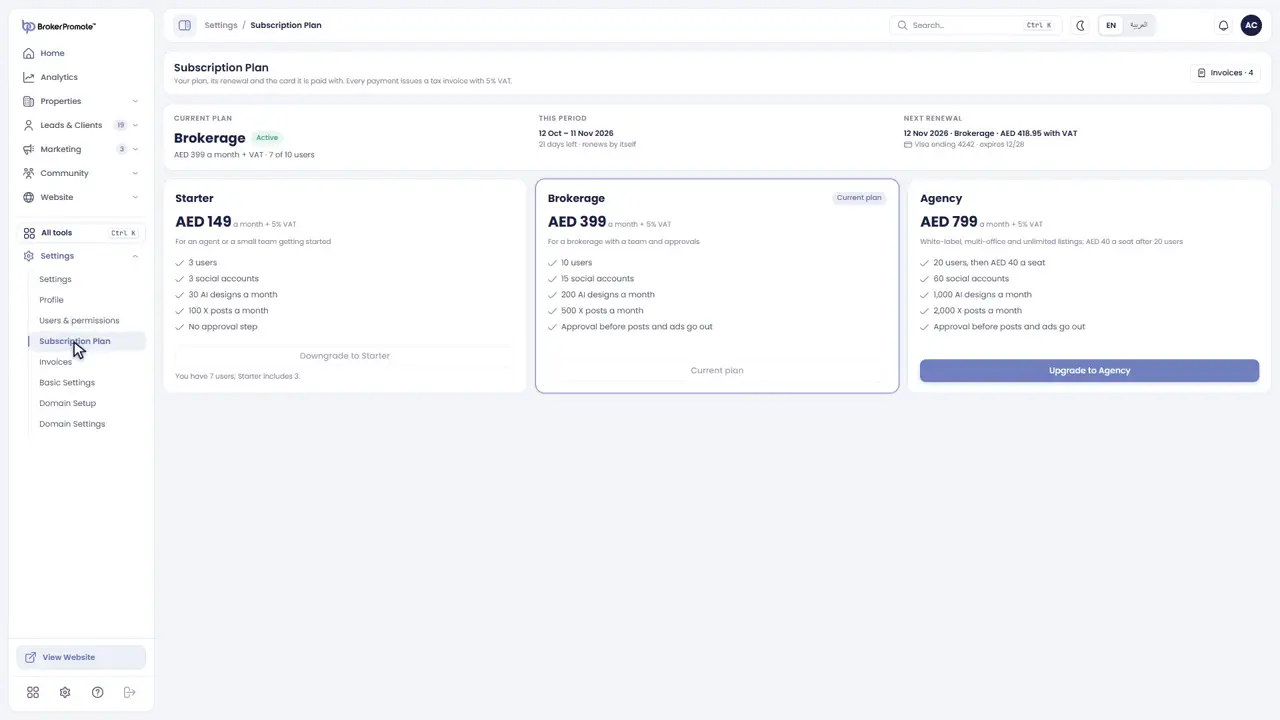
Subscription Plan shows your current plan, this billing period, and when it renews.
-
Compare plans
Compare Starter, Brokerage and Agency, and what each one includes.
-
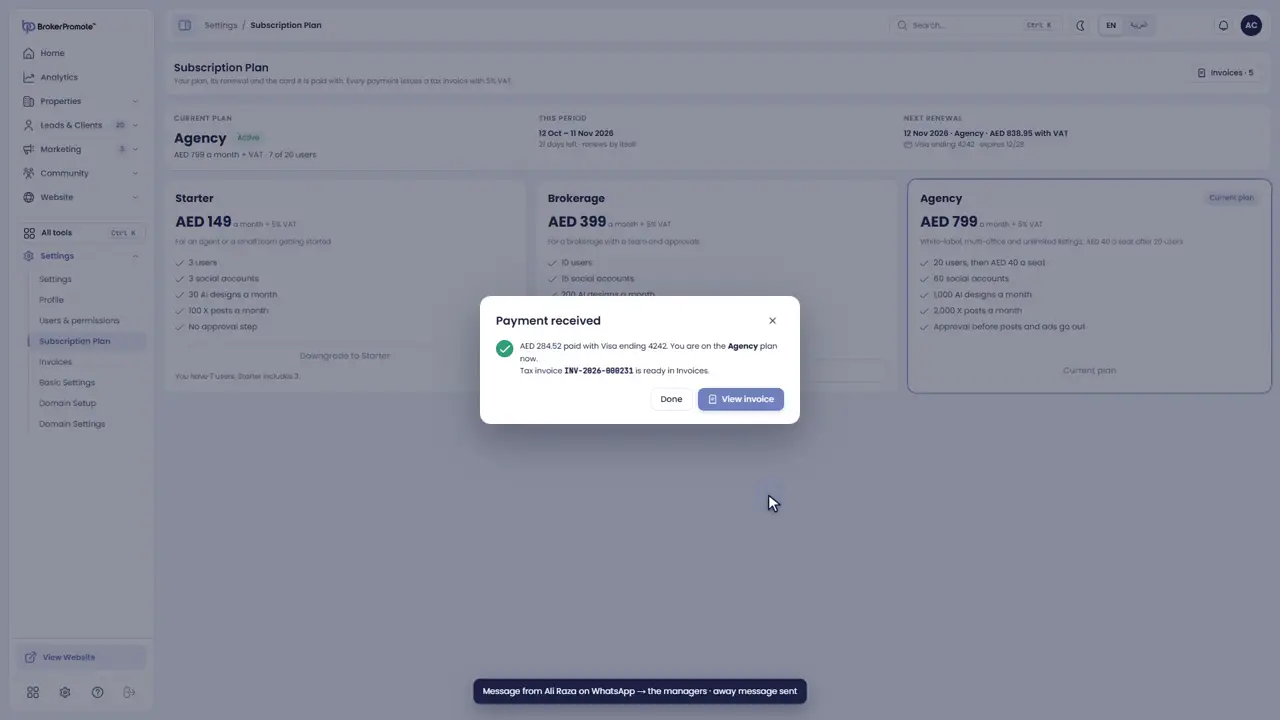
Upgrade
Upgrade at any time. You pay only the difference for the rest of the period, plus VAT.
-
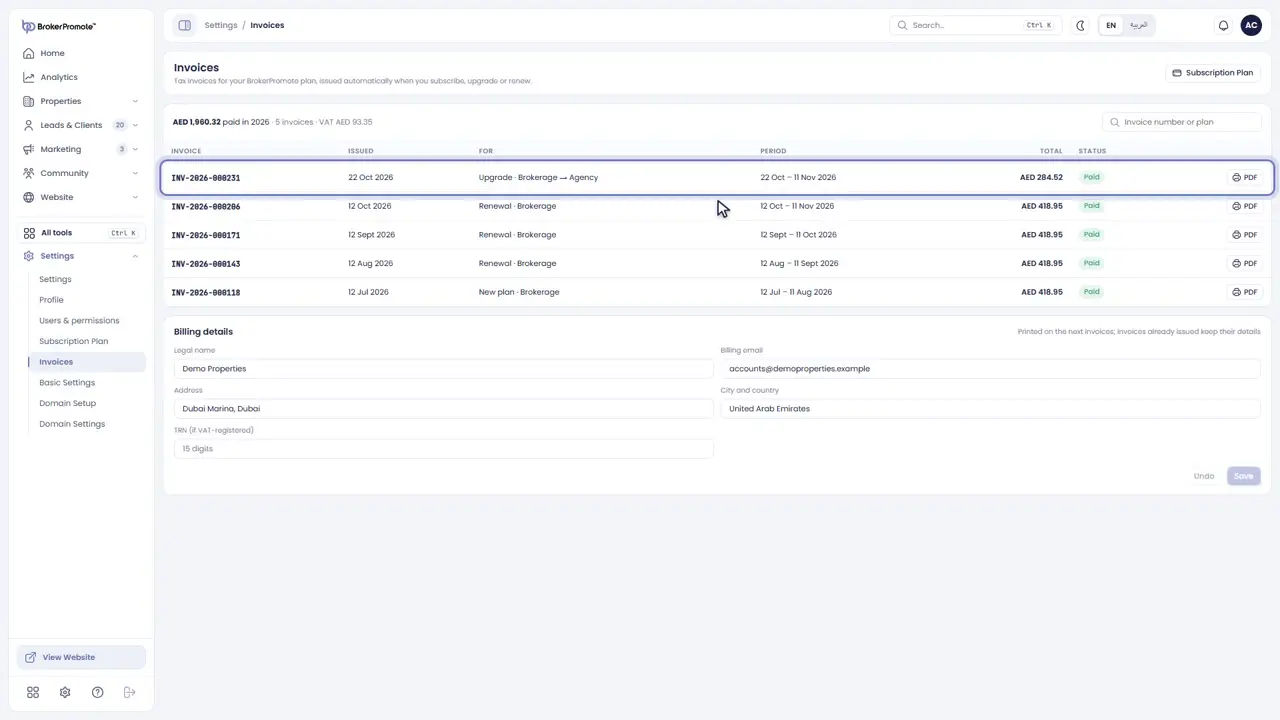
Invoices
Every payment issues a tax invoice automatically. Open Invoices to view or print one.
-
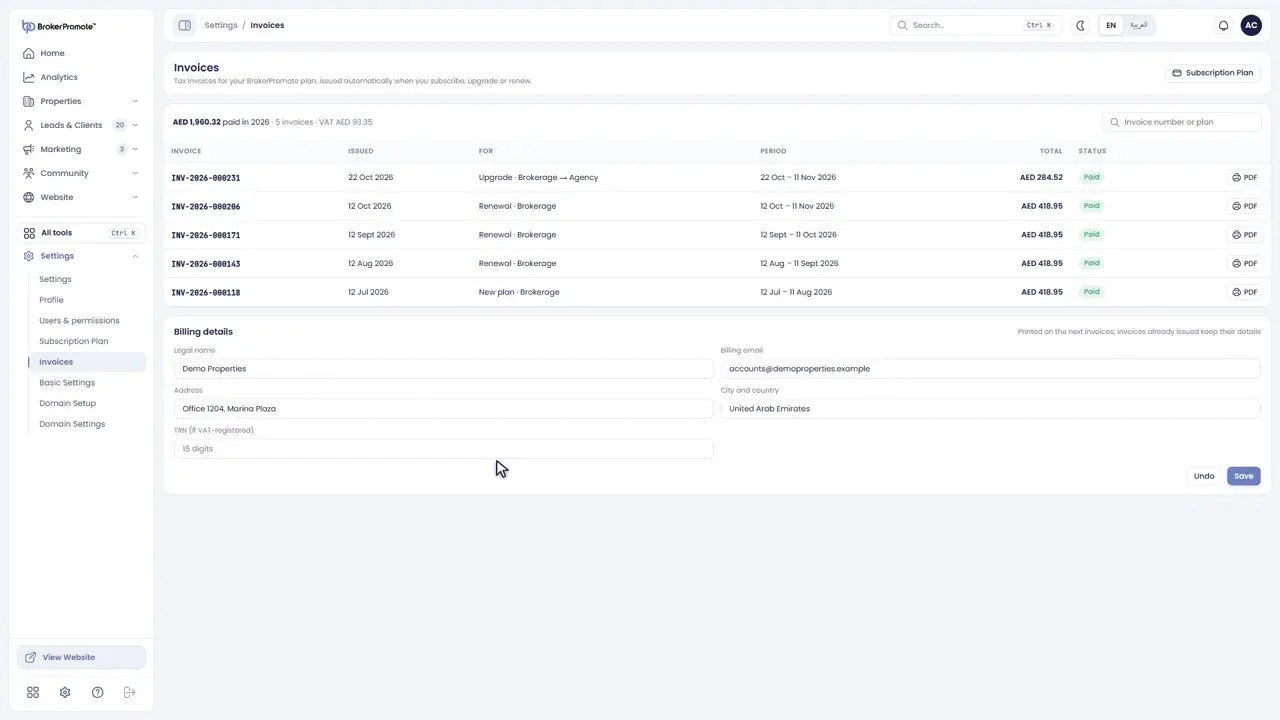
Billing details
Billing details sets the name and address printed on your next invoice.
Nothing in the guide matches your search. Try a shorter word, like “lead” or “post”.
تعلّم BrokerPromote.خطوة تلو الأخرى.
كل ميزة في خطوات قصيرة، مع صورة لكل خطوة وفيديو إن كنت تفضّل المشاهدة. ابدأ بالجولة التعريفية، ثم انتقل مباشرةً إلى الجزء الذي تحتاجه.
البدء: القائمة، والرئيسية، والبحث، وجميع الأدوات
تعرّف على المنصة: القائمة، والرئيسية، والبحث، وكل الأدوات في مكان واحد.
-
القائمة
مرحباً بك في BrokerPromote. لنبدأ بجولة سريعة. تضم القائمة الجانبية سبعة أقسام. انقر على أي قسم لعرض صفحاته.
-
الرئيسية
تعرض لك الرئيسية يومك بنظرة سريعة. يُظهر الصف العلوي ما يحتاج إلى متابعتك: العملاء المحتملون الجدد، والمنشورات بانتظار الموافقة، والرسائل بانتظار الرد. وفي الأسفل أرقام التسويق لهذا الشهر والإعلانات التي تحتاج إلى تصحيح.
-
إجراءات سريعة
تنقلك الاختصارات أسفل مربع البحث مباشرةً إلى المهام اليومية، مثل إضافة عقار أو إنشاء منشور أو ترويجه.
-
البحث
ابحث من المربع في الأعلى، أو اضغط Control K. يعثر البحث على العقارات والعملاء المحتملين والأدوات.
-
جميع الأدوات
تفتح «جميع الأدوات» كل الأدوات في لوحة واحدة مصنّفة حسب المهمة. اكتب للعثور على أداة، وثبّت الأدوات الأكثر استخداماً في قائمتك.
-
اللغة
بدّل بين الإنجليزية والعربية من أعلى الصفحة. عند اختيار العربية، تتحول البوابة بالكامل إلى الاتجاه من اليمين إلى اليسار.
خصّص صفحتك الرئيسية
اختر الأدوات المصغّرة في صفحتك الرئيسية، ثم رتّبها وحدّد أحجامها.
-
افتح «تخصيص»
يمكن أن تعرض الرئيسية الأدوات المصغّرة الأهم بالنسبة إليك. انقر على «تخصيص» في أعلى اليمين.
-
اختر الأدوات المصغّرة
لكل أداة مصغّرة مفتاح تشغيل. فعّل ما تريده وأوقف الباقي.
-
الترتيب والحجم
اسحب الأداة المصغّرة لتغيير موضعها، واختر عرضها.
-
تخطيطك
أغلق اللوحة ليُحفظ تخطيطك. لكل عضو في فريقك صفحة رئيسية خاصة به.
إضافة عقار
أضف إعلاناً في تسع خطوات موجّهة، من نوع القائمة حتى النشر.
-
نوع القائمة
لإضافة إعلان، افتح «العقارات» واختر «إضافة عقار». أولاً، حدّد طريقة العرض: على الخارطة أو للبيع أو للإيجار، ثم نوع العقار.
-
تفاصيل العقار
أضف للإعلان عنواناً واضحاً ووصفاً.
-
السعر والمساحة
أدخل السعر والمساحة.
-
الموقع
أضف الإمارة والمجمّع السكني والعنوان.
-
المواصفات
أضف عدد غرف النوم والحمّامات والمطوّر.
-
الوسائط
حمّل الصور والكتيّب التعريفي والتصريح.
-
المرافق
حدّد المرافق والمزايا.
-
تحسين محركات البحث
يحدّد تحسين محركات البحث (SEO) طريقة ظهور الإعلان في محركات البحث.
-
النشر
أخيراً، راجع كل التفاصيل وانشر. يظهر الإعلان في «قائمة العقارات» جاهزاً للتسويق.
قائمة العقارات: طرق العرض، والفلاتر، والإجراءات
صفِّ إعلاناتك وابحث فيها، وبدّل طرق العرض، ونفّذ الإجراءات على كل إعلان.
-
إعلاناتك
تضم «قائمة العقارات» جميع إعلانات شركة الوساطة: المشاريع المتزامنة من المطوّرين والإعلانات التي تضيفها بنفسك.
-
التصفية والبحث
صفِّ حسب على الخارطة أو للبيع أو للإيجار، أو ابحث بالاسم.
-
ثلاث طرق للعرض
بدّل بين عرض البطاقات وعرض الجدول وعرض الخريطة.
-
كل إعلان
من أي إعلان يمكنك عرضه، أو تعديله، أو تمييزه كإعلان مميّز، أو مشاركته عبر WhatsApp، أو فتحه في «استوديو التواصل الاجتماعي» لإنشاء منشور.
-
مشاريع المطوّرين
يعرض قسم «المطورون» المطوّرين الذين تتزامن مشاريعهم تلقائياً مع قائمتك.
إنشاء منشور في استوديو التواصل الاجتماعي
حوّل إعلاناً إلى منشور: اختر التصميم والمقاس واللغة، ثم انشر.
-
افتح استوديو التواصل الاجتماعي
يحوّل «استوديو التواصل الاجتماعي» أي إعلان إلى منشور على وسائل التواصل الاجتماعي. افتحه من قائمة «التسويق»، أو عبر «إنشاء منشور» في الرئيسية.
-
اختر الإعلان
اختر الإعلان. يوضّح كل إعلان ما إذا كان جاهزاً، أو ينقصه التصريح، أو لا يزال مسودة. اختر إعلاناً جاهزاً وتابع.
-
اختر تصميماً
اختر تصميماً من القوالب على اليمين: أربعة وثمانون قالباً بسبع درجات لونية. صفِّ حسب نوع المنشور، مثل «أُدرج حديثاً» أو «تخفيض السعر».
-
المقاس واللغة
اختر المقاس: مربّع، أو عمودي، أو قصة، أو عريض. ثم اختر الإنجليزية أو العربية أو كلتيهما.
-
تفاصيل الإعلان
على اليسار، أظهر تفاصيل الإعلان أو أخفِها، مثل خطة السداد أو موعد التسليم. يبقى رقم التصريح ورمز QR على المنشور دائماً.
-
المعاينة والفحوصات
اضغط «معاينة» لترى المنشور كما سيظهر على كل منصة. يتحقق BrokerPromote من النصوص المرافقة وتفاصيل الامتثال نيابةً عنك.
-
نشر
اضغط «نشر»، واختر وجهة النشر، ثم انشره الآن أو جدوله لوقت لاحق.
تعديل التصميم: النصوص، والصور، والعناصر، وخانة التصريح
غيّر النصوص والصور، وأضف العناصر، ورتّب الطبقات مع الإبقاء على خانة التصريح.
-
عدّل النص
انقر نقراً مزدوجاً على أي نص في المنشور لتغييره. تُطبَّق تعديلاتك على هذا التصميم فقط، ولا تؤثر أبداً على الإعلان نفسه.
-
الصور
اضغط على أي صورة في القائمة الجانبية لجعلها الصورة الرئيسية للمنشور.
-
العناصر
يتيح لك تبويب «العناصر» إضافة النصوص والأشكال والملصقات والأيقونات.
-
النقل وتغيير الحجم
اسحب أي عنصر لنقله، واستخدم مقابض التحكم لتغيير حجمه. وتساعدك خطوط الإرشاد على محاذاة العناصر.
-
الطبقات
تعرض «الطبقات» كل محتويات المنشور. يمكنك قفل أي طبقة أو إخفاؤها أو تغيير ترتيبها.
-
خانة التصريح
يمكنك نقل خانة التصريح إلى زاوية أخرى، لكن لا يمكن تصغيرها. ويجب أن تبقى ظاهرة على المنشور في إعلانات دبي وأبوظبي.
-
التراجع والحفظ
تجد زرّي التراجع والإعادة في الأعلى، ويُحفظ تصميمك تلقائيًا أثناء العمل.
نشر المنشورات وجدولتها وتتبّعها
انشر الآن أو لاحقًا على جميع المنصات، وتابع حالة كل منشور.
-
نشر
عندما يصبح التصميم جاهزًا، اضغط «نشر». ستجد الوجهات التي استخدمتها في المرة السابقة محددة مسبقًا.
-
اختر الوجهة
حدّد الحسابات التي تريد النشر عليها. أما المنصات التي لا تتيح النشر عبر التطبيقات، مثل حالة WhatsApp، فتتم المشاركة عليها من هاتفك.
-
الآن أو لاحقًا
انشر الآن، أو اختر تاريخًا ووقتًا لجدولة المنشور.
-
تابع كل منشور
تعرض صفحة «المجدولة والمنشورة» كل منشور مع حالته على كل منصة: مجدول، أو منشور، أو يحتاج إلى مراجعة.
-
النشر السريع
على عجلة؟ يتيح لك «النشر السريع» نشر الإعلان بخطوة واحدة باستخدام تصميمك الافتراضي.
ربط حساباتك على وسائل التواصل الاجتماعي
اربط صفحاتك وملفاتك الشخصية، وحدّد من يمكنه استخدامها.
-
الحسابات المرتبطة
تضم «الحسابات المرتبطة» جميع حسابات التواصل الاجتماعي التي يمكن لفريقك النشر عليها. افتحها من قائمة «التسويق».
-
ربط حساب
اختر منصة من الأعلى، مثل Instagram أو صفحة Facebook، ثم سجّل الدخول. لا يطلب BrokerPromote إلا الأذونات التي يحتاجها.
-
الحالة والحدود
يعرض كل حساب حالته، ومدة صلاحية تسجيل الدخول، وعدد المنشورات التي نُشرت عليه اليوم.
-
إدارة الوصول
تحدد «إدارة الوصول» أعضاء فريقك المسموح لهم بالنشر على كل حساب.
-
إعادة الربط
إذا انتهت صلاحية تسجيل الدخول، يعيد زر «إعادة الربط» الحساب خلال لحظات.
هوية العلامة التجارية وإعدادات الاستوديو
اضبط ألوانك وشعارك والإعدادات الافتراضية، والقوالب، ودرجات الألوان، وقواعد النشر.
-
هوية العلامة التجارية
تضم «هوية العلامة التجارية» شعارك وألوانك وخطوطك وبيانات التواصل، وتُطبَّق تلقائيًا على كل تصميم.
-
الألوان
اضغط على أي لون لتغييره، أو اختر مجموعة ألوان جاهزة، أو استخرج الألوان من شعارك.
-
الإعدادات الافتراضية
حدّد إخلاء المسؤولية، والدعوة إلى اتخاذ إجراء، والوسوم، وبيانات التواصل التي تظهر على التصاميم، ثم احفظ التغييرات.
-
إعدادات الاستوديو
تحدد «إعدادات الاستوديو» القوالب ودرجات الألوان المتاحة لفريقك.
-
القوالب ودرجات الألوان
فعّل أي قالب أو درجة لونية أو أوقفها، وحدّد الخيار الافتراضي. ويمكنك معاينتها على أي من إعلاناتك، بالإنجليزية أو العربية.
-
النشر
يعرض تبويب «النشر» حدود باقتك، والوجهات الافتراضية، وسير عمل الموافقة.
ترويج منشور
حوّل منشورًا إلى إعلان على Facebook وInstagram: الهدف والجمهور والميزانية.
-
البدء
يحوّل الترويج أحد منشوراتك التي سبق نشرها إلى إعلان على Facebook وInstagram. افتح «الترويج والإعلانات»، ثم اضغط «ترويج منشور».
-
اختر المنشور
اختر أحد منشوراتك التي سبق نشرها.
-
اختر الهدف
اختر ما تريد تحقيقه من الإعلان: محادثات WhatsApp، أو المكالمات، أو زيارات صفحة العقار، أو الوصول.
-
الجمهور
حدّد من يشاهده: المنطقة على الخريطة، والفئة العمرية، والاهتمامات. وتُطبَّق قواعد Meta الخاصة بإعلانات الإسكان تلقائيًا.
-
الميزانية
حدّد ميزانية يومية وتاريخ انتهاء، وسترى مدى الوصول المتوقع لهذه الميزانية.
-
المراجعة والترويج
راجع التفاصيل والتكلفة الإجمالية، ثم اضغط «ترويج». تراجع Meta الإعلان، ثم يبدأ عرضه.
-
النتائج
تعرض صفحة «الترويج والإعلانات» الإنفاق والوصول والعملاء المحتملين وتكلفة العميل المحتمل لكل حملة.
إنشاء إعلان لجذب العملاء المحتملين مع استهداف مخصّص
انشر إعلانًا لجذب العملاء المحتملين مع نموذج، واستهدف مناطق محددة على الخريطة.
-
البدء
يجمع الإعلانُ المخصص لجذب العملاء المحتملين بيانات المشترين عبر نموذج داخل Facebook وInstagram. افتح «الترويج والإعلانات»، ثم اضغط «إنشاء إعلان لجذب العملاء المحتملين».
-
العقار
اختر العقار الذي تريد الإعلان عنه.
-
الإعلان
اختر التصميم، واكتب نص الإعلان والعنوان الرئيسي.
-
نموذج العملاء المحتملين
حدّد ما يطلبه النموذج: الاسم ورقم الهاتف، وأسئلة مثل الموعد المتوقع للشراء.
-
الاستهداف المخصص
يتيح لك الاستهداف المخصص الكامل تحديد المناطق على الخريطة، وتثبيت مواقع بنطاق محدد، واختيار الأعمار والاهتمامات. وسترى حجم جمهورك أثناء الإعداد.
-
الميزانية
حدّد الميزانية اليومية وتاريخ الانتهاء.
-
المراجعة والإرسال
راجع كل التفاصيل ثم أرسل. يصل كل عميل محتمل يجمعه النموذج إلى صفحة «العملاء المحتملون»، ويُسند إلى وكيل الإعلان.
إدارة العملاء المحتملين
تصفية العملاء المحتملين وفتحهم وتحديثهم وإسنادهم، وقاعدة الخمس عشرة دقيقة.
-
جميع العملاء المحتملين
تعرض صفحة «العملاء المحتملون» جميع الاستفسارات في شركة الوساطة: من إعلانات Meta لجذب العملاء المحتملين، وموقعك الإلكتروني، والبوابات العقارية، ووسائل التواصل الاجتماعي.
-
الفلاتر
صفِّ النتائج حسب الحالة أو المصدر أو الوكيل، أو ابحث بالاسم أو رقم الهاتف أو العقار.
-
فتح عميل محتمل
افتح سجل العميل المحتمل لعرض بيانات المشتري، والعقار الذي استفسر عنه، وكل ما جرى منذ ذلك الحين.
-
تحديث الحالة
مع تقدّم عملك على العميل المحتمل، حدّث مرحلته: تم التواصل، ثم تم حجز معاينة، ثم صفقة ناجحة أو خاسرة.
-
الإسناد
أسند العميل المحتمل إلى وكيل آخر عند الحاجة.
-
قاعدة الخمس عشرة دقيقة
يُسند العميل المحتمل الجديد إلى وكيل الإعلان. وإذا لم يفتحه خلال خمس عشرة دقيقة، يُحوَّل إلى المالك، لأن المشترين يتصلون بالوكيل التالي.
صندوق الوارد الاجتماعي
ردّ على الرسائل والتعليقات من جميع المنصات، أو حوّلها إلى عملاء محتملين.
-
صندوق وارد موحّد
يجمع «صندوق الوارد» الرسائل والتعليقات والإشارات من جميع الحسابات المرتبطة في قائمة واحدة.
-
الفلاتر
صفِّ حسب المنصة والنوع والحالة لمعرفة ما يحتاج إلى رد.
-
الرد
افتح المحادثة وردّ عليها. استخدم ردًا محفوظًا، أو أرسل بطاقة عقار، أو ابدأ من رد مقترح.
-
مهلة الرد
يعرض مربع الرد قواعد كل منصة، مثل المهلة المتاحة للرد على الرسالة.
-
الإسناد أو التحويل إلى عميل محتمل
أسند المحادثة إلى شخص آخر، أو حوّلها إلى عميل محتمل بنقرة واحدة.
التحليلات
موقعك الإلكتروني ووسائل التواصل الاجتماعي والبوابات العقارية والإعلانات والعملاء المحتملون في صفحة واحدة، مع الأهداف والتنبيهات.
-
نظرة عامة
تجمع «التحليلات» كل الأرقام في صفحة واحدة. يعرض الصف العلوي الزوار، ومشاهدات الإعلانات، وعدد من تم الوصول إليهم، والاستفسارات، والإنفاق الإعلاني، وتكلفة كل استفسار.
-
الفلاتر
اختر التواريخ وقارن بالفترة السابقة. صفِّ النتائج حسب الوكيل أو المصدر أو الإعلان.
-
الرسوم البيانية
تابع الاستفسارات بمرور الوقت، ومسار التسويق، ومصادر الاستفسارات، وأداء كل قناة.
-
كل مصدر
تتيح لك علامات التبويب تفاصيل أعمق: الموقع الإلكتروني، والتواصل الاجتماعي، والبوابات، والإعلانات المدفوعة، والعملاء المحتملون، والإعلانات العقارية.
-
الأهداف والتنبيهات
حدِّد أهدافًا شهرية لمتابعة تقدّمك، وتعامل مع التنبيهات، مثل العملاء المحتملين الذين ينتظرون الرد.
-
طرق العرض والتصدير
احفظ الفلاتر التي تستخدمها كثيرًا كطريقة عرض، وصدِّر تقريرًا.
ربط بوابات العقارات وGoogle
اربط Property Finder وBayut وdubizzle وخدمات Google الخاصة بك.
-
التكاملات
تربط صفحة «التكاملات» البوابات العقارية في الإمارات بخدمات Google الخاصة بك. افتحها من قائمة «التسويق».
-
Property Finder
لربط Property Finder، الصق المفاتيح من PF Expert، ثم طابِق وكلاءك مع وكلائهم حسب رقم BRN.
-
Bayut وdubizzle
تشترك Bayut وdubizzle في موجز واحد. انسخ رابط الموجز إلى Profolio، وستقرأ البوابتان إعلاناتك منه.
-
ما يُرسَل إلى البوابات
يُرسَل كل إعلان منشور يحمل تصريحًا ساريًا إلى البوابات تلقائيًا، وتصل استفساراته إلى «العملاء المحتملون».
-
Google
سجّل الدخول إلى Google مرة واحدة، ثم أعدّ Search Console وGoogle Analytics وBusiness Profile وGoogle Ads. تظهر أرقامها في «التحليلات».
المجتمع والوساطة المشتركة
شارك الإعلانات، وطابِق الطلبات، وتواصل عبر الدردشة، ووقّع الاتفاقيات، وتابع الصفقات.
-
موجز المجتمع
يعرض «موجز المجتمع» الإعلانات التي يشاركها الوكلاء عبر BrokerPromote. صفِّ النتائج حسب الإمارة، أو اعرض الإعلانات الحصرية فقط.
-
شارك عقارًا
شارك أحد إعلاناتك مع المجتمع، وحدِّده كإعلان حصري أو متاح للوساطة المشتركة.
-
الطلبات
في لوحة «الطلبات»، ينشر الوكلاء احتياجات المشترين والمستأجرين لديهم، وتُميَّز لك الطلبات التي تطابق إعلاناتك.
-
تواصل ودردش
أرسل طلب تواصل إلى وكيل آخر، وبعد قبوله يمكنكما الدردشة بشكل خاص.
-
الاتفاقيات
أعدّ مسودة اتفاقية وساطة مشتركة، وتفاوض عليها، ثم وقّعها. تُحفَظ النسخة الموقّعة وسجلّها هنا.
-
الصفقات
تابع كل صفقة وساطة مشتركة من أول تواصل إلى المعاينة والعرض والاتفاق والإغلاق.
-
ملفك الشخصي
يتحكم «ملفي في المجتمع» فيما يراه الوكلاء الآخرون عنك، ومنه تتحقق من تسجيلك لدى RERA.
موقعك الإلكتروني: القوالب، والتخصيص، والصفحات
اختر قالبًا، وحدِّد الألوان والخطوط، وعدّل الصفحات، واربط نطاقك.
-
القوالب
يُدار موقع شركة الوساطة الخاصة بك من قائمة «الموقع الإلكتروني». ابدأ بـ«القوالب» واختر المظهر الذي يناسبك.
-
تخصيص
يحدد «تخصيص القالب» الألوان والخطوط والترويسة والتذييل، مع معاينة مباشرة على الكمبيوتر والجهاز اللوحي والهاتف.
-
الصفحات
تعرض «صفحات الموقع» جميع صفحات موقعك، ويمكنك تعديل أي منها في منشئ الصفحات.
-
صور الرأس
تحدد «صور رأس الصفحات» الصورة الكبيرة أعلى كل صفحة.
-
نطاقك
اربط نطاقك الخاص من «الإعدادات»، ضمن «إعداد النطاق».
مواقع الوكلاء
امنح كل وكيل موقعًا تعريفيًا على نطاقك، بعد موافقتك.
-
موقعي
يمكن لكل وكيل امتلاك موقع تعريفي خاص به على نطاق شركة الوساطة. افتح «موقعي» من قائمة «الموقع الإلكتروني».
-
العنوان والتخطيط
اختر العنوان والتخطيط: كلاسيكي أو استعراضي أو بسيط.
-
نبذة عنك
اكتب نبذة تعريفية قصيرة، وأضف لغاتك ومناطقك وتخصصاتك. تعرض المعاينة الموقع أثناء الكتابة.
-
إرسال
أرسل الموقع، وسيبقى بانتظار موافقة شركة الوساطة.
-
الموافقة
يرى المديرون موقع كل وكيل في «مواقع الوكلاء» مع حالته وزواره واستفساراته، ويوافقون عليه من هناك.
-
مباشر
بعد الموافقة، يصبح الموقع مباشرًا مع إعلانات الوكيل المنشورة، ويصل كل استفسار إلى «العملاء المحتملون».
المستخدمون والصلاحيات
ادعُ فريقك، وامنح كل شخص دورًا، واختر ما يمكنه رؤيته والقيام به.
-
الأشخاص
تعرض صفحة «المستخدمون والصلاحيات» كل من في حسابك، مع دوره وفريقه وصلاحيات وصوله.
-
دعوة شخص
لإضافة شخص، اضغط «إضافة شخص»، وأدخل بياناته، واختر دوره وفريقه، وستصله دعوة.
-
الأدوار
هناك خمسة أدوار: مالك الحساب، والمدير العام، والمدير، وقائد الفريق، والوكيل. ولكل منها صلاحيات مناسبة.
-
الصلاحيات
تعرض «الصلاحيات» لكل قسم من البوابة ما يمكن للشخص رؤيته أو إنشاؤه أو إدارته، ونطاق السجلات: سجلاته، أو سجلات فريقه، أو سجلات الجميع.
-
الفرق
تجمع «الفرق» الوكلاء تحت إشراف قائد فريق.
الباقات والفواتير
قارن الباقات، وقم بالترقية، واعثر على فواتيرك الضريبية.
-
باقتك
تعرض «باقة الاشتراك» باقتك الحالية، وفترة الفوترة الحالية، وموعد التجديد.
-
قارن الباقات
قارن بين باقات Starter وBrokerage وAgency وما تتضمنه كل منها.
-
الترقية
قم بالترقية في أي وقت، ولن تدفع سوى الفرق عن بقية الفترة، بالإضافة إلى ضريبة القيمة المضافة.
-
الفواتير
تصدر فاتورة ضريبية تلقائيًا مع كل دفعة. افتح «الفواتير» لعرض أي منها أو طباعتها.
-
بيانات الفوترة
تحدد «بيانات الفوترة» الاسم والعنوان المطبوعين على فاتورتك التالية.
لا يوجد في الدليل ما يطابق بحثك. جرّب كلمة أقصر، مثل «عميل» أو «منشور».